Access Visualization Tooltips
In Oracle Analytics, you can access interactive visualization tooltips to discover information and insights about the data.
Data Point Tooltips
Hover over a data point in a visualization to see a tooltip displaying information about the data point. The information displayed is managed and configured by the workbook author. Tooltips can include clickable links, which are displayed in blue, underlined text.
Tooltip Toolbar
Select a data point in a visualization to see the tooltip toolbar for the data point. The tooltip toolbar gives you quick access to the following navigation options:
- Keep Selected
 - Filter on the selected values.
- Remove Selected
 - Remove the selected values from the visualization. Click Undo to re-display the value.
- Drill Action Menu
 - Drill to a related area of your data.
- Data Action Menu
 - Select action links that the workbook author has added. For example, an action link might navigate to a related workbook or display a web page.
- Explain Selected
 - If enabled, access Contextual Insights to compare the selected data points with the rest of the data in the visualization.
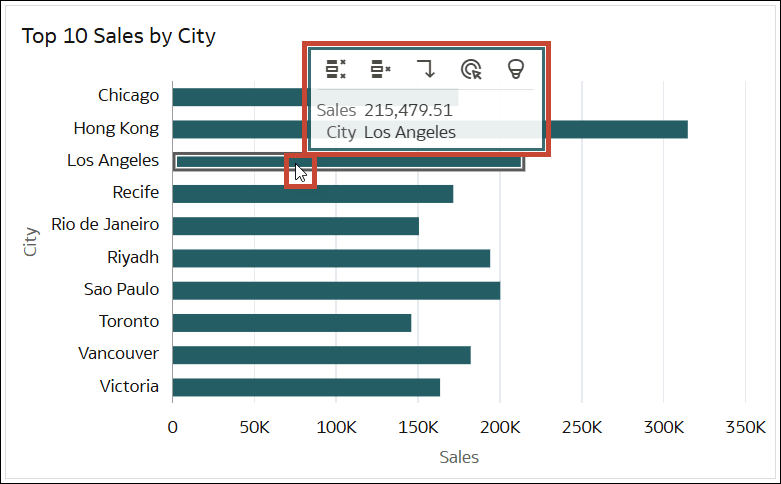
Description of the illustration interactive-tooltip-dialog-exp.png
Tip: Right-click data points to access the full menu of options, such as Sort By and Zoom.