Add Content to Dashboard Pages
You can add dashboard objects (any of the objects from the Dashboard objects pane) to dashboard pages. You can also add objects that you have saved in the catalog.
For example, you can add content to the newly created Sales Performance dashboard to track your team's progress. To do so, you can add a Brand Revenue analysis from the catalog.
- Open the dashboard for editing.
- Navigate to the page to which you want to add content.
- In the Dashboard Builder, select the objects to analyze in the Dashboard Objects pane or the Catalog pane and drag and drop them to the Page Layout area.
- Use Column to add a column to align content on a dashboard. You can create as many columns on a dashboard page as you need. You can place columns horizontally or vertically.
- Use Section to add sections within columns to hold the content for the page, such as action links and analyses. You can include as many sections as you need for a column.
- Use Link or Image to add links to content to your dashboard. Drag Link or image to the dashboard design, then click Properties to configure it.
Use the Destination options to specify the URL to a workbook, dashboard, or analysis.
To add an image or graphic for the link, use the Image options to select, upload, and position images. Use the Description field to provide alternative text (known as Alt Text) to be used by screen readers to make the image accessible.
- Use Publisher Report to add one or more reports to make them available to other users. You can use a report to add configured analyses to a dashboard page. You can add a report as embedded content for display on the dashboard page or as a link to open the report in Oracle Analytics Publisher. If you modify in Oracle Analytics Publisher a report you added to a dashboard page and save your changes, then you must refresh the dashboard page to see those modifications.
- Use Visualizations to embed visualizations and canvases in dashboards to
share them with analysts. Drag the project onto the canvas, then choose
which canvas or insight to display.
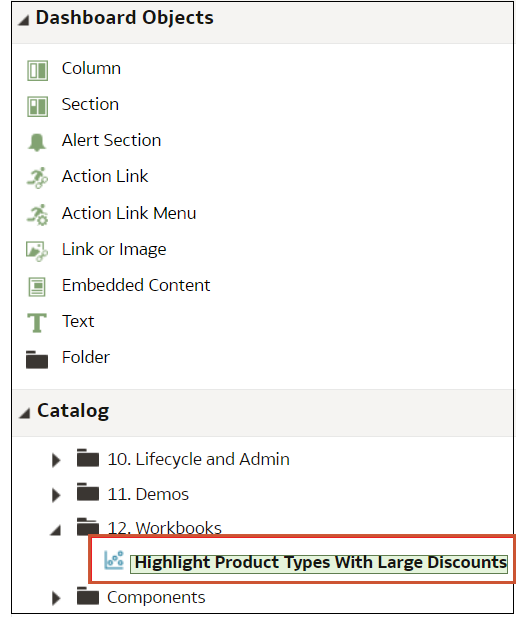
Description of the illustration dv_in_catalog.png
- Set the properties of each object, as appropriate by clicking Properties.
- Click Save.