Add an Image to the Workbook Header in Present
When you design a presentation flow, you can add an image from a file , URL, or Shared Images to the workbook header and specify how you want the image to display.
For more information on images, see Use Images in Workbooks.
If you want to display a logo inline with your workbook name in the header bar, see Add a Logo to the Workbook Header in Present.
- On your home page, hover over a workbook, click Actions, and select Open.
- Click Present.
- In the Present page, click the Workbook tab.
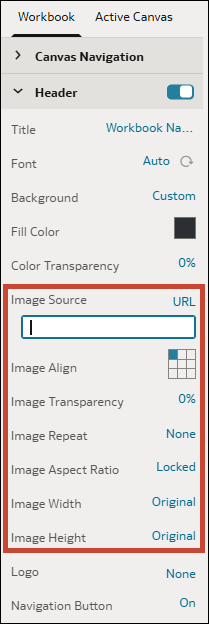
- In the Header section, click the Background field and then select Custom.
- In the Image Source row, click None, then select an image source.
- File – Click the file upload icon
 then browse for and select the image file.
- URL – Paste the image source's URL into the text field.
- Shared Image – Click the file upload icon and select a shared image.
- File – Click the file upload icon
- In the Header section, specify the image's display properties, for example image width and height.
- Click Save.