Configure the Style and Behavior of Dashboards and Pages
Use dashboard properties to configure style and behavior of dashboards and pages. For example, you might specify whether your team members can export, refresh, or print pages in a dashboard.
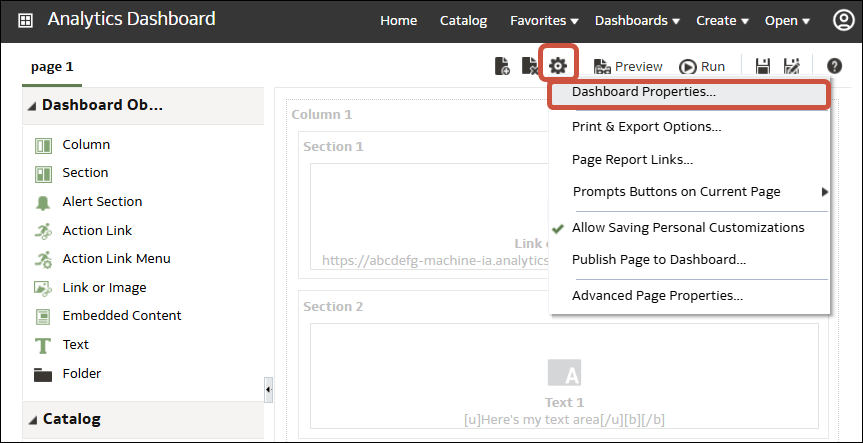
- To specify the dashboard style and behavior, click Tools and select Dashboard Properties.In the Dashboard Properties dialog, make the property changes that you want. For example:
- Use Style to select from a list of available dashboard styles if you want to change dashboard properties, such as logo, branding, page color, and link color. Administrators create styles and make them available to dashboard builders and users. If you want to use a style that isn’t listed, ask your administrator to create a new style for you then start a new browser session and try again.
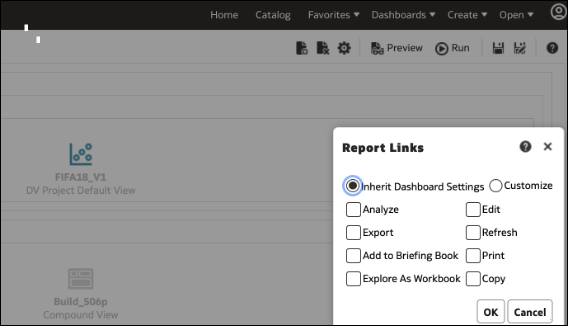
- Use Dashboard Report Links to specify which report links (Analyze, Edit, Refresh, Print, Export, Add to Briefing Book, and Copy) to include with analyses at the dashboard level. You can set these links at the dashboard page level or the analysis level (which overrides dashboard level links).
- Use Contains HTML Markup if you have administrator privileges to format content with valid HTML markup, including JavaScript.
- Use Hidden Page to show the page heading of a hidden page when you navigate to it.
- Use Section Collapsible in Accessibility Mode to enable dashboard users to collapse and expand sections of the dashboard, including when in Accessibility Mode.
- To specify the options displayed when content is embedded in an application, click Tools, then select Page Report Links to display the Report Links dialog. Select Inherit Dashboard Settings to embed dashboards with the same options as displayed in Oracle Analytics Cloud, or click Customize to change the options.
For example, you might click Customize, then click Explore As Workbook to display a link at the bottom of an embedded analysis that enables the dashboard user to explore the report as a visualization.
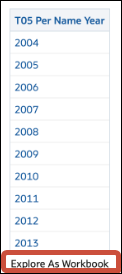
Description of the illustration description-report-links-embedded.png