Control When Map Layers Display at Different Zoom Levels
Use the Zoom Level property for map visualizations to specify the zoom levels at which each layer displays to make maps easier to explore.
For example, if you have a map visualization containing Country, State, and City layers, you might want to show countries when the map is zoomed out, states as consumers zoom in, and cities as they zoom in even further. This prevents all layers from displaying at the same time, which can be difficult to see and interpret. It also helps consumers move naturally from a summary view to a more detailed view.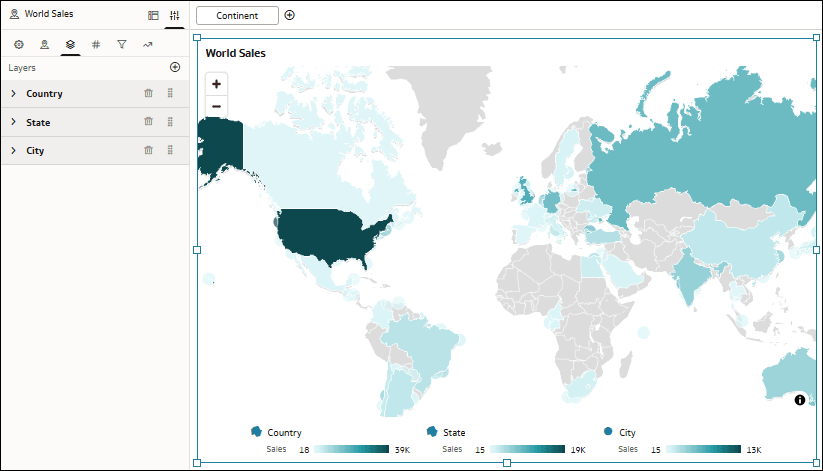
Description of the illustration maps_zoom_level_example.png
By default, map layers use the Auto option for the Zoom Level. When you select Custom, you can define the minimum and maximum zoom range for each layer. For example, you can set the Country layer to display when the zoom range is 0 to 3, the State layer to display when consumers zoom in to between 3 and 5, and the City layer to display between 5 and 10.
The Custom option also provides a Current value that indicates the current zoom level of the map. You can use this value as a guide when deciding the zoom range for the layer.
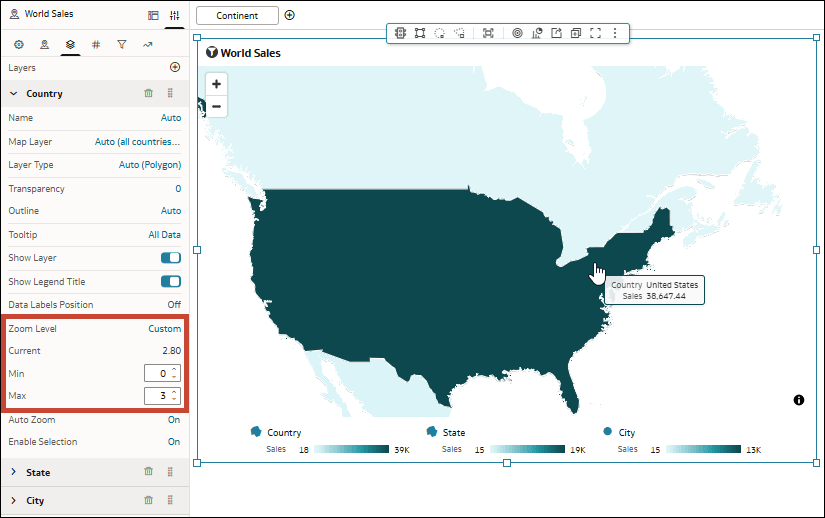
Description of the illustration maps_zoom_level_example_country_layer.png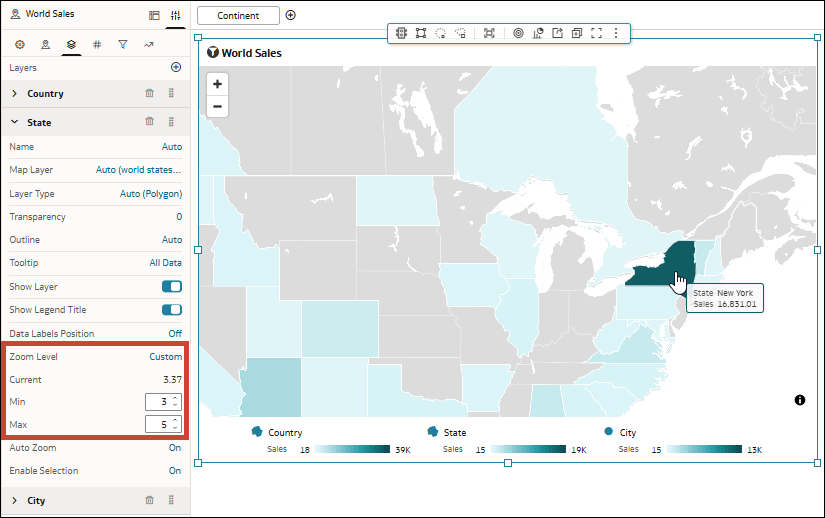
Description of the illustration maps_zoom_level_example_state_layer.png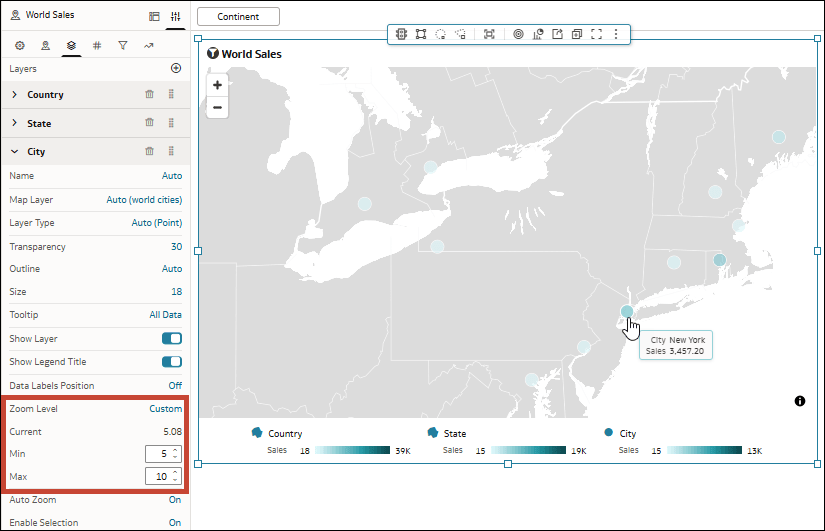
Description of the illustration maps_zoom_level_example_city_layer.png
- On your home page, hover over a workbook, click Actions, and select Open.
- Click the map visualization to select it.
- Click Properties, then click Layers
 .
. - Expand the map layer that you want to configure.
- In the Zoom Level row, click Auto, then select Custom.
- In Min, enter the lowest zoom level at which you want the layer to display.
- In Max, enter the highest zoom level at which you want the layer to display.
- Repeat these steps for each map layer whose visibility you want to control.
- Click Save.