Create a Filter Group in a Dashboard Filter (Preview)
Use these steps to create a filter group as a filter control in a dashboard filter.
For more information about using dashboard filters, see Use Dashboard Filters in a Workbook.
For information on how to create expression filters, see Create an Expression Filter.
If you include an expression filter in a filter group that's used as a filter control in a dashboard filter, consumers can only see the expression filter in the group. They can't modify, enable, or disable the expression filter.
- Click Add Filters
 .
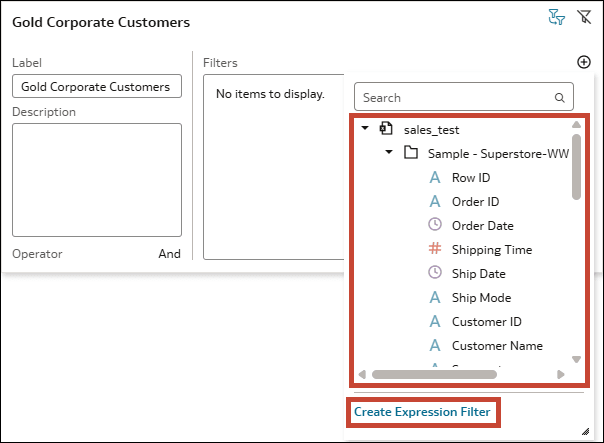
. - Choose which type of filter you want to add.
- List, top bottom N, range, date range, or relative time filter: Click a data element to add it to the group, then configure it in the Filter Dialog.
- Expression filter: Click Create Expression Filter to add an expression to the group, then define and apply it in the Expression Filter dialog.