Create Groups and Calculated Items
Use a group or calculated item to add new "members" to a column.
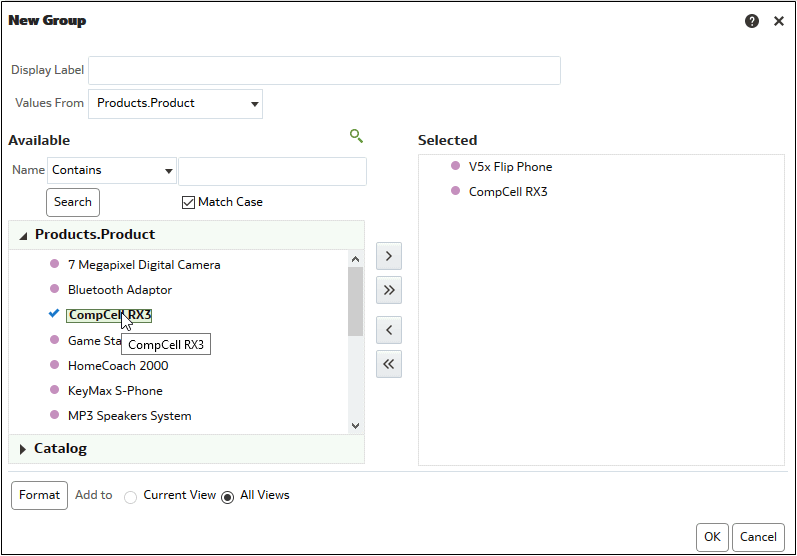
For example, you can review how much revenue was generated for mobile devices and compare that number to other product types. You can create a group called Mobile Devices for the Product column that includes Flip Phones and Smart Phones.
- Move the appropriate column values from the Available area to the Selected area.
- For a calculated item with Custom Formula selected as the function, select mathematical operators to include in the function using the toolbar. You can also use these functions: Absolute, Ceiling, Floor, Round, and Sqrt.
A formula creates a dynamic custom grouping within the view. All measures referenced in a formula must be from the same column and must be present in the results. Formulas can be inserted into, or combined with, other calculated items.
Instead of specifying a named item for columns, you can specify $n or $-n. Here, n is an integer that indicates the item's row position. If you specify $n, then the measure is taken from the nth row. If you specify $-n, then the measure is taken from the nth to the last row.