Edit Gauge Views
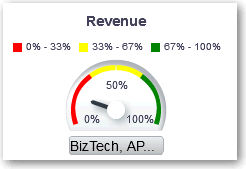
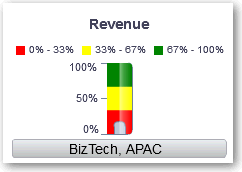
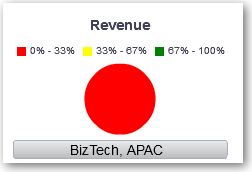
You use gauge views to compare performance to goals. Due to their compact size, gauges can be more effective than graphs for showing a single data value. Results show as a dial, bar, or bulb gauge. For example, you can use a gauge to see whether Actual Revenue falls within predefined limits for a brand.
The following figures show the same value in a dial, bar, and bulb gauge:
- Open the analysis for editing.
- Click the Results tab.
- Click View Properties on the gauge you want to edit.
- Edit the gauge properties.
- Use Gauges Per Row to specify the number of rows of gauges to display and placement of labels.
- Use Listen to Master-Details Events to link the gauge to a master view. In the Event Channels field, enter the case-sensitive name of the channel the gauge view listens to for master-detail events. Separate multiple channels with commas.
- Use Gauge Style to change the width and height of gauges.
- Use Marker Type to specify the marker type for a dial gauge, such as Needle, Line or Fill.
- Use Gauge Limits to specify the scale of gauge limits. For example, you can specify a custom gauge limit. You can specify a static value such as 1000 as either an actual value or as a percentage. The value that you specify depends on the range of data points. You must ensure that the maximum gauge limit is more than the maximum data point. Do so to ensure that all data points are displayed on the gauge.
- Use Titles and Labels to schange the appearance of titles and footers and the format of labels.
- Click OK.
- Click Edit View.
- Click the Gauge Type button on the toolbar and select the type of gauge.
- Optional: Define thresholds for the gauge.
- Click Done.