Format Numeric Values of Visualizations
You can configure the number format for measures in a visualization using a wide range of ready-to-use formats.
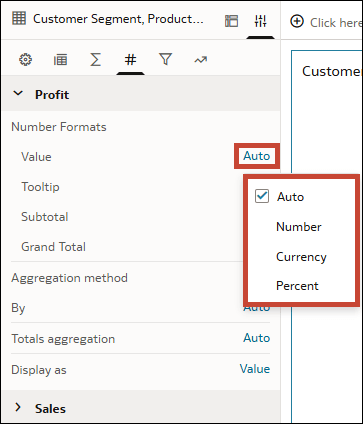
In the Values tab of the Properties pane, you can configure the Number Formats property separately for values, tooltips, subtotals, grand totals, and legends, if used in the visualization. This lets you use different formats for different elements for the same measure.
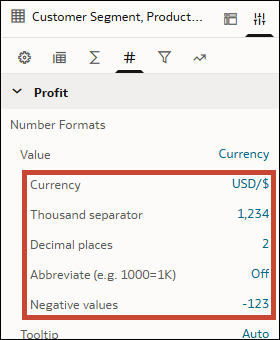
The available formats are Number, Currency, and Percent. Depending on the format you select, you can then configure additional options such as decimal places and negative values.
- On your home page, hover over a workbook, click Actions, and select Open.
- Select a visualization.
- Click Properties, then click Values
 .
. - Expand the measure that you want to format values for.
- Under Number Formats, in the row for the output you want to configure, click Auto and select the number format.
- Configure the additional number format options.
- Click Save.