Hide Inaccessible Data Actions on a Canvas from Consumers
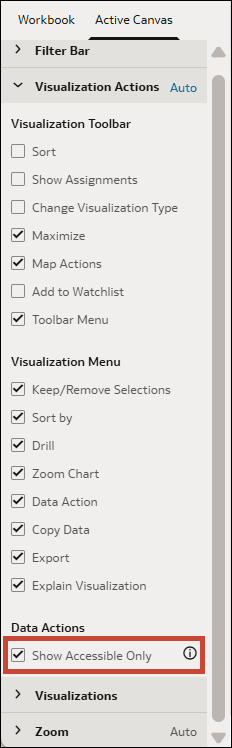
When you configure the presentation settings for a workbook, each canvas inherits the Show Accessible Only property you set in the Workbook tab. You can use the Active Canvas tab to override this property that's set for the workbook and show or hide inaccessible data actions for individual canvases.
Accessible data actions are those that a consumer can invoke successfully. If a consumer tries to invoke a data action that takes them to a workbook, analysis, dashboard, or report that they don't have access to, they'll get an error and the data action won't work.
To improve your consumers' experience, you can use the Show Accessible Only presentation setting under Data Actions to limit the data actions a consumer sees to only those that are accessible to them.
If you turn on this setting, it might impact performance when consumers open the workbook.
To set the Show Accessible Only property for the entire workbook, see Hide Inaccessible Data Actions in a Workbook from Consumers.
- On your home page, hover over a workbook, click Actions, and select Open.
- From the Preview menu
 , select Configure Presentation.
 - If the workbook contains more than one canvas, then go to the bottom of the page and click the canvas that you want to update filters for.
- In the presentation settings panel, click the Active Canvas tab.
- In the Visualization Actions section, go to Data Actions.
- Select Show Accessible Only to show only the accessible data actions to consumers and hide any that are inaccessible.
- Click Save.