Set Your Preferred Time Zone (Preview)
Select your preferred time zone setting in your profile to apply to any workbooks you open.
The option to select your preferred time zone is available for preview. Ask your administrator to turn on the Enable Time Zone option in System Settings. See Preview Options.
In workbooks, Oracle Analytics displays the values for columns with a DateTime data type based on the time zone configured in your profile settings. This includes any filters and parameters, as well as reference lines used in visualizations.
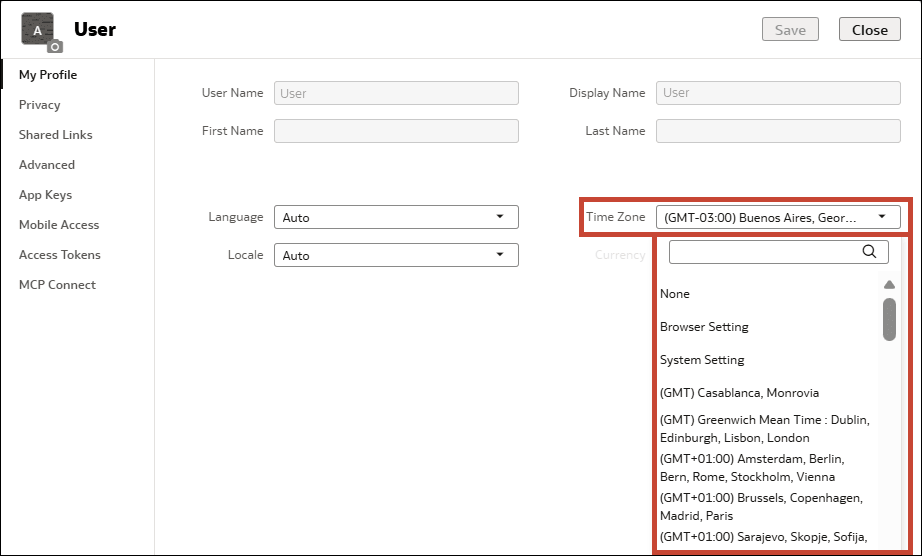
- None - Doesn't perform any time zone conversion. This is the default setting.
- Browser Setting - Uses the default browser time zone.
- System Setting - If your administrator has defined an optional default user time zone, this option lets you use that as your time zone.
- Specific time zone - Uses the time zone that you select.
For example, suppose you have a workbook with the same table visualization showing the product sales for each order date. The workbook is using a dataset and the Order Date column has a data type of DateTime. You might decide to keep the default Time Zone setting of None in your Profile. This means that no time zone conversion is applied to the Order Date values. The data simply displays the way it's stored in the dataset.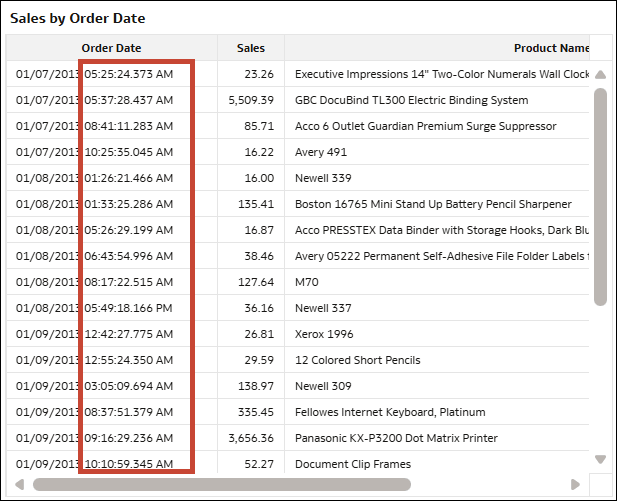
Description of the illustration time_zones_example_gmt2.png
If you decide to change your setting and select (GMT-03:00) Buenos Aires, Georgetown as your preferred time zone in your Profile, Oracle Analytics converts the Order Date values to Buenos Aires time. In this example, the source data was in the Cairo time zone (GMT+02:00) so now the values are five hours earlier with the conversion.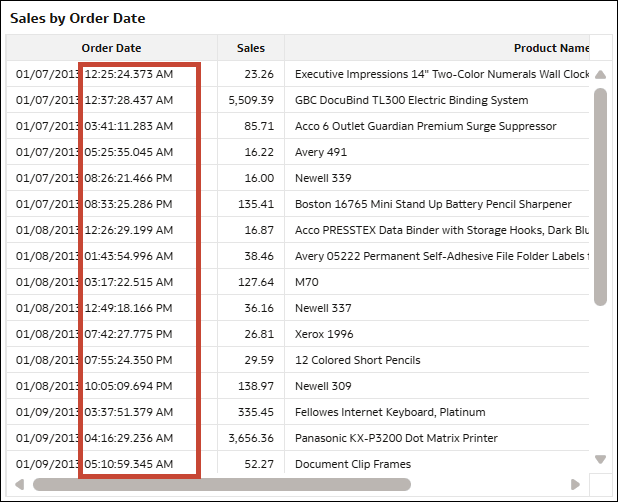
Description of the illustration time_zones_example_gmt-3.png
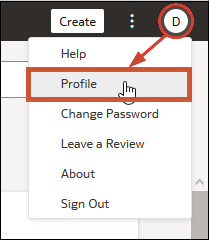
- On your home page, click your user name or name badge with your initials.
- In My Profile, click Timezone and select an option.