About Using Images in a Workbook

In Oracle Analytics, you can add and configure images as backgrounds for canvases or individual visualizations so that they enhance your workbook without obscuring the information displayed.
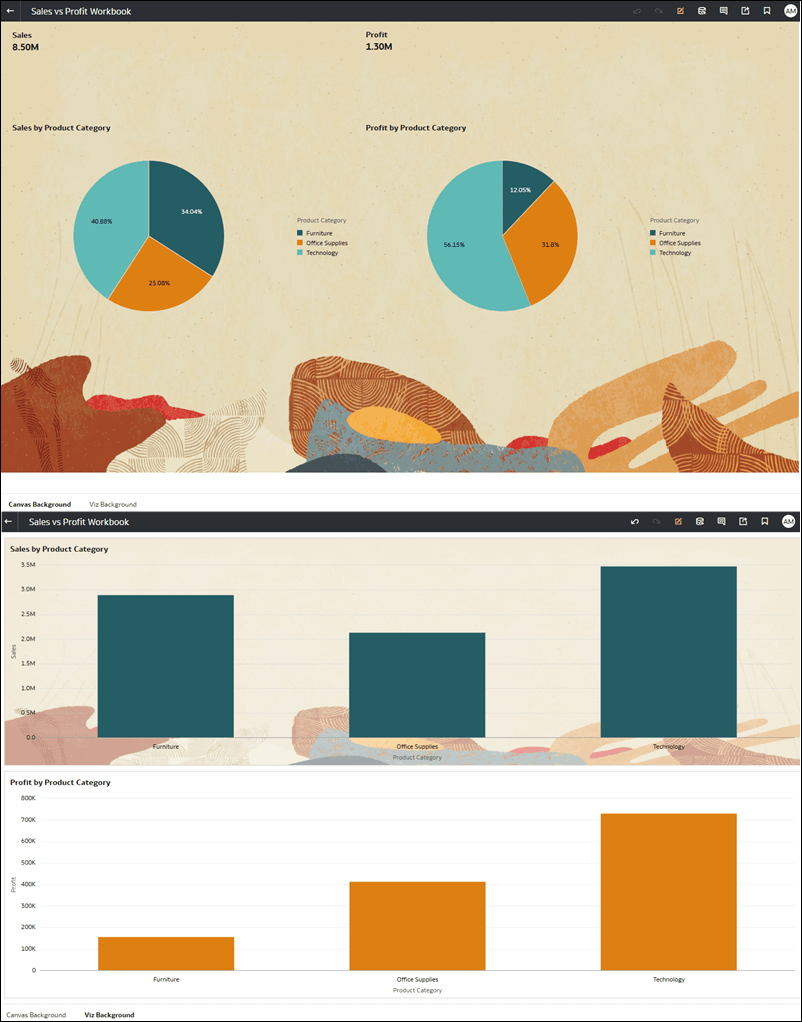

Description of images_canvas_and_viz_backgrounds.png follows
Description of the illustration images_canvas_and_viz_backgrounds.png

You can also add an image to the workbook header, see Add an Image to the Workbook Header in Present.

To add an image, you have the following options:
  • Upload an image file.
  • Specify the image source URL.
  • Select a shared image.

Images uploaded using an image file or an image source URL are saved with the specific working using the image. To share an image with all workbooks, you must upload the image file or source as a shared image. For more information, see Create a Shared Image.

You can configure the following properties for an image:
  • Compress on Upload Quality - Specify the image compression to optimize quality and file size. The lower the compression, the more pixelated the image appears. The default is 80%.
  • Image Alignment - Specify the placement of the image on the canvas or visualization.
  • Image Transparency - Increase the transparency of the image when you want to see other objects on top of it more clearly.
  • Image Aspect Ratio - Specify whether you want the image width and height to be proportional or not.
    • Locked - Makes the image width and height proportional. When you change one, the other changes automatically.
    • Unlocked - Lets you specify the image width and height separately.
  • Image Width and Image Height - Specify the width and height of the image.
    • Original - Uses the original image size.
    • Custom - Lets you specify the width and height
    • Auto Fit - Automatically fits the image to the canvas or visualization.