
 Configure an Email Server in Oracle Business Intelligence Publisher
 Before You Begin
This 3-minute tutorial shows you how to configure an email server in Oracle Business Intelligence Publisher.
Background
Configure a secure connection to an email server to enable Oracle Business Intelligence Publisher to deliver reports by email.
You must provide the server name, host details, and the security protocol of the email server. Enter the values for the port and the credentials only if these values are required for your email server connection.
What Do You Need?
- Access to Oracle Business Intelligence Publisher in Oracle Analytics Cloud
- Access as the BI Service Administrator
- Server name and host details of the email server that supports Transport Layer Security (TLS)
 Configure an Email Server
In this section, using BI Service Administrator credentials, you configure an email server for delivering the reports.
- Sign in to Oracle Analytics Cloud using BI Service Administrator credentials.
- On the Home page, click Page Menu
 , select Open Classic Home, click Administration, and click Manage BI Publisher.
 - In the BI Publisher Administration page, click Email under the Delivery section.
- In the Email tab, click Add Server.
- Enter the values for the Server Name and Host fields. For example:
- Server Name:
Customer Mail - Host:
customer-mail.xyz.com
- Server Name:
- From Secure Connection list, select TLS.
- Click Test Connection, check the connection confirmation message, and then click Apply.
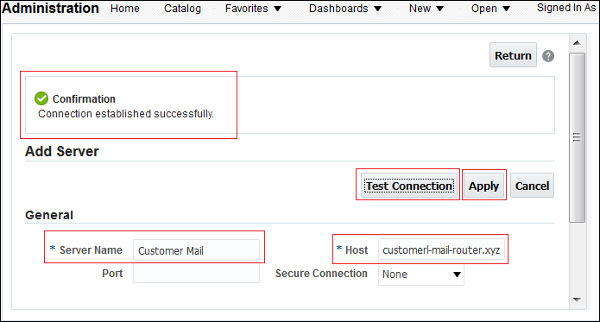
Description of the illustration add_email_server.png
 Want to Learn More?