Oracle by Example brandingUsing the Property Inspector in Oracle Visual Builder Cloud Service

section 0Before You Begin

This is the second tutorial in the Add components to your pages module. It takes approximately 15 minutes to complete.

Background

Oracle Visual Builder Cloud Service is a visual development tool for creating web and mobile applications by simply dragging and dropping UI components onto a page. You don't need any programming experience to develop an application.

In this tutorial, you'll learn how to use the Property Inspector to add and update components.

The images in this tutorial sequence show the standalone version of Oracle Visual Builder Cloud Service. If you are using the Oracle Integration Cloud version, you will see an additional menu at the top of each page that lets you switch between Visual Builder and Integration Cloud.

Top menu
Description of the illustration vbcs_oic_menu.png

What Do You Need?

  • Access to Oracle Visual Builder Cloud Service
  • A supported browser (see Known Issues for Oracle Visual Builder Cloud Service for more information)

section 1Edit the Properties of the Name Field

  1. In the HR Application, open the page menu and select the Create Employee page.
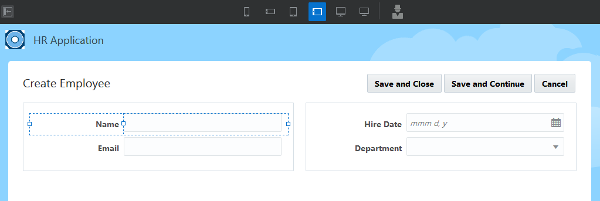
  2. Select the Name field.
    Create Employee page
    Description of the illustration vbcsap_t1_s2.png
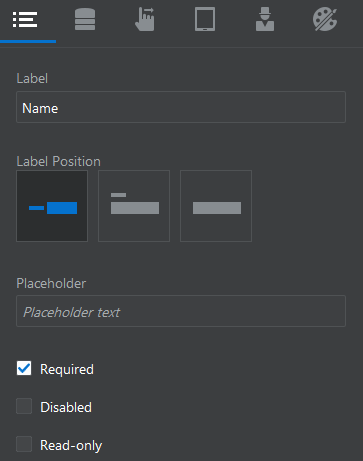
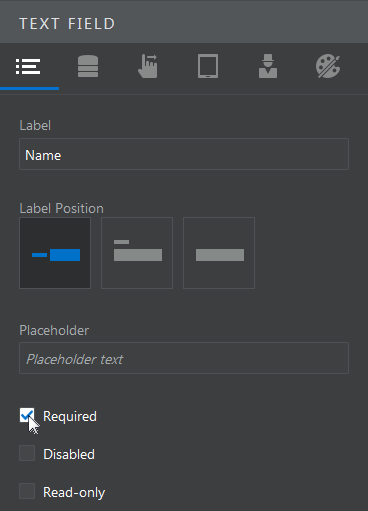
  3. For a text field, the Property Inspector provides six tabs: Properties, Data, Actions, Responsive, Roles, and Style. Some components have fewer tabs. In the Properties pane, select the Required check box.
    Text Field Property Inspector
    Description of the illustration vbcsap_t1_s3.png
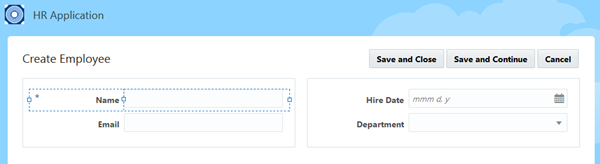
    After you select the Required check box, an asterisk appears before the Name field.
    Create Employee page
    Description of the illustration vbcsap_t1_s3_result.png

section 2Update the Other Fields

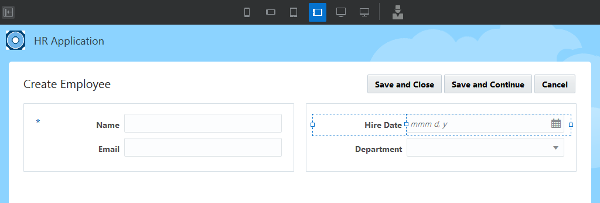
  1. Select the Hire Date field.
    Create Employee page
    Description of the illustration vbcsap_t2_s1.png
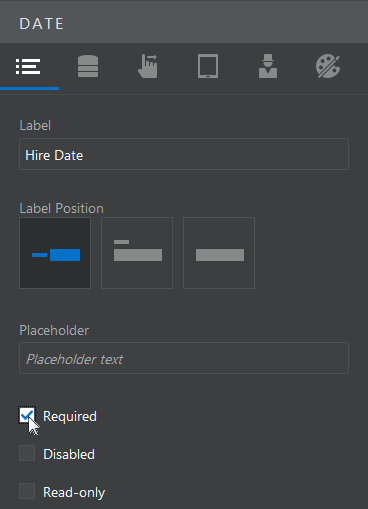
  2. In the Properties tab of the Hire Date properties pane, select the Required check box.
    Date Property Inspector
    Description of the illustration vbcsap_t2_s2.png
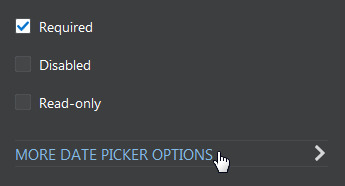
  3. Click More Date Picker Options.
    Date Picker Options in Date Property Inspector
    Description of the illustration vbcsap_t2_s3.png
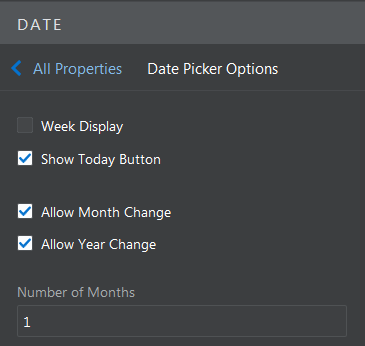
  4. Select the Show Today Button, Allow Month Change, and Allow Year Change check boxes.
    Date Picker Options in Date Property Inspector
    Description of the illustration vbcsap_t2_s4.png
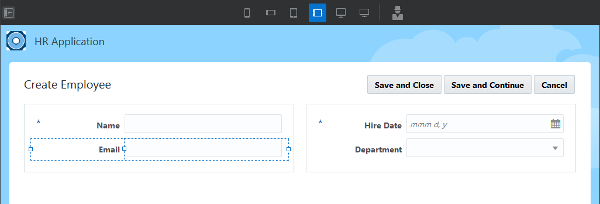
  5. Select the Email field.
    Create Employee page
    Description of the illustration vbcsap_t2_s5.png
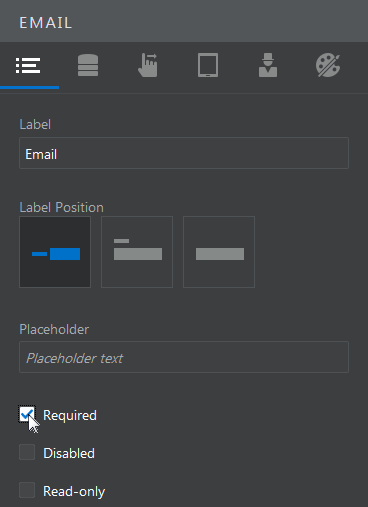
  6. In the Properties pane, select the Required check box.
    Email Property Inspector
    Description of the illustration vbcsap_t2_s6.png
    After you select the Required check box, an asterisk appears before the Email field. In this example, you will not update the Department field.

section 3Update Page Properties

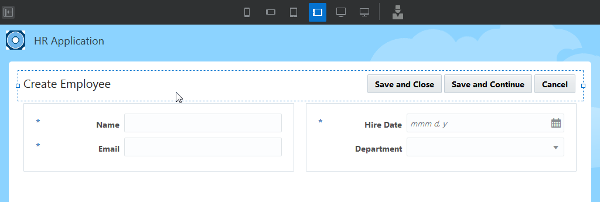
  1. Click the Create Employee header.
    Create Employee page
    Description of the illustration vbcsap_t3_s1.png
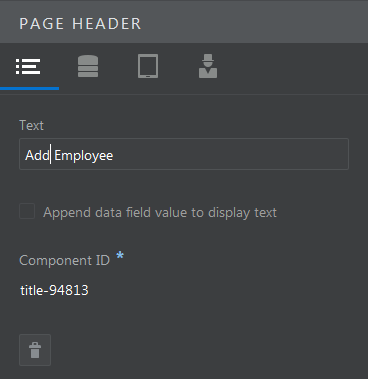
  2. In Page Header Properties, change the Text value to Add Employee.
    Page Header Property Inspector
    Description of the illustration vbcsap_t3_s2.png
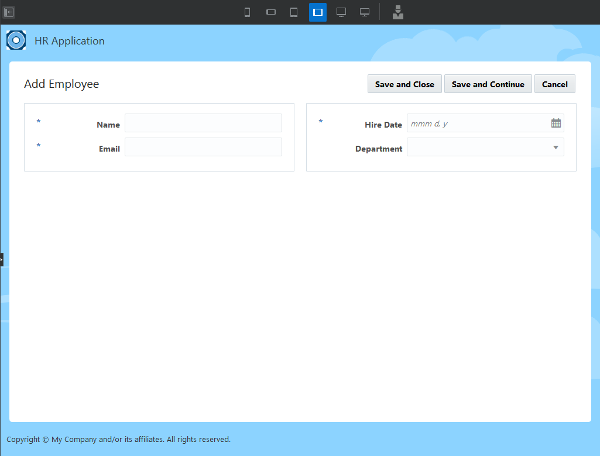
    When you update the Text value of the Page Header, you edit the title of the page. The page name in the page menu and other places will remain Create Employee. The Create Employee page should look like this.
    Create Employee page
    Description of the illustration vbcsap_t3_s2_result.png
  3. Open the page menu and click Edit Employee.
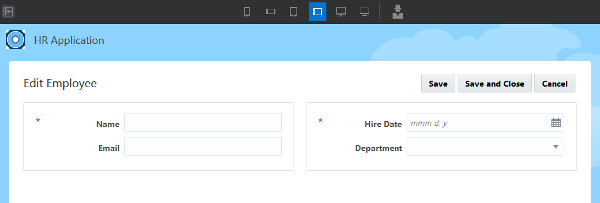
  4. Edit the properties of the Name and Hire Date fields of the Edit Employee page the same way you edited them for the Create Employee page (steps 2-7).
    Edit Employee page
    Description of the illustration vbcsap_t3_s4.png
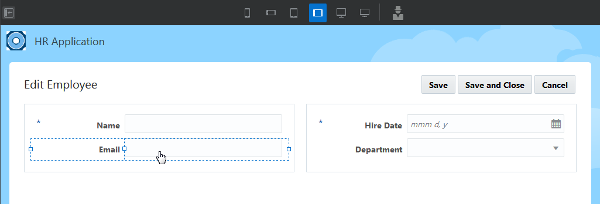
  5. Select the Email field.
    Edit Employee page
    Description of the illustration vbcsap_t3_s5.png
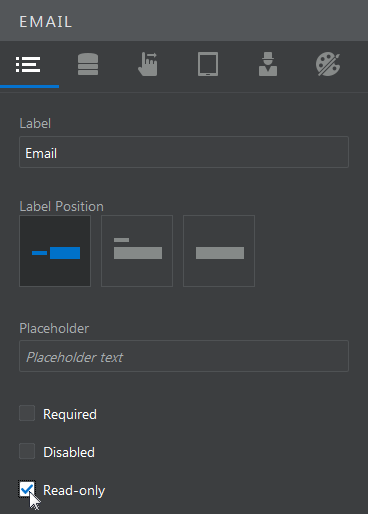
  6. In the Email Properties pane, select the Read-only check box. Typically, an email address once assigned to an employee is not changed.
    Email Property Inspector
    Description of the illustration vbcsap_t3_s6.png
  7. Open the page menu and select the Edit Department page.
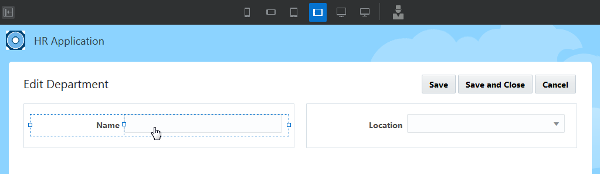
  8. Select the Name field.
    Edit Department page
    Description of the illustration vbcsap_t3_s8.png
  9. In the Text Field Properties pane, select the Required check box.
    Text Field Property Inspector
    Description of the illustration vbcsap_t3_s9.png

section 4View the Pages

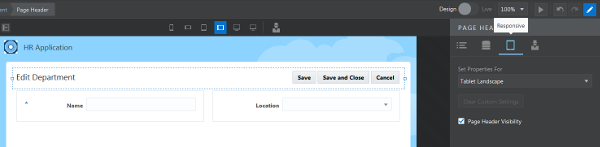
  1. Click the page header, then click the Responsive tab.
    Responsive tab
    Description of the illustration vbcsap_t4_s1.png
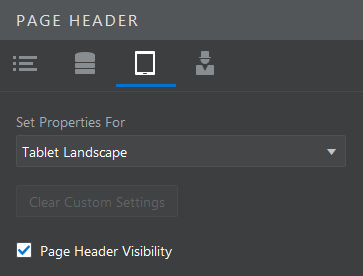
  2. For a page header, the only responsive property you can set for the device canvas areas is whether the component is visible or not. Click the two fields on the page and verify that visibility is the only available component for them, too.
    Responsive tab for Text Field
    Description of the illustration vbcsap_t4_s2.png
  3. Open the page menu and select the Employees page.
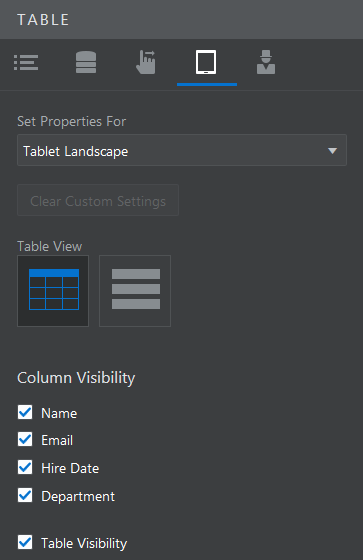
  4. Click in the table and view the Responsive properties for the Table component. You can change the table from a standard view to a row view. You can change the visibility of each column and of the table as a whole.
    Responsive tab for Table
    Description of the illustration vbcsap_t4_s4.png
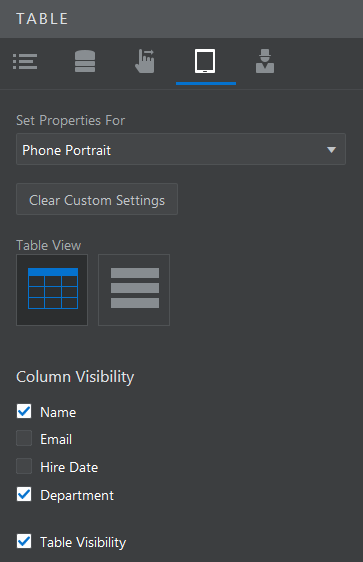
  5. Select Phone Portrait from the Set Properties For drop-down list and notice that most columns are not visible in the canvas area. Deselect the Email and Hire Date options so that only the Name and Department columns are displayed.
    Responsive tab for Phone Portrait
    Description of the illustration vbcsap_t4_s5.png

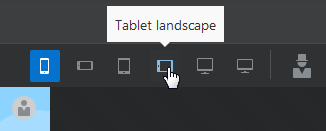
  6. Click Tablet landscape to return to the canvas view you were using. All the columns are visible again.
    Tablet Landscape tab
    Description of the illustration vbcsap_t4_s6.png