Add the ReAct Agentic AI Pattern
AI agents can use different thinking patterns for reasoning. Before you can create an AI agent, you need to create the thinking pattern the AI agent will use. For OpenAI, Anthropic, or Azure as the LLM, use the ReAct pattern. For OCI Generative AI, use the ReAct for OCI GenAI pattern.
- In the left navigation pane, select AI Agents
 .
. - In Create pattern, configure required fields for your pattern:
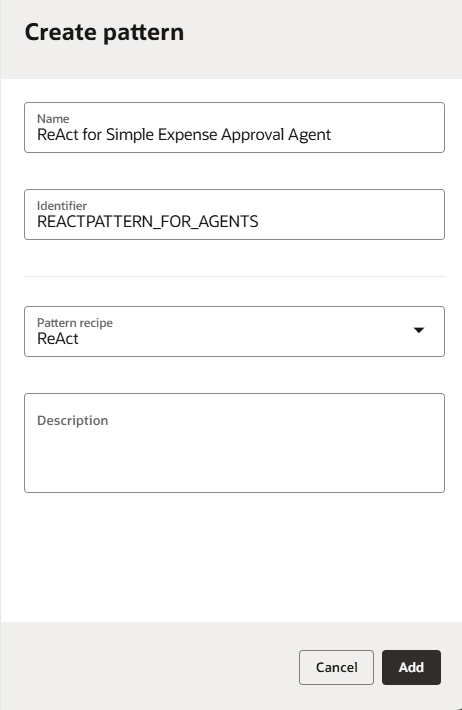
- Name: Name for the agentic AI pattern. Specify a descriptive name so that you can identify the type of pattern you have created.
- Identifier: Uniquely identifies the pattern in the project. By default, the identifier is automatically populated from the pattern name.
- Version: Automatically assigned. Versions follow the format xx.yy.zzzz, where xx is the major version and yy.zzzz is the minor version.
- Pattern recipe: Select ReAct.
- Configure the Pattern and LLM.
You see the following fields:
- Max iterations: Limits the number of reasoning and action steps the AI agent can take before providing a final answer or exiting. This field prevents infinite loops.
- Guidelines: Instructions for the LLM as how the AI agent is to reason and think. There are default guidelines provided for you.
- Under LLM Connections, click
 to configure the LLM connection.A new LLM connection is created and is displayed.
 - Configure connection information for your LLM.
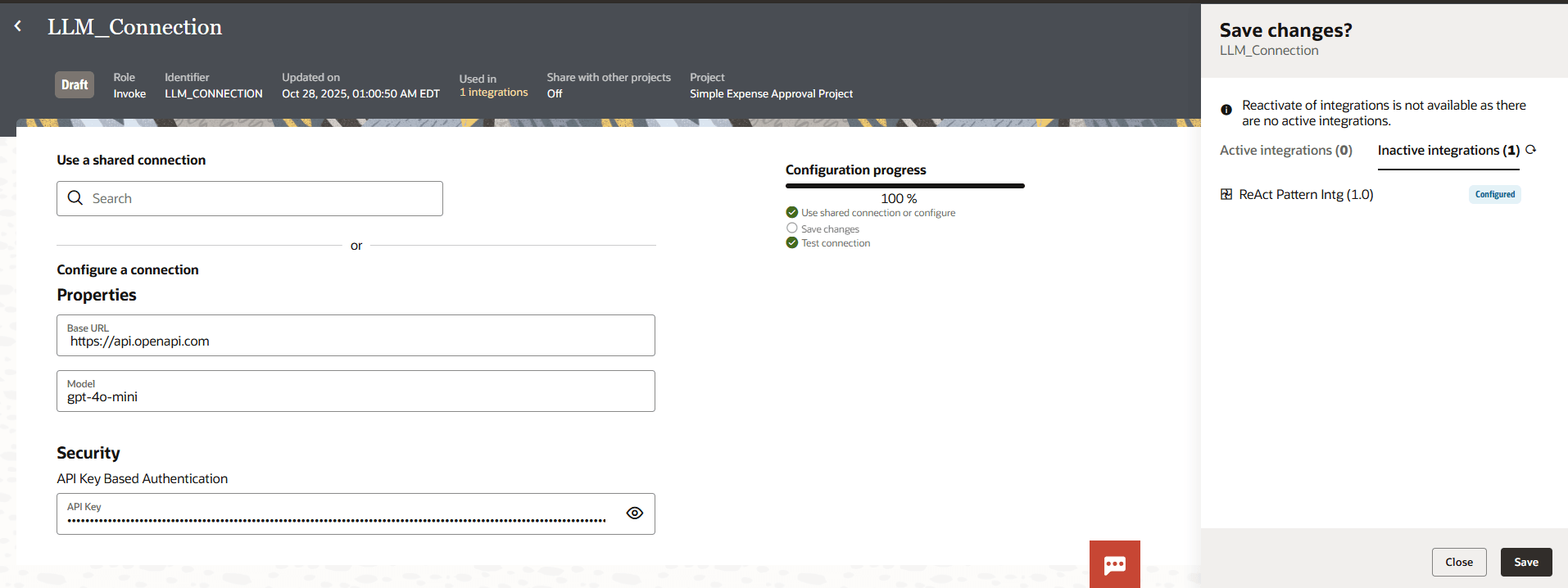
- Base URL: URL to connect to your LLM. For example:
https://api.openai.com. - Model: Model to use for your AI agent. For example:
gpt-4o-mini - API Key Based Authentication: Specify your API key to connect to the LLM.
- Base URL: URL to connect to your LLM. For example:
- Click Back
 to return to the Pattern details page.
 - Click Back to return to the AI Agents page.