Configure Start and End Events
The start and end events of a workflow define how a workflow starts and ends.
A Start event defines the start of the workflow. It allows you to specify input arguments in JSON that triggers the workflow so that the workflow starts executing its defined activities.
An End event marks the completion of a workflow. It can be configured to return a JSON response when the workflow completes.
Configure the Start Event
- Select the Start event in your workflow.
- Open the Edit start pane using one of the following options:
- Select the start event and click
 on the side of the canvas.
- Select the start event, click Actions
 and then select Configure.
- Select the start event and click
- Enter the name of the start event in the Name field.
- Provide additional information in the Description field.
-
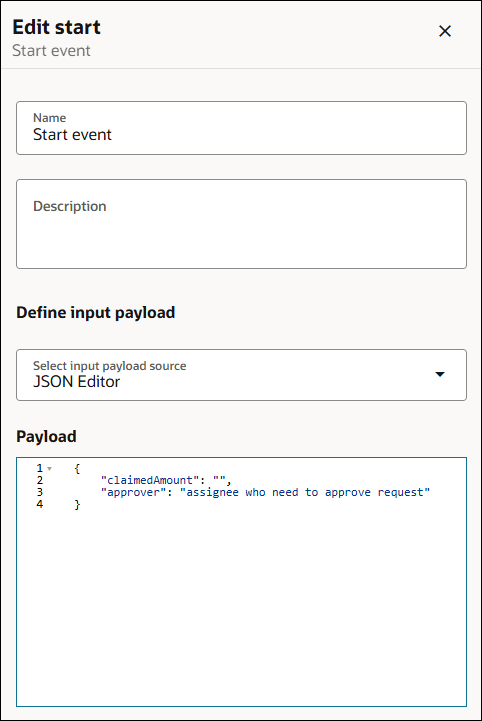
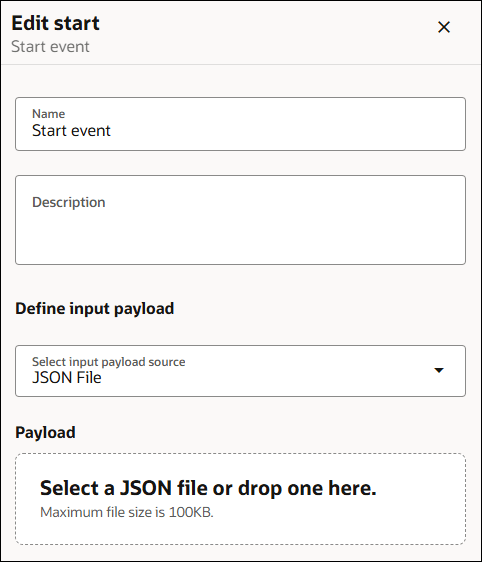
In the Define input payload section, select the input payload source.
-
If you selected JSON Editor, paste the JSON payload inline in the Payload section.
-
If you selected JSON File, drag and drop a JSON file in the Payload section.
-
- Close the Edit start pane to save the changes.
Configure the End Event
- Select the End event in your workflow.
- Open the Edit end pane using one of the following options:
- Select the end event and click on the side of the canvas.
- Select the end event, click Actions and then select Configure.
- Select the end event and click
- Enter the name of the end event in the Name field.
- Provide additional information in the Description field.
- Either drag and drop a JSON file or paste the JSON payload inline in the editor to configure the response payload.
Typically in the context of agentic AI, the response payload is sent as a callback request to an AI agent, based on which the AI agent performs the required action.
Note:
The callback URL is provided by the AI agent at runtime and cannot be configured within the workflow. If the workflow is not invoked through an AI agent, a callback request is not made. - Close the End event pane to save the changes.