Get Familiar with the Home Page
When you sign in to Oracle Integration, the Home page opens. From here, you can view a mini dashboard of relevant monitoring metrics, discover what's new in Oracle Integration, link directly to your most recent projects, start a new project, or browse the Oracle store for recipes and accelerators to install.

Take a moment to get familiar with all you can do on the Home page.
| Home Page Element | Description |
|---|---|
 |
Click to show or hide the navigation pane and menu. The Home page gives you quick access to what you do in
Oracle Integration. However, it's not your only option. At any
time, you can click Show/Hide navigation menu
|
| Instance_name (Shape) |
Displays the name and shape of your instance.
Note: You can't change the shape after you create the instance. However, you can move data to another instance using the export and import features. |
|
|
Click to display links that show the status of connectivity agents, active integrations, and certificate expiration dates. See View Notification Alert Announcements. |
|
|
Click to display the current progress of some asynchronous, design-time operations. This view eliminates the need to constantly refresh the page to check progress concerning this Oracle Integration instance. See View the Progress of Asynchronous, Design-Time Operations. |
|
|
Click to display alerts. For example, an alert is visible if you have activated more than 90% of the allowed limit of 800 integrations. The alert provides a link to the Integration dashboard page for details. See View the Dashboard. |
|
Guide me icon |
|
|
I'll build my own project icon |
Click to open the Start a new project panel to create a new project, import an existing project, or download a project or project deployment from the GitHub repository. |
|
Browse solutions icon |
Click to go to the Integration store to browse through and install recipes and accelerators that you can use to jump-start your project and integration development. |
 Announcements icon
 Notifications icon
 Alerts icon
Get Stats at a Glance
The monitoring section on the Home page provides a snapshot of key metrics for your integrations, including error rates, total number of activated integrations, email usage, unavailable agents, and file server usage. For quick access to more details, click an individual card to access the Integration dashboard page.

See View the Dashboard.
Explore Recipes and Accelerators
Oracle Integration offers a rich set of prebuilt use cases called recipes, and also run-ready business and technical integrations called accelerators.
Recipes and accelerators give you a head start in creating your integrations and provide end-to-end connections for critical business problems. Click the filters at the top of the page to show all solutions, accelerators, recipes, third-party adapters, and Oracle Marketplace listings.
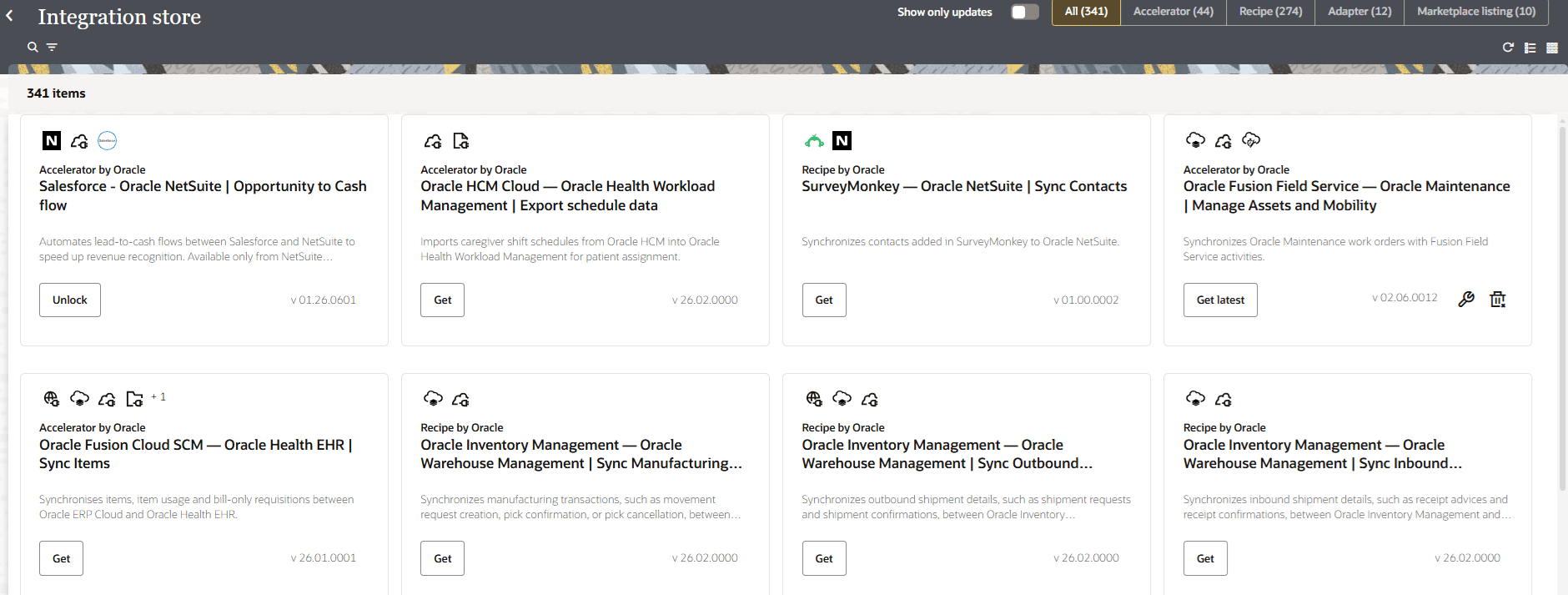
You can install a recipe or accelerator, configure its connections, and activate its integrations. See Install a Recipe or Accelerator in Using Recipes and Accelerators in Oracle Integration 3.
Open Recently Worked On Items
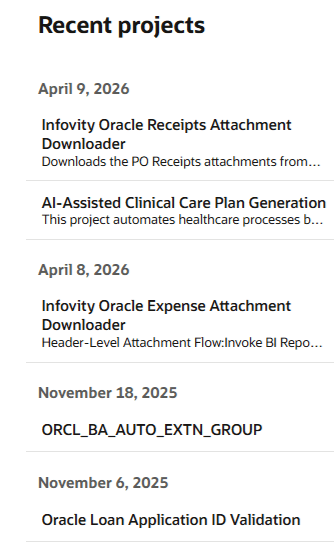
The Recent projects section on the Home page lists the projects that you worked on recently.
No need to navigate the menus and search for where you left off. Instead, click the project in the Recent projects section to return to your work. It's fast, direct, and personalized for you.