Create and Manage a Project Deployment
You can create and activate a project deployment consisting of integrations, B2B, healthcare, decisions, and robots. When you create the project deployment, you select the versions to include. You can also perform project deployment management tasks on user-developed deployments, such as editing, cloning, and deleting the deployment.
Understand the Integration Versioning Life Cycle in a Project Deployment
When you create a project deployment, you must select the integrations and their versions to include. For example, you can select integration A/version 1 and integration A/version 2. You cannot select two or more minor versions of the same major version. By default, the latest version of the integration is selected.
Life Cycle of a Project Deployment
- Project
- Integration_A
- Version 01.00
- Version 01.01
- Version 02.00
- Integration_B
- Version 01.00
- Version 02.00
- Integration_A
Because the project is all-inclusive and integrations are versioned, this project can be deployed in a number of different configurations.
- Project
- Integration_A
- Version 01.00
- Integration_B
- Version 01.00
- Integration_A
- Project
- Integration_A
- Version 01.01
- Integration_B
- Version 01.00
- Integration_A
- Project
- Integration_A
- Version 02.00
- Integration_B
- Version 01.00
- Integration_A
In this scenario, development of Integration_B/Version 02.00 can continue without disruption, as can delivery of the project (with Integration_B/Version 01.00).
Life Cycle of a Project Deployment that Requires a Rollback
- Deactivate project deployment version 3. This action deactivates the new minor version that caused the issue, plus all of the other integrations.
- Re-activate project deployment version 2. This action activates the 12 integrations.
While this approach may be reasonable in a test environment, it is not feasible in a production environment. It is recommended that you instead perform a rollback at the individual impacted integration level to avoid impacting the unaffected integrations.
- Project deployment version 1 includes 10 integrations and is deployed to a production environment.
- Project deployment version 2 includes 12 integrations (the original 10 integrations, plus two new integrations) and is also deployed to a production environment.
- Project deployment version 3 includes 13 integrations (the 12 integrations, plus a new minor version of one of the integrations) and is also deployed to a production environment. However, once deployed, a bug is identified in the new minor version of that integration.
To resolve this issue, it is recommended that you roll back the single faulty integration in the deployment project:
- Identify the faulty integration version introduced in the latest project deployment (for this example, in version 3).
- Deactivate only the faulty minor version of the integration in version 3.
- Activate the prior stable version of the same integration in version 2.
- Fix and validate the faulty integration with testing in the development and test environments.
- Create and activate a new project deployment (for this example,
version 4) that includes the fixed version of the integration.
This approach minimizes overall impact while preserving availability.
Create a Deployment
- Click the project name or click
 .
. - Select the integrations to include in the deployment.
- Scroll through the list of integrations included in the project and
select the ones to include in the deployment.
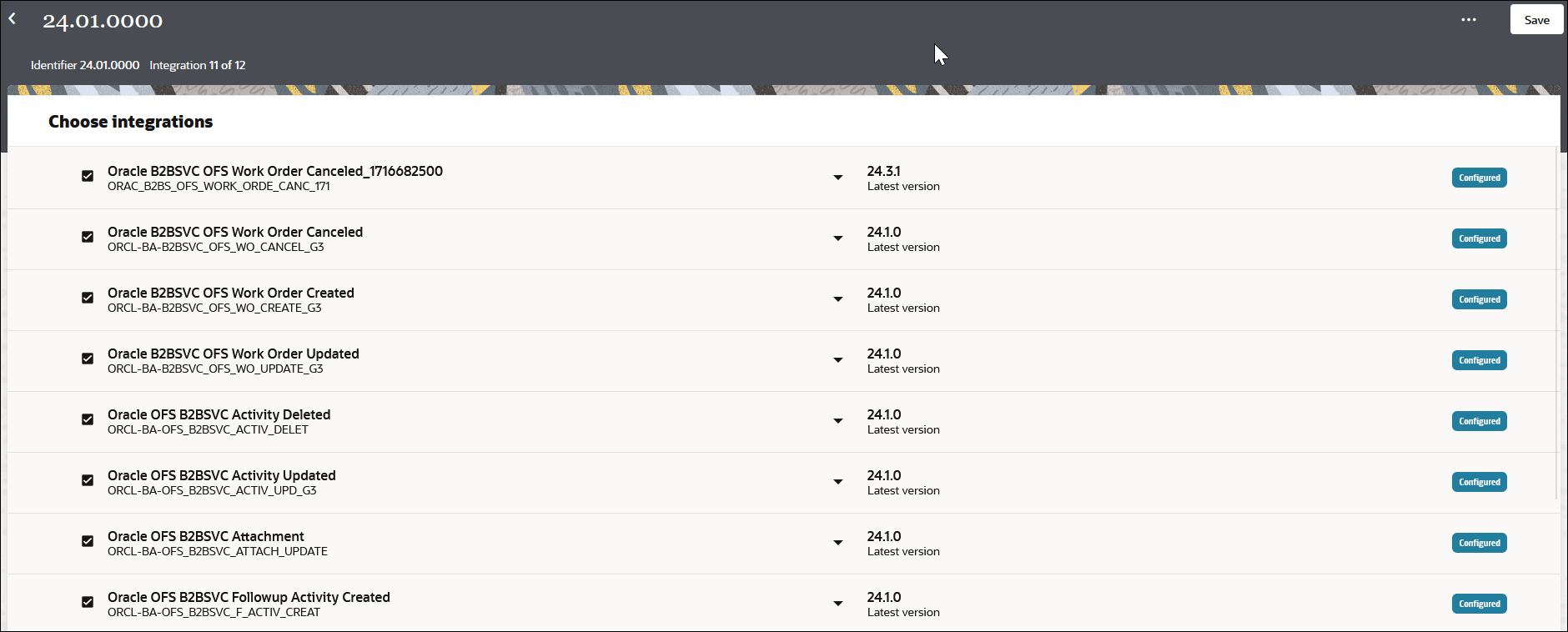
The available versions of each integration are displayed in the second column. By default, the most recently-created versions are selected when you create a deployment.
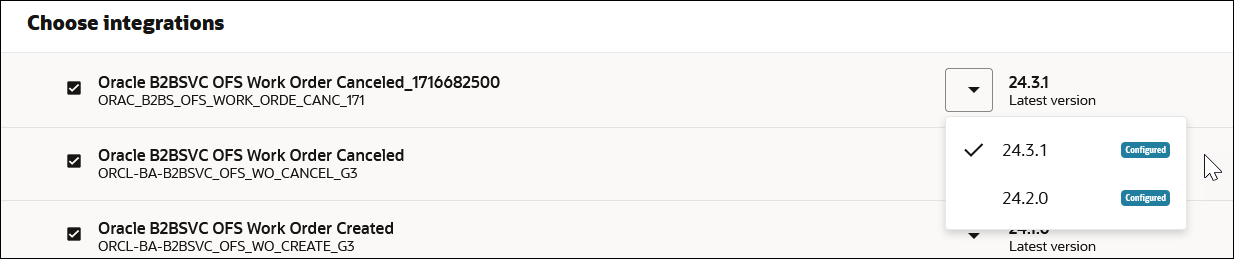
- Select the version to include for each integration in the deployment.
For this example, select one of the two available versions.
- Scroll through the list of integrations included in the project and
select the ones to include in the deployment.
- Select the robots to include in the deployment.
Even if you selected an integration that calls a robot, the robot is not automatically included in the deployment. You must manually select all the robots to include.
- In the left toolbar, select Robot
 .
.
- In the left toolbar, select Robot
- Click Activate
 .
.The Activate project panel is displayed. The name of the deployment is displayed automatically and cannot be changed.
Manage Project Deployments
The Deploy tab provides additional management tasks.
- Click the project name or click .
- Select Actions
 for a user-developed project deployment, and note the following
options. For accelerator projects imported into your instance, only the
View option is visible. See Understand an Imported Oracle Accelerator Project.
for a user-developed project deployment, and note the following
options. For accelerator projects imported into your instance, only the
View option is visible. See Understand an Imported Oracle Accelerator Project.Action Option Description Edit Select to edit a project deployment. View Select to view a project deployment in read-only mode. Clone Select to clone a project deployment. Export Select to export a project deployment. Delete Select to delete a project deployment. Note: If you delete an individual integration, it is removed from all deployments in which it is a included.