Specify Custom Header Security Values to Authenticate with Endpoint Applications

You can use the Multi Key Authentication security policy to specify custom header security values in your REST Adapter invoke connection to use to authenticate with your endpoint application. These values are included in the HTTP request header at runtime.

Instead of only the following setting appearing in the HTTP request.
Authorization: Bearer token
You can specify up to five custom security headers in the HTTP request during connection creation:
client_id: value
client_secret: value
x-request-id: value
x-signature: hash
timestamp: value
Where:
  • client_id: Identifies the consumer.
  • client_secret: Authenticates the consumer.
  • x-request-id: Performs traceability.
  • signature: Ensures request integrity.
  • timestamp: Prevents replay attacks.

The following use case provides an overview of creating and running an integration in which two headers (client_id and client_secret) are specified during connection creation to authenticate with the endpoint application at runtime.
  1. Configure a REST Adapter trigger connection and select Basic Authentication as the security policy and Public gateway as the access type.
  2. Test and save the connection.
  3. Configure a REST Adapter invoke connection and specify the following details:
    1. From the Connection type list, select REST API Base URL.
    2. In the Connection URL field, enter the endpoint application URL with which to authenticate.
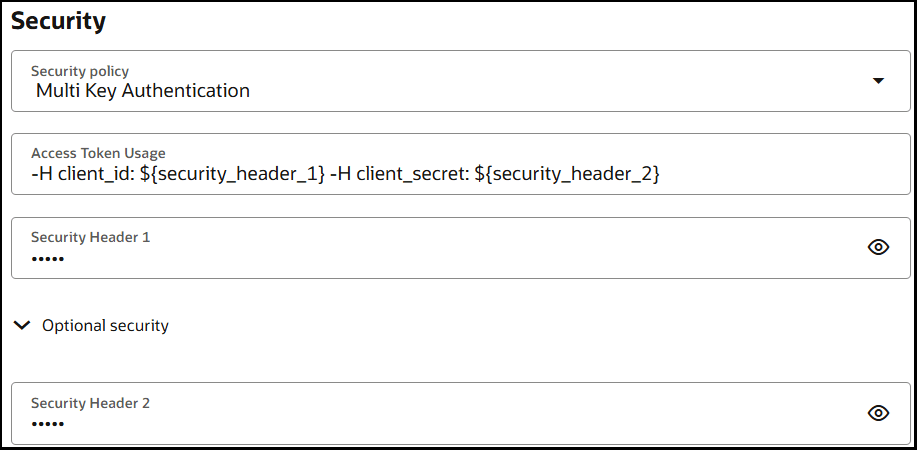
    3. From the Security policy list, select Multi Key Authentication.
    4. Enter the access token usage syntax. For this example, custom security headers are specified for client_id and client_secret.
      -H client_id: ${security_header_1} -H client_secret: ${security_header_2}
    5. In the Security Header 1 field, specify the client ID value.
    6. In the Security Header 2 field (under Optional security), specify the client secret value.
      These values are passed as headers for authentication with the endpoint application at runtime.


      The Security section shows fields for Security policy, Access Token Usage, Security Header 1, and Security Header 2.

    7. Select Public gateway, then test and save the connection.
  4. Create an application integration.
  5. Drag the REST Adapter trigger connection into the canvas, and configure it as follows:
    1. On the Basic Info page, enter a name.
    2. On the Resource Configuration page, specify the following:
      1. Enter the endpoint relative resource URL (for this example, /tmp is entered).
      2. Select GET as the action to perform on the endpoint.
      3. Select Configure this endpoint to receive the response.
    3. On the Response page, specify the media type of the response body (JSON Sample) and provide a JSON response sample.
      { "result1" : "API Call Success" }
    4. Complete and save the configuration.
  6. Drag a REST Adapter invoke connection into the canvas, and configure it as follows:
    1. On the Basic Info page, enter a name.
    2. On the Resource Configuration page, specify the following:
      1. Enter the endpoint relative resource URL (for this example, /test/api/dev/v1/header-auth-test is entered).
      2. Select GET as the action to perform on the endpoint.
      3. Select Configure this endpoint to receive the response.
    3. On the Response page, specify the media type of the response body (JSON Sample) and provide a JSON response sample.
      { "result" : "API Call Success" }
    4. Complete and save the configuration.
  7. Open the mapper for the invoke connection, and map the source element to the target element.
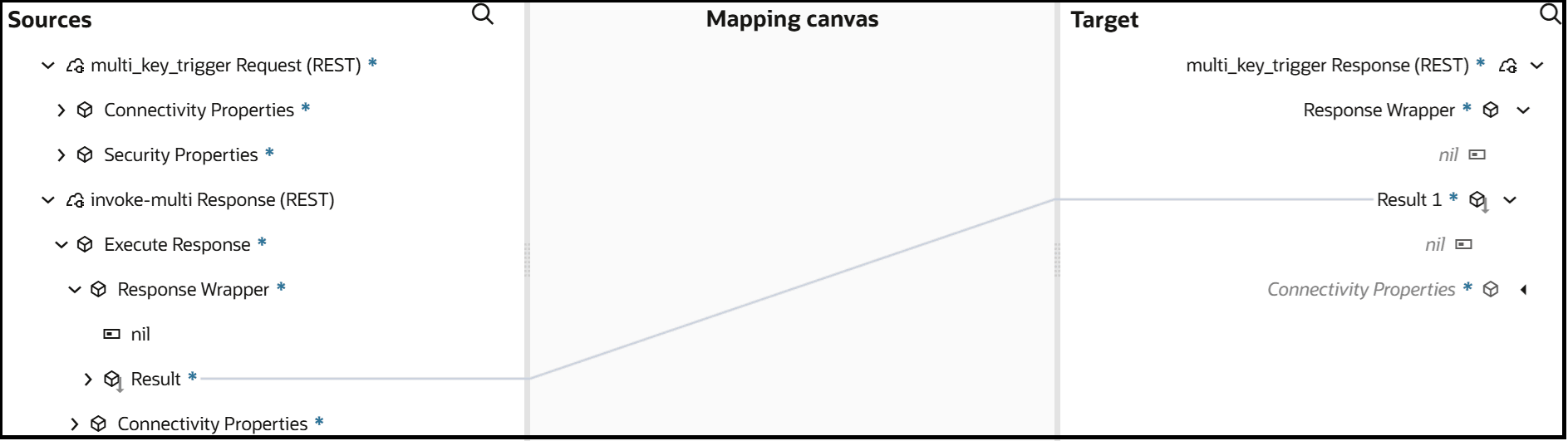
    The Sources, Mapping canvas, and Target sections are shown. The Result source element is mapped to the target Result 1 element.

  8. Validate and save the mapping.
  9. Create a business identifier and activate the integration.
    The completed integration looks as follows.


    The integration shows a trigger connection, map action, invoke connection, and map action.

  10. Select Actions Actions icon, then select Run.
  11. Run the integration.

    The response message indicates that the client ID and client secret sent as security headers to authenticate with the endpoint application were successful.
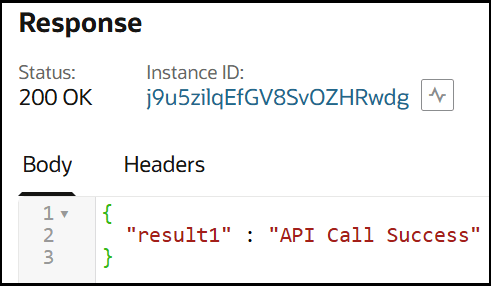

    The Response section shows a status of 200 OK, the instance ID, and the Body and Header sections. The header value is "result1" : "API Call Success".