Monitor Environments and Environment Pools
Monitor environments and environment pools from within a project. Here, you can identify shared environment pools, find environments that require updates to the robot agent, and check whether an environment pool has enough environments to handle its robot instance load.
- In a project, open the Environment pools tab.
- In the navigation pane, select Projects.
- Select the project name.
- Select the Observe tab.
- In the left toolbar, select Robot
 .
. - Select the Environment pools tab.
- Find the information that you need on the page.
The following table provides sample questions and how to find the answers on this page.
Question How to find the answer Which environment pools are associated with the project?
-
Find the list of all environment pools in the table.
Which environments are in an environment pool?
-
In the table, select an environment pool.
A page lists its environments, including their robot agent versions, host names, operating systems, and statuses.
-
To view more details about each environment: Point to an environment, and in the Actions column, select Open Details
 .
.
Which environment pools are shared between projects?
-
Find an environment pool in the table.
-
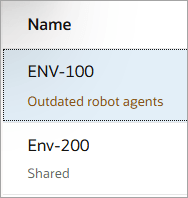
When the environment pool is shared, Shared appears below its name.
-
If you don't see Shared, the environment pool isn't shared.
-
Do any robot agents need to be updated?
-
Find an environment pool in the table.
-
When at least one robot agent in an environment pool needs to be updated to the latest version, Outdated robot agents appears below the environment pool's name.
-
If this text doesn't appear, all robot agents in the pool are up to date.
-
-
Select an environment pool with an outdated robot agent.
-
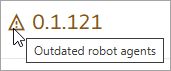
In the Agent Version column, look for a robot agent with a caution symbol in front of it. When you point to the symbol, Outdated robot agents appears in a tooltip.
Do any environment pools have queued robot instances because all environments are actively running robot instances?
-
Review the Utilization column:
-
0% utilization indicates that no robot instances are running or queued for any environments.
-
100% utilization indicates that the environment pool resources are utilized to the fullest to address the workload at the moment.
-
lower than 100% utilization indicates that some environment pool resources are available when processing the workload at the moment.
-
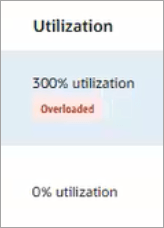
101% utilization or higher indicates that at least one robot instance is in queue at that point in time because all environments are busy running other robot instances.
For example, if an environment pool has only one environment, and the environment is running one robot instance with two robot instances in its queue, its utilization is 300%.
Utilization over 100% might indicate that the environment pool requires additional environments.
-
-
Review the Utilization over time line graph details displayed in the right pane:
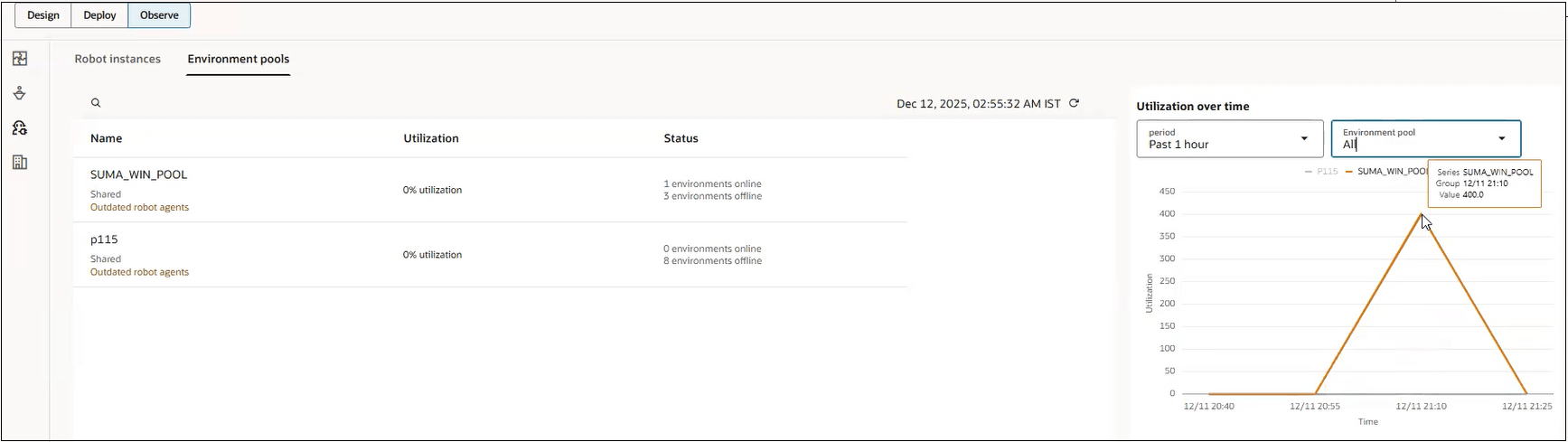
- You can filter the line graph display by selecting one of the following values from the period drop-down list: Past 1 hour, Past 6 hours, Past 12 hours, Past 24 hours.
- You can filter the line graph display for all environment pools or a specific environment pool by selecting the required value from the Environment pool drop-down list.
- A flat line indicates 0% utilization.
- Hover on the line to see the corresponding utilization values at a particular point.
How many robot instances are in the queue for an environment pool?
-
Find an environment pool for which the Utilization column shows a number above 100%, and select the row in the table.
-
On the next page, view the Environment pool status section on the right, and find the Queued robot instances metric.
Are any environments offline in an environment pool?
-
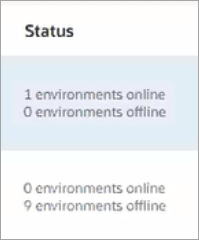
See the Status column, which lists the number of online and offline environments in each environment pool.
Which robots run on an environment pool?
-
Select an environment pool in the table.
-
In the Environment pool status area on the right, select View linked robots.
-