Rotate Wallets for Autonomous AI Database
Wallet rotation lets you invalidate existing client certification keys for a database instance or for all Autonomous AI Database instances that a cloud account owns in a region.
About Wallet Rotation
You have the option to perform one of two types of wallet rotation: immediate or with a grace period.
-
Immediate wallet rotation initiates immediately, without delay.
-
After a grace period wallet rotation occurs with a grace period. During the grace period, old client certificate keys remain valid for 1 to 72 hours based on your earlier selection. After the grace period expires only the new client certification keys are valid.
You may want to rotate wallets for any of the following reasons:
-
If your organization's policies require regular client certification key rotation.
-
When a client certification key or a set of keys is suspected to be compromised.
Rotate Wallets with Immediate Rotation
Immediate wallet rotation lets you invalidate existing client certification keys for an Autonomous AI Database instance or for all Autonomous AI Database instances that a cloud account owns in a region.
There are two options for immediate client certification key rotation:
-
Per-database with Instance wallet selected:
-
For the database whose certification key is rotated, any existing database specific instance wallets will be void. After you rotate a wallet you have to download a new wallet to connect to the database.
-
Regional wallets containing all database certification keys continue to work.
-
All user sessions are terminated for the database whose wallet is rotated. User session termination begins after wallet rotation completes, however this process does not happen immediately.
Note: If you want to terminate all connections immediately after the wallet rotation completes, Oracle recommends that you restart the Autonomous AI Database instance. This provides the highest level of security for your database.
-
-
Regional level with Regional wallet selected:
-
For the region whose certification key is rotated, both regional and database specific instance wallets will be void. After you rotate a wallet you have to download new regional or instance wallets to connect to any database in the region.
-
All user sessions are terminated for the databases in the region whose wallet is rotated. User session termination begins after wallet rotation completes, however this process does not happen immediately.
Note: If you want to terminate all connections immediately after the wallet rotation completes, Oracle recommends that you restart the Autonomous AI Database instances in the region. This provides the highest level of security for your database.
-
To immediately rotate the client certification key for a given database or for all Autonomous AI Database instances that a cloud account owns in a region:
-
Navigate to the Autonomous AI Database details page.
-
Click Database connection.
-
On the Database connection page select the Wallet type:
-
Instance wallet: Wallet rotation for a single database only; this provides a database-specific wallet rotation.
-
Regional wallet: Wallet rotation for all Autonomous AI Databases for a given tenant and region (this option rotates the client certification key for all service instances that a cloud account owns).
-
-
Click Rotate wallet.
-
Enter the name as shown in the dialog to confirm the wallet rotation.
-
In the Rotate Wallet dialog, click Rotate.
The Database Connection page shows: Rotation in Progress.
After the rotation completes, the Wallet last rotated field shows the last rotation date and time.
Oracle recommends you provide a database-specific instance wallet to end users and for application use whenever possible, with Wallet type set to Instance wallet when you use Download wallet. Regional wallets provide the connection strings to all Autonomous AI Databases within a region and should only be used when there is a need to connect to multiple databases across that region with a single wallet file.
You can also use the Autonomous AI Database API to rotate wallets using UpdateAutonomousDatabaseRegionalWallet and UpdateAutonomousDatabaseWallet. See Autonomous AI Database Wallet Reference for more information.
Rotate Wallets with Grace Period
Autonomous AI Database allows you to rotate wallets for an Autonomous AI Database instance or for all instances that a cloud account owns in a region, with a grace period of 1 hour to 72 hours.
Setting a grace period allows you to perform wallet rotation without down time. During the grace period you can inform users to download the new wallet and to update their applications to use the new wallet. During the grace period both the old and new client certification keys are valid. When the grace period expires, Autonomous AI Database invalidates the old client certification keys and only the new client certification keys are valid.
There are two options for client certification key rotation with a grace period:
-
Per-database with Instance wallet selected:
-
For the database whose certification key is rotated, database specific instance wallets that were in use before the wallet rotation be void after the grace period expires.
-
After you perform client certification key rotation with a grace period, you can immediately download a wallet and use the new wallet to connect to the database.
-
Regional wallets containing all database certification keys continue to work.
-
After the grace period expires, existing connections using the old wallet continue to work.
Note: After the grace period completes, if you want to terminate any connections using the old wallet, Oracle recommends that you restart the Autonomous AI Database instance.
-
-
Regional level with Regional wallet selected:
-
For the region whose certification key is rotated, both regional and database specific instance wallets will be void. After the grace period expires you have to download new regional or instance wallets to connect to any database in the region.
-
After the grace period expires, existing connections using the old wallets continue to work.
Note: After the grace period completes, if you want to terminate any connections using the old wallets, Oracle recommends that you restart every Autonomous AI Database instance in the region.
-
To rotate the client certification key with a grace period for a given database or for all for all Autonomous AI Database instances that a cloud account owns in a region:
-
Navigate to the Autonomous AI Database details page.
-
Click Database connection.
-
On the Database connection page select the Wallet type:
-
Instance wallet: Wallet rotation for a single database only; this provides a database-specific wallet rotation.
-
Regional wallet: Wallet rotation for all Autonomous AI Databases for a given tenant and region (this option rotates the client certification key for all service instances in the region that a cloud account owns).
-
-
Click Rotate wallet.
-
Select After a grace period.
-
In the Grace period (in hours) area, enter a value in the text field.
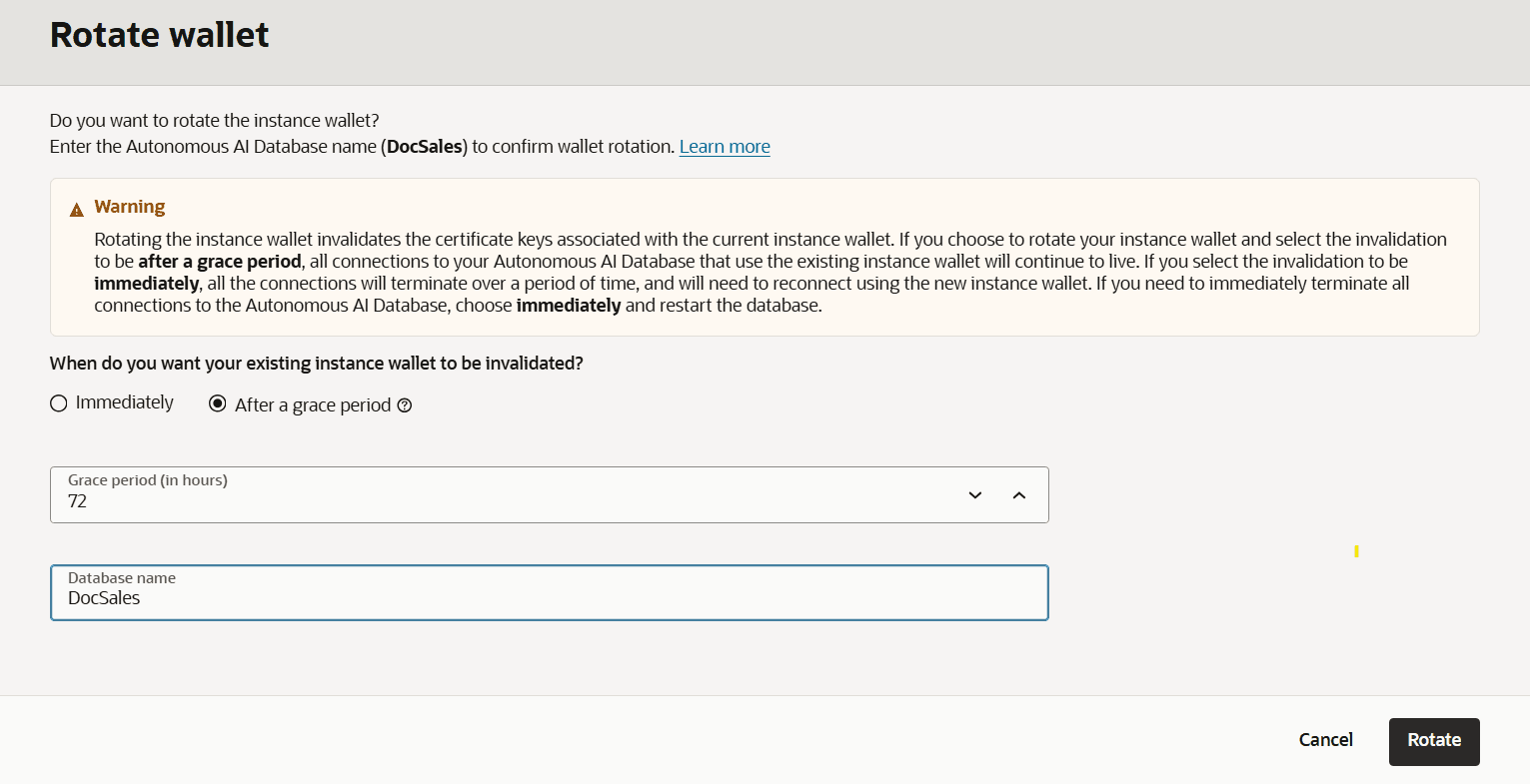
Description of the illustration adbs_wallet_rotation-scheduled.png
-
Enter the Database name as shown in the dialog to confirm the wallet rotation.
-
In the Rotate Wallet dialog, click Rotate.
The Database Connection page shows: Rotation in Progress.
After the rotation completes, the Wallet last rotated field shows the last rotation date and time.
Notes for wallet rotation with a grace period:
-
Always Free Autonomous AI Databases only support immediate wallet rotation (wallet rotation with a grace period is not supported).
-
Oracle recommends you provide a database-specific instance wallet to end users and for application use whenever possible, with Wallet type set to Instance wallet when you use Download wallet. Regional wallets provide the connection strings to all Autonomous AI Database within a region and should only be used when there is a need to connect to multiple databases across that region with a single wallet file.
You can also use the Autonomous AI Database API to rotate wallets using UpdateAutonomousDatabaseRegionalWallet and UpdateAutonomousDatabaseWallet. See Autonomous AI Database Wallet Reference for more information.