Compute Environment Administration
The Compute Environment Management console enables Graph Studio administrators to inspect and manage active compute environments of your Autonomous AI Database instance.
An ADMIN user can be any graph-enabled user with GRAPH_ADMINISTRATOR role or the default ADMIN user in your Autonomous AI Database instance.
-
Select Compute Environment Management from the main navigation menu and go to the Compute Environment Management page.
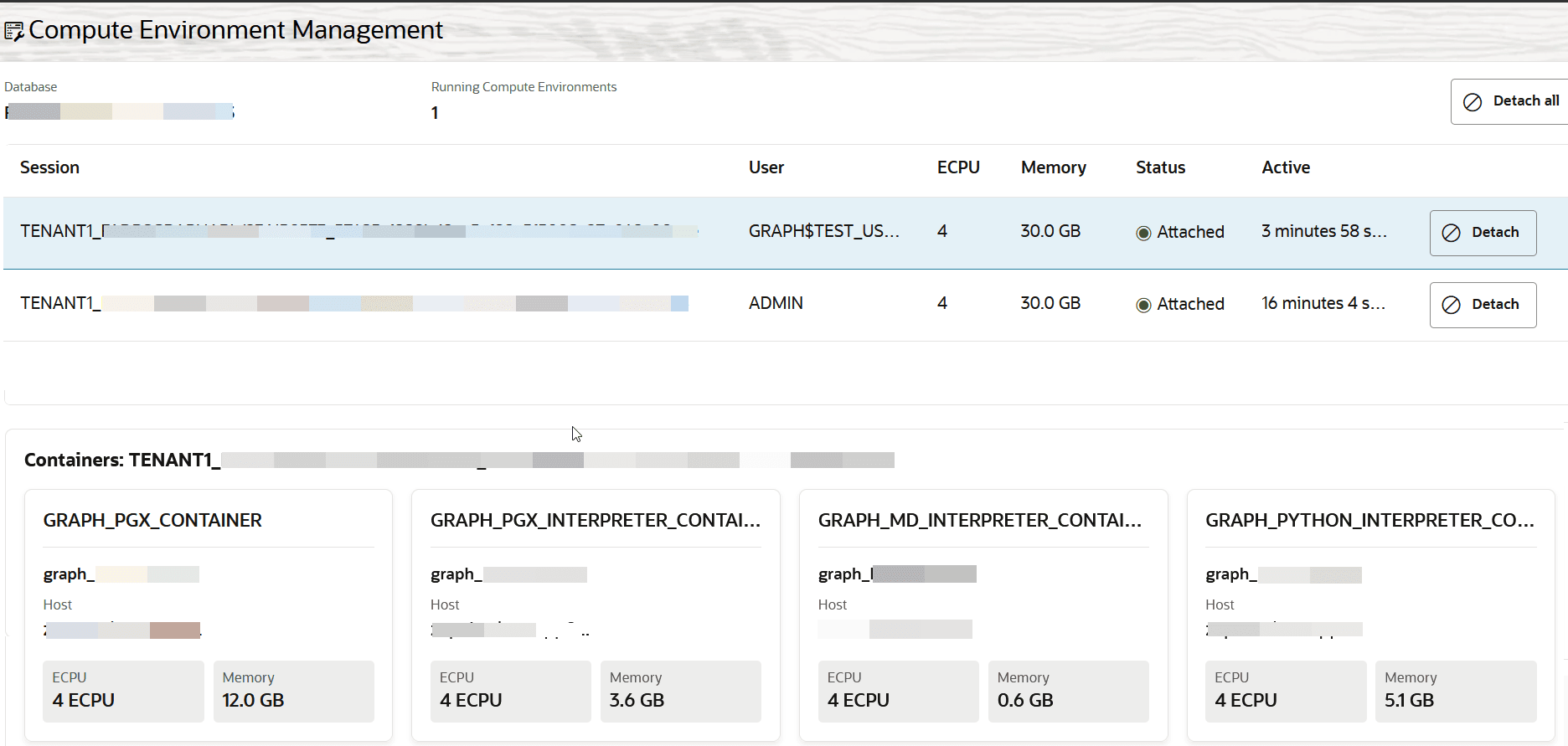
The Compute Environment Management page displays the total number of active compute environments and details for each environment, including session, owner user, resource type, CPU, memory, status, active time, and containers.
-
Choose to perform any one of the following actions on this page.
-
Inspect Active Compute Environments:
For each compute environment, the console displays: Session, Owner, CPU allocation, Memory allocation, Status, Active time, and Containers.
-
Detach a Compute Environment:
You can force-detach an individual active compute environment.
-
Select the compute environment that you want to detach.
-
Click Detach for that environment.
-
Confirm the operation when prompted.
Caution: Detaching a compute environment ends its active session. Any in-memory data in the detached environment is deleted.
-
-
Detach All Compute Environments:
You can force-detach all active compute environments.
-
Click Detach All.
-
Confirm the operation when prompted.
Caution: Detaching all compute environments ends their active sessions and deletes any in-memory data in those environments.
-
-