Create a Property Graph from an Existing Graph
You can edit an existing property graph on the Graphs page in Graph Studio.
The following lists a few scenarios for editing a graph:
-
Add or remove tables from the graph
-
Rename labels for edges or vertices
-
Alter the orientation of the edges
-
Add or remove a vertex or edge property
-
Rename a vertex or an edge property
To edit a graph, perform the following steps:
-
Select Graphs from the main navigation menu to open the Graphs page.
-
Select the graph type from the drop-down shown highlighted in the following figure.
The list of property graphs to which you have access are displayed.
-
Select the graph which you want to edit and click open the actions menu as shown:
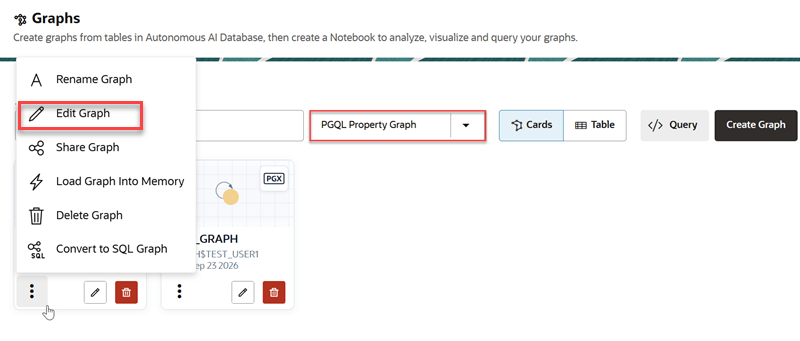
Description of the illustration model_list.png
If you are using Table view, then the actions menu is located at the end of the table row.
-
Click Edit Graph in the context menu.
The graph opens in Modeler:
You can choose to perform one of the following actions:
-
Save the edited graph as a new Property Graph: See Create a Property Graph by Editing a Graph in Modeler for more information.
-
Update the existing property graph: See Edit a Property Graph in Modeler for more information.
-