Search a Graph Visualization
You can search using keywords or run a conditional search using the Search graph box directly in a graph visualization in Graph Studio.
-
Keyword Search: To perform a keyword search, start typing the keyword in the search input box. The search results are shown highlighted in the graph visualization.
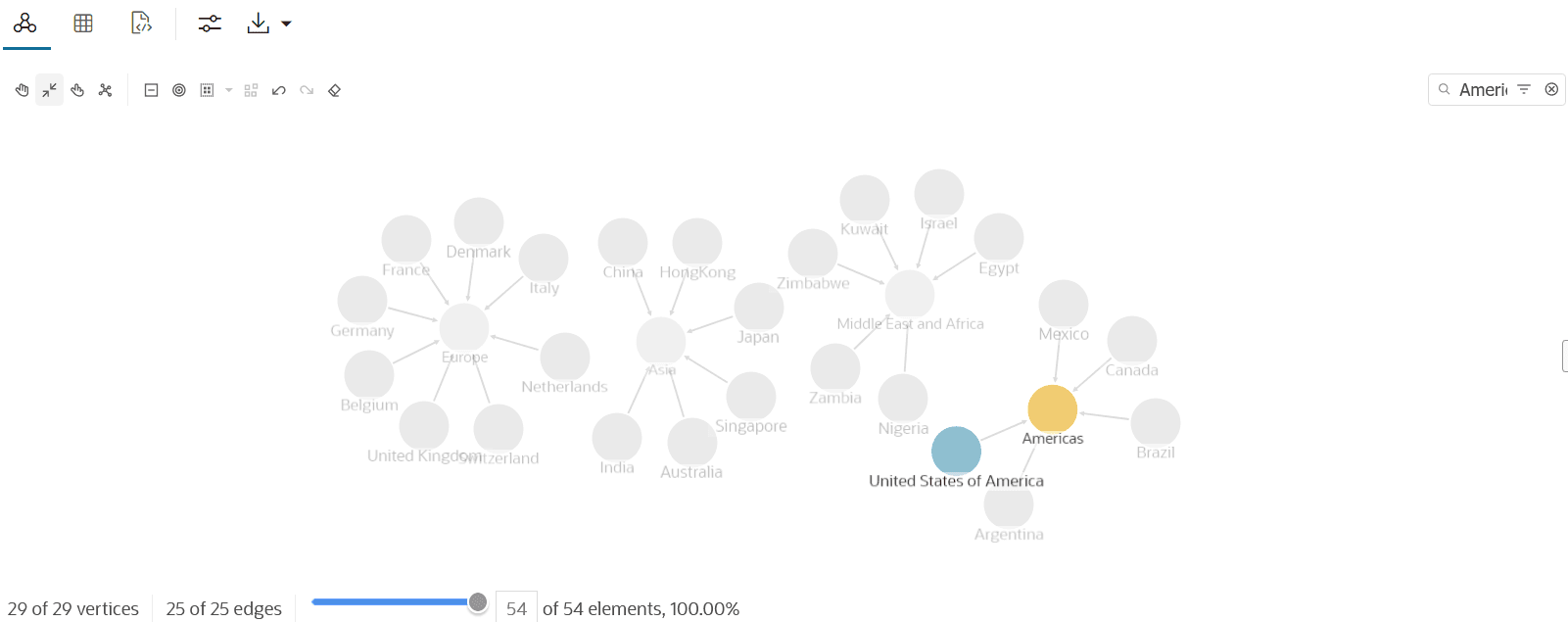
-
Conditional Search: Using this advanced search feature, you can build conditional filters on graph entities (vertices and edges), combining entity types, labels, properties, and operators.
The following two options are supported for a conditional search:
- Search by Label:
-
Click
 in the search input box.
 -
Click Search by Label.
-
Click the input text box and select (or deselect) the Vertices and Edges as required.
The filter is applied immediately to the graph visualization. The following example filters only
COUNTRIESvertices.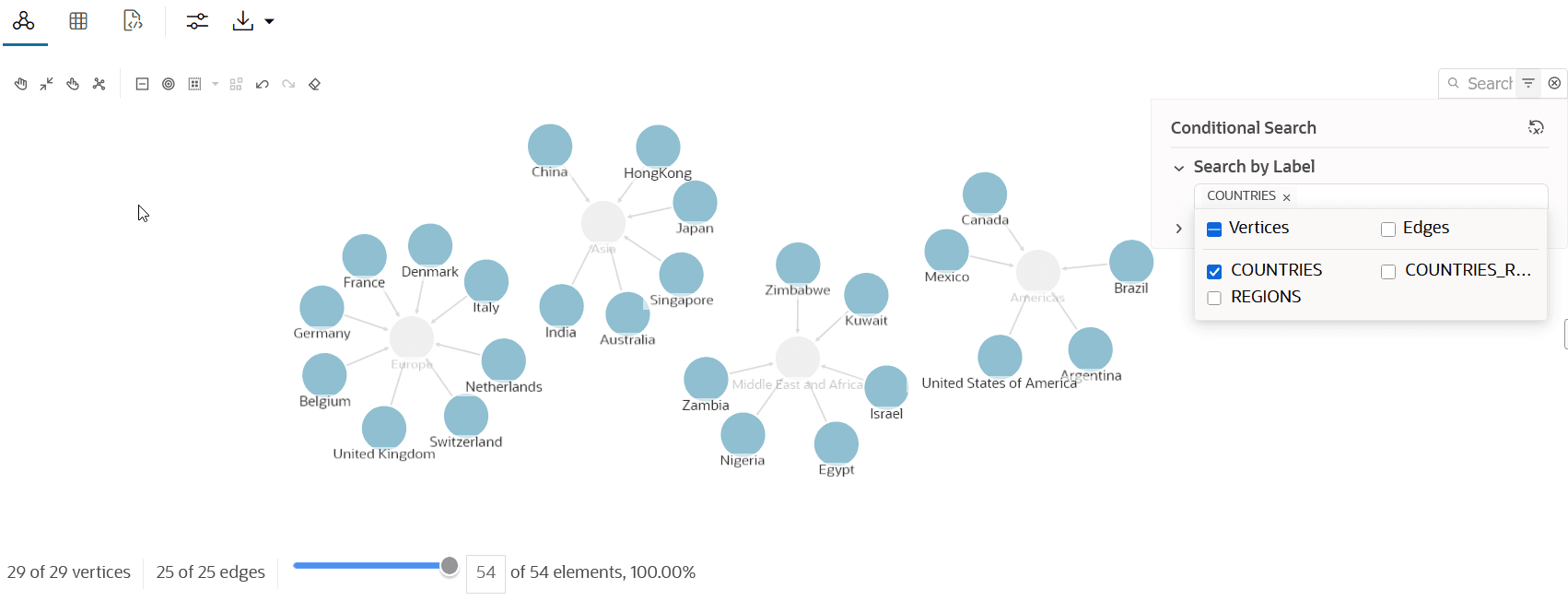
-
- Search by Property:
-
Click
in the search input box. -
Click Search by Property.
-
Click + to add the property attribute to search.
-
Select the graph element to which the property belongs.
Supported values are: Vertex, Edge, or Both.
-
Select a property name.
-
Select an operator.
-
Enter the property value that you wish to search.
Note that you can configure a single value or a list of values to search.
-
-
Optionally, repeat the previous step to add as many rows for conditional search.
-
Set the Logic operator value when multiple rows are configured for a conditional search.
-
OR returns results that match any of the specified conditions.
-
AND returns results that match all specified conditions.
The following example shows a search for France or Japan using the
country_nameproperty.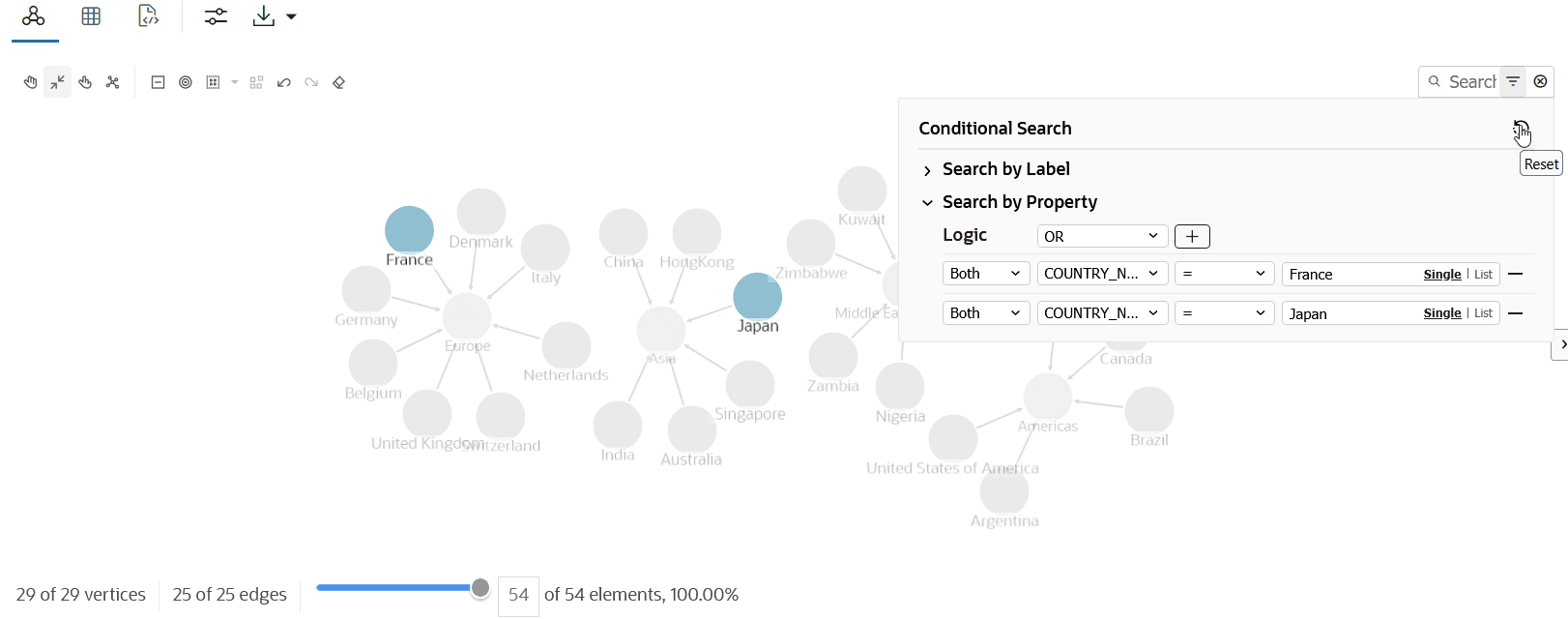
-
-
- Search by Label: