Use Graph AI Assistant in Modeler
The Graph AI Assistant feature in Modeler enables you to use natural language to create, review, and modify property graphs.
Before you use Graph AI Assistant, ensure that the following prerequisites are met:
-
You are connected to an Oracle Autonomous AI Database instance running Oracle AI Database 26ai, or to an Oracle Database instance with DBMS_CLOUD installed.
See the following for more information:
-
An AI profile is configured for the database environment. Graph AI Assistant uses the AI profile to interpret natural language prompts and generate or modify property graphs. See Generate SQL from Natural Language Prompts Using Select AI for more information.
-
The Graph AI Assistant option is enabled in the Settings panel.
-
Select the AI profile that you want Graph AI Assistant to use from the Profile list in the Graph AI Assistant section of the Settings panel.
To open Graph AI Assistant, expand the Graph AI Assistant panel by clicking the arrow on the left side of the Modeler page.
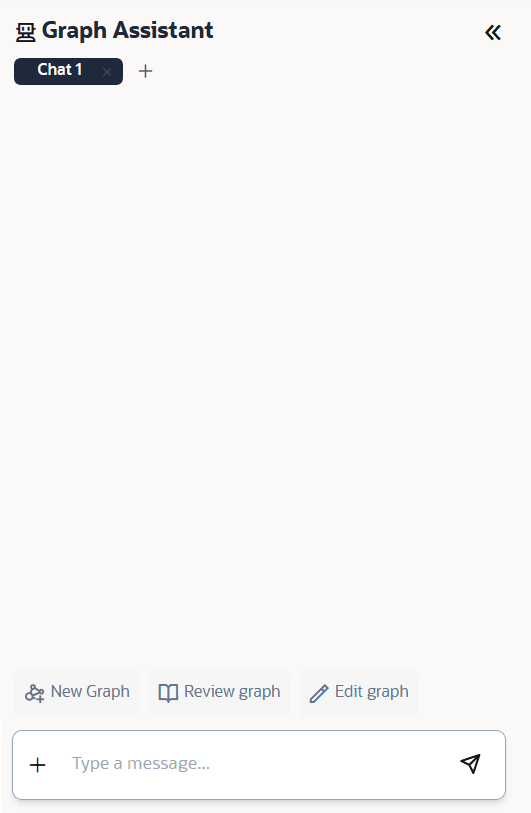
Description of the illustration modeler_get_started_graph_assistant.png
The Graph AI Assistant panel contains the following components:
-
Message box: Enter a natural language prompt or follow-up instruction.
-
Send: Submits the prompt to Graph AI Assistant.
-
Conversation area: Displays the prompts and responses exchanged with Graph AI Assistant.
-
Add (+): Starts a new conversation.
See also Store Chats and Clear Chats configurations in Configure Modeler Settings.
You can use Graph AI Assistant to perform the following tasks:
-
Create a new property graph from a natural language description.
-
Review an existing property graph and receive a summary of its structure.
-
Modify an existing property graph by adding, removing, or updating vertices, edges, labels, or properties.
-
Fix warnings while creating or editing a property graph.
Create a Property Graph Using Graph AI Assistant
You can create a property graph using Graph AI Assistant.
-
Expand the Graph AI Assistant panel by clicking the arrow on the left side of the Modeler page.
-
Click New Graph above the message box.
-
Select the source data tables that are required as input for the graph.
-
Click Send in the Select Tables panel.
Graph AI Assistant displays the property graph generated using the selected tables.
-
Review the generated graph or refine the graph using additional instructions.
Note: To create a PGQL property graph, add
OPTIONS (PG_PGQL)at the end of the DDL generated by Graph AI Assistant. See PGQL Property Graphs for more information on DDL syntax. -
Prompt Graph AI Assistant to execute the DDL if the proposed graph design is as expected.
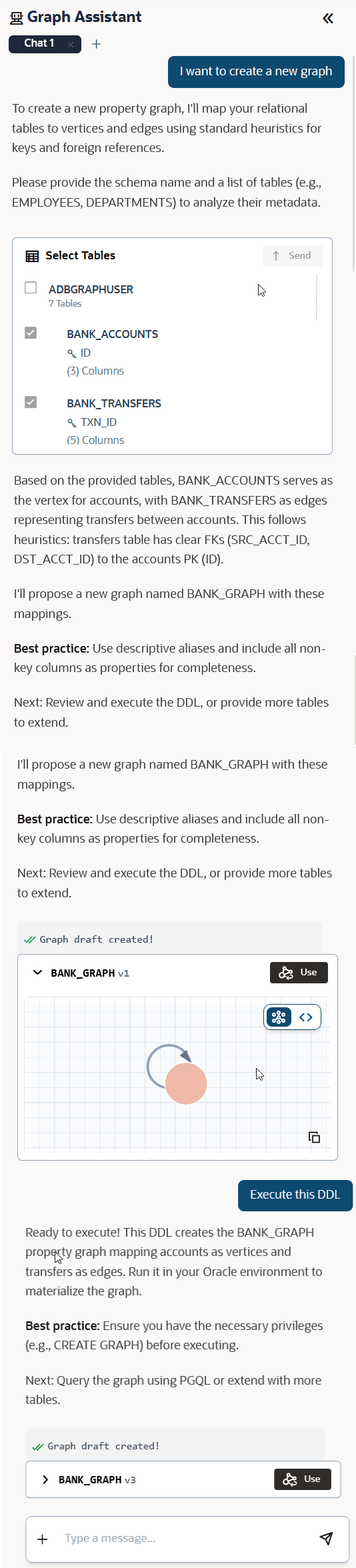
Description of the illustration modeler_graph_assitant_new_graph.png
Tip: Click Use to load the graph into Modeler. This makes the graph DDL available, enabling Graph AI Assistant to review or modify a property graph in subsequent prompts.
-
Click Create Graph in the top right of the page.
The graph gets created and you can interact with the graph using Graph Explorer.
Review a Property Graph Using Graph AI Assistant
You can use Graph AI Assistant to review a property graph after it has been loaded into the Modeler.
-
Expand the Graph AI Assistant panel by clicking the arrow on the left side of the Modeler page.
-
Click Review graph above the message box.
Note: Graph AI Assistant can review or modify only the graph that is currently loaded in the Modeler. If you create a graph draft using Graph AI Assistant, click Use to load the generated graph into the Modeler. Until you click Use, the graph DDL is not available and Graph AI Assistant cannot review or modify the graph.
The summary of the property graph that is loaded in the modeler is retrieved and displayed for your review.
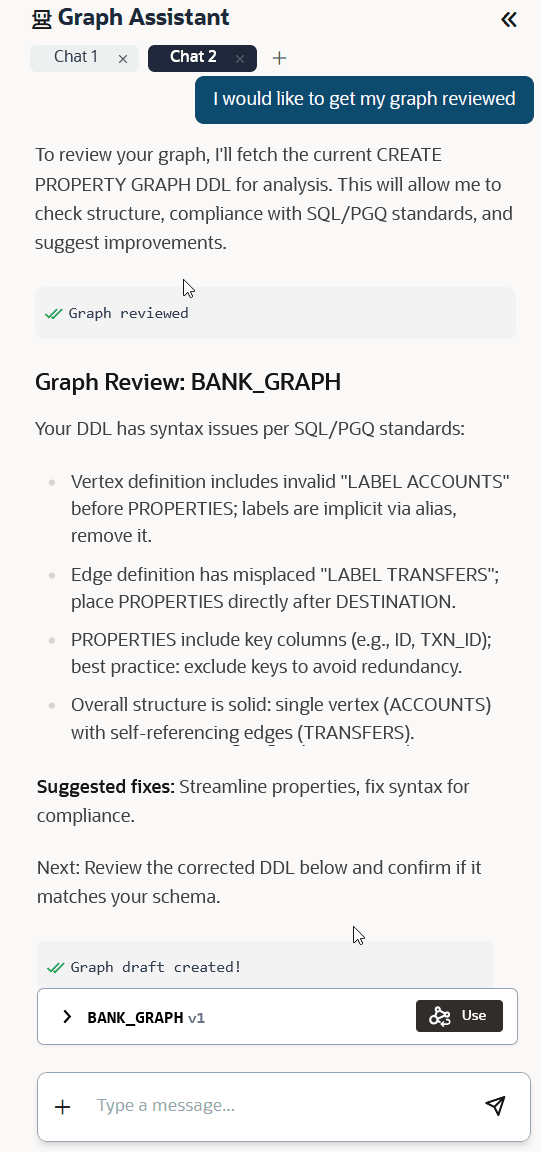
Description of the illustration modeler_graph_assitant_review_graph.png
Edit a Property Graph Using Graph AI Assistant
You can use Graph AI Assistant to edit a property graph only after the graph has been loaded into the Modeler.
-
Expand the Graph AI Assistant panel by clicking the arrow on the left side of the Modeler page.
-
Click Edit graph above the message box.
Note: Graph AI Assistant can review or modify only the graph that is currently loaded in Modeler. If you create a graph draft using Graph AI Assistant, click Use to load the generated graph into Modeler. Until you click Use, the graph DDL is not available and Graph AI Assistant cannot review or modify the graph.
The summary of the property graph that is loaded in Modeler is retrieved and displayed.
-
Prompt Graph AI Assistant to edit the graph as required.
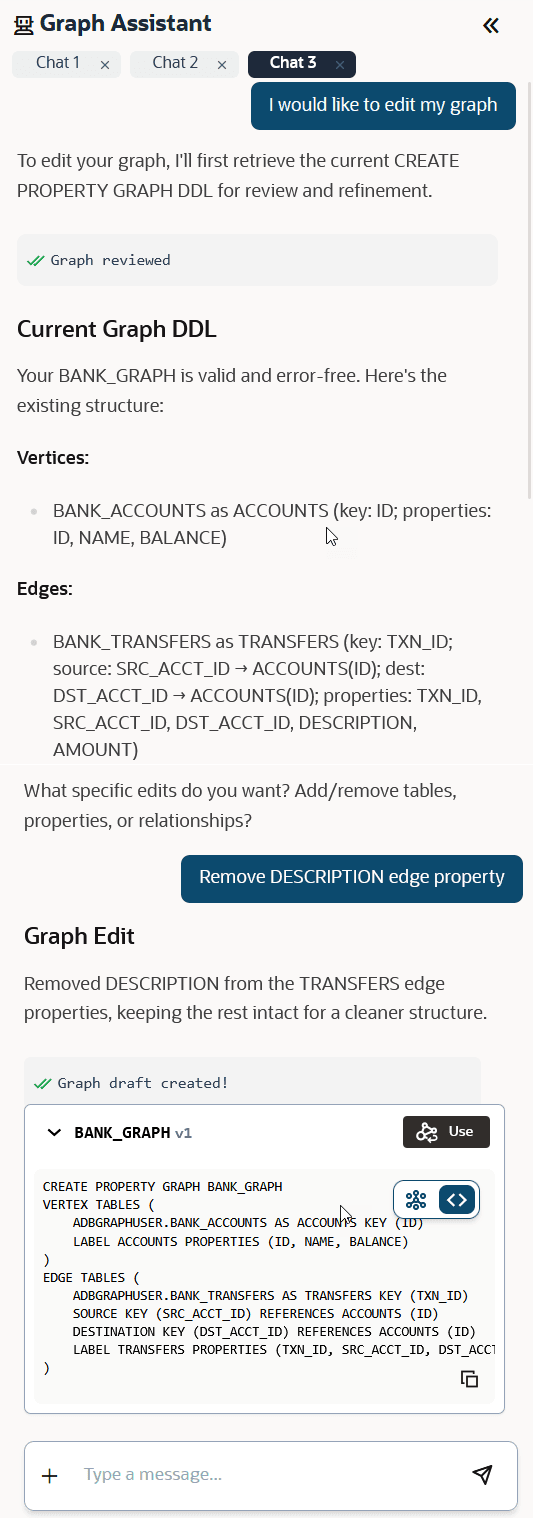
Description of the illustration modeler_graph_assitant_edit_graph.png
-
Review the generated graph and edit the graph as required.
-
Click Update Graph on the top right of the page.
The graph gets updated and can be queried in Graph Explorer.