Catalog Settings
The Catalog Settings can manage the general settings, add, and view query scopes, create and view saved searches and change the look and feel of the Catalog page.
You can alter the Catalog tool’s user interface and page layout through themes and theme styles in the Catalog Settings.
Select Show Catalog Settings on the Catalog page to set the behavior of the Catalog. When you set these options, they take place immediately and are also saved as the default behavior for the page. Clicking Show Catalog Settings opens the General tab where you can view the following options.
On the General tab, you can view the following options:
-
Show system tables
Select this option to include system tables in the search results.
-
Show private tables
Select this option to include private tables in the search results.
-
Page size
Select the number of entities to display on the page.
Gradually progress to use the Query Scopes tab to view, create, and delete query scopes. You can search for catalogs and save this search using query scopes.
Selecting Query Scope tab icon enables you to create new query scopes based on your preferences
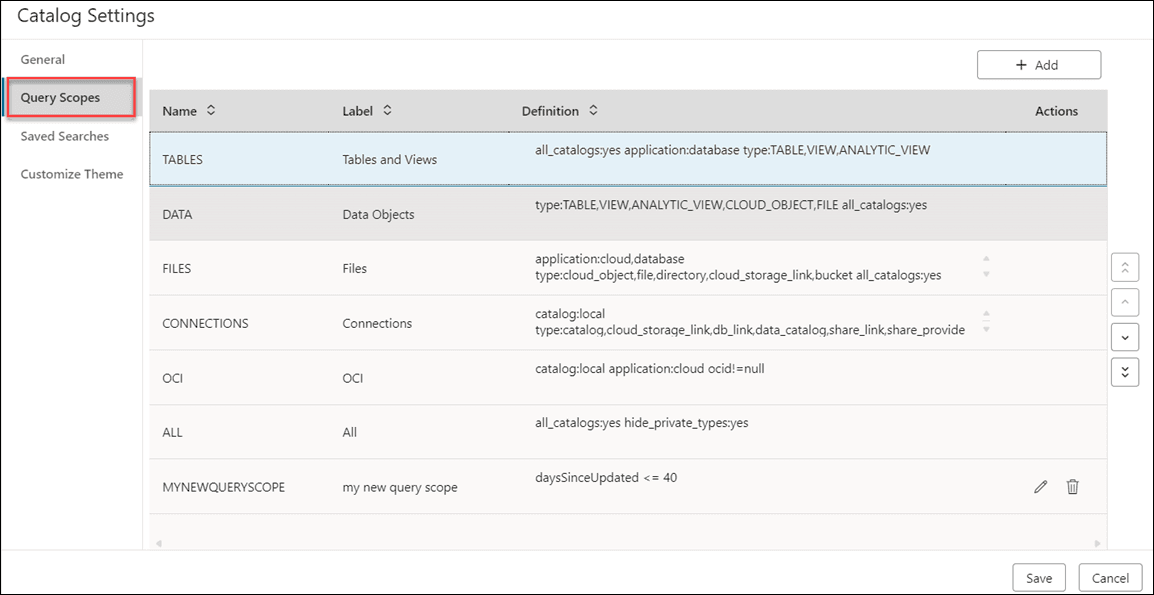
Description of the illustration query-scopes-tab.png
You can view, create, and edit the previously saved query scopes in this wizard. The query scopes are categorized based on by whom its created.
Click +Add to create a Query Scope. Click Cancel to cancel its creation.
Specify the following fields in the Query Scope tab.
-
Name: Enter the name of the Query Scope. This is a mandatory field.
-
Label: This is a mandatory field. Enter a descriptive name here. You will use this field to refer to a query scope.
-
Definition: Enter the Oracle Autonomous Database Data Definition Language (DDL) that creates the search entity. This is the same search criteria you enter in the Search Catalog field.
Once you have added the new query scope, it is visible in the list of query scopes in the Catalog Settings wizard.
Progress to the Saved Searches tab
You can save your time from redefining the same search again in the future. You can diagnose problems faster since you are just few clicks away from accessing a saved search. Here is how you can create a saved search.
-
Select this tab to save the five previous search queries that you entered into the Search catalog field. When the Search catalog field is empty and you click in the field, the last five search queries are listed in the drop-down list. (Any predefined searches selected from the Suggestions panel won’t appear in this list, unless you edited them to make a new search.)
The Saved Searches tab saves the current search query as per the criteria you specify or create a new saved search. Click +Add to create a new saved search.
-
On the Saved Searches tab, click +Add to create a new search.
-
On the Create New Search dialog, specify the Title, Scope, Definition and Description (optional field) in their respective fields. For example, you want to search for a specific Entity type and a specific owner.
-
Select Save.
After the creation of the saved search, it appears on the list of Saved Searches.
You can change the columns displayed in the search results by clicking the pencil icon in the Actions column. Click the delete icon in the Actions column to delete the search you save. The saved searches you create are available for selection in the Saved Search panel in the right of the Catalog page.
-
Progress to the Customize Theme tab to expand each entity type to select the properties and preview it
On the Customize Theme tab, you can select the entity type whose appearance you want to define by editing the options in this tab.
You can view the following menu options as you move from left to right.
| Options | Description |
|---|---|
| Entity Type | This option describes the type of entity you want to edit. You can expand the entity type to select properties and to preview what the change looks like. |
| Is actions toolbar? | This option when enabled displays the actions menu items as floating toolbar on hover, else displays the actions menu. |
| Header background color | This option enables you to set the background color of the title of the entity header. This is the same as the text color for the properties of the entity listed. |
| Text color | This option enables you to set the text colour of the entity title. |
| Text highlighter | This option enables you to set the highlight colour of the box surrounding the properties of the entity. |
Click Save in the Catalog Settings dialog to save all your preferences you set for the Catalog page.