Remove Spreadsheet Add-ins
Describes how to remove Oracle Database for Spreadsheet Add-ins from your spreadsheet application.
Prerequisites
To remove the add-in from Excel for the web or Google Sheets:
-
You must be logged into the specific Google or Microsoft Account that originally installed the add-in.
-
If the add-in is managed by your organization, you cannot uninstall it individually. Contact your IT or system administrator.
-
You require an active internet connection.
Remove Add-in From Microsoft Excel
The removal steps for Add-in for Excel depend on various factors, such as the source from where the add-in was installed, online marketplace or Trusted Catalog, and the operating system, Microsoft Windows or Apple Mac.
Add-in for Excel installed from Trusted Catalog
If you downloaded Add-in for Excel from Database Actions and installed it using Trusted Catalog, you can remove the add-in as follows:
-
For Windows
Run the add-in installer downloaded from Database Actions and select the uninstall option.
Alternatively, manually delete the file
manifest_HOSTNAME.xmlfrom the following location.%LOCALAPPDATA%\Oracle\Autonomous Database\manifest -
For Mac
Remove the file
manifest_HOSTNAME.xmlusing the following command in a terminal.rm ~/Library/Containers/com.microsoft.Excel/Data/Documents/wef/manifest_HOSTNAME.xmlReplace
HOSTNAMEwith the server name.
Add-in for Excel installed from Microsoft Office Store
If you have installed Add-in for Excel from Office Store, follow these steps to remove the add-in:
-
Start the Excel application and open a workbook.
-
On the Home tab select Add-ins and click Get Add-ins or More Add-ins depending on the Microsoft Office version.
Alternatively, you can enable the Developer menu and click the Add-ins option.
-
On the Office Add-ins window go to the MY ADD-INS tab and select Oracle Database Add-in for Microsoft Excel.
-
Click the three-dot menu next to the add-in or right-click the add-in and select Remove.
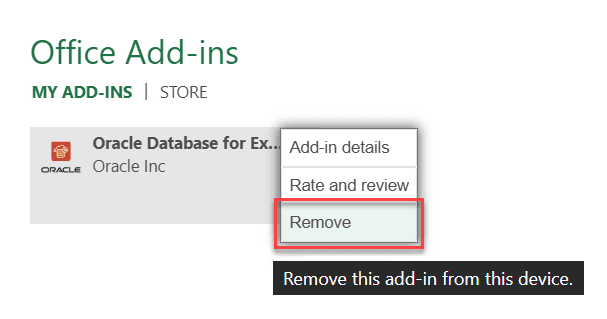
Description of the illustration remove-addin-ms.png
In the confirmation window, click Remove to delete the add-in from Excel.
You can click the Refresh option to reload the page.
For issues related to add-in installation or removal, see Troubleshoot Scenarios with Spreadsheet Add-ins.
Remove Add-on From Google Sheets
Log in to your Google account in a web browser and open a Google Sheet.
Spreadsheet Add-ins support the latest versions of Apple Safari, Google Chrome, Microsoft Edge, and Mozilla Firefox.
-
Click the Extensions menu, select Add-ons and click Manage add-ons.
-
Under Manage apps click the 3 dots on Oracle Database Add-on for Google Sheets and select Uninstall.
Alternatively, you can also click the add-on to open the add-on page and click Uninstall.
-
In the confirmation window, click UNINSTALL APP to remove the add-on from Google Sheets.
To reinstall the add-ins, see Installation Options for Spreadsheet Add-ins.