Configure the Agent through Google Marketplace (Administrator)
Configure the Oracle AI Database Agent in Gemini Enterprise application.
-
Sign in to your Google Cloud account and navigate to your Gemini Enterprise application.
-
In the left-hand menu, click Agents.
-
Click Add agent.
-
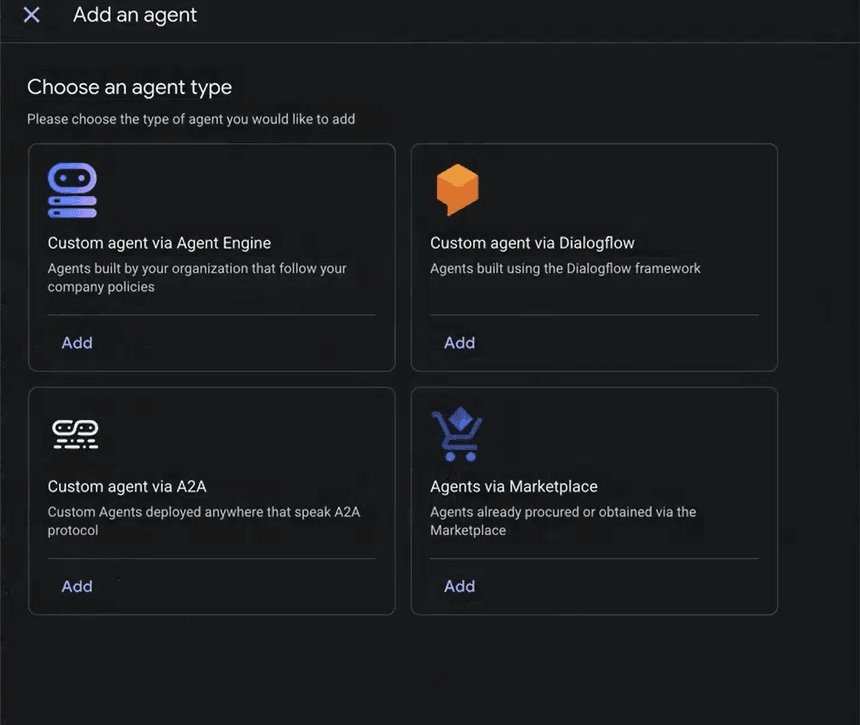
Click Add in Agents via Marketplace and search for Oracle AI Database Agent.
-
Under Select Agent, click Oracle AI Database Agent by Oracle and click Next.
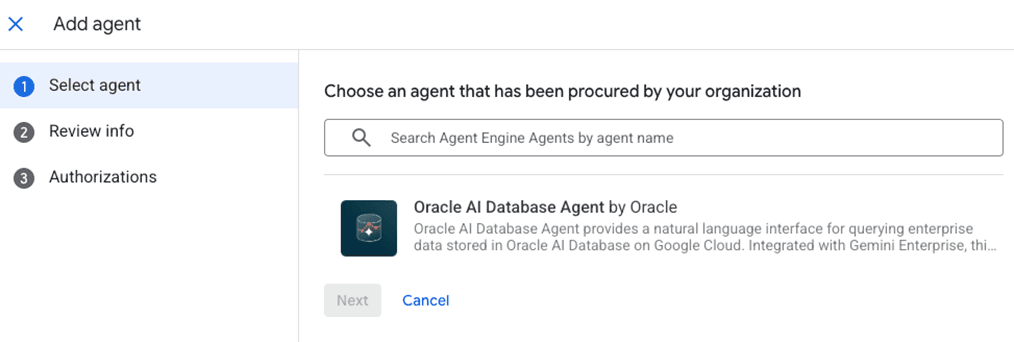
Description of the illustration add-agent-oracle-ai-db-agent.png
-
Review the agent details and click Next.
-
Enter the
client_idandclient_secretobtained earlier and click Finish. See Register an OAuth Client (OAuth) to obtainclient_idandclient_secret.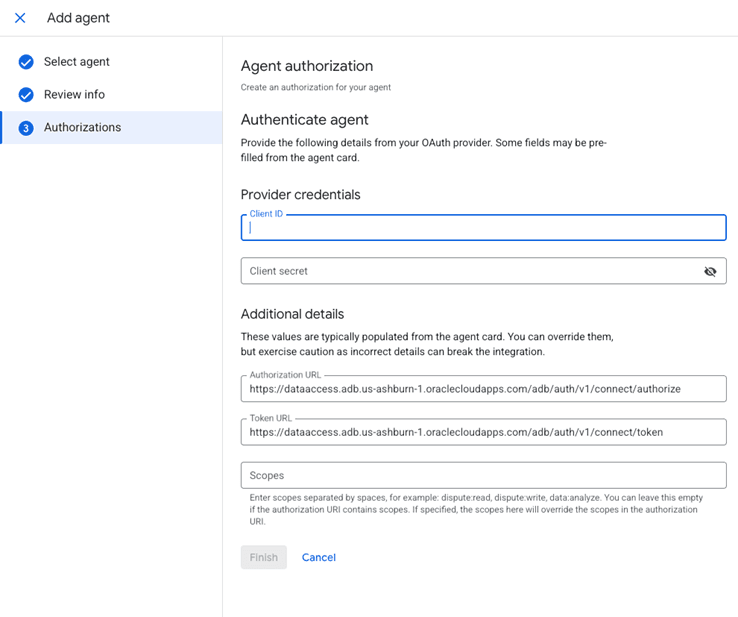
Description of the illustration client-credentials.png
Gemini Enterprise registers the agent under your organization.
-
Locate the agent in the agent list. Open the Oracle AI Database Agent from the agents list.
-
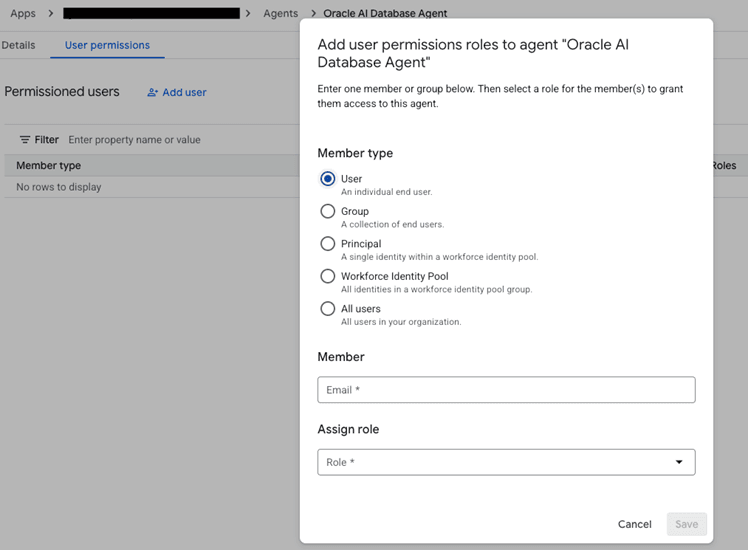
Click Add User under User Permissions tab and grant the required user permissions by providing the mandatory fields.
For example, enable end users to run queries.
-
Click Save.