Add Interactions to a Map Visualization
You can enhance your map interaction by configuring tooltips and info windows for the map layers used in the map visualization.
Spatial Studio supports the following interactive features:
-
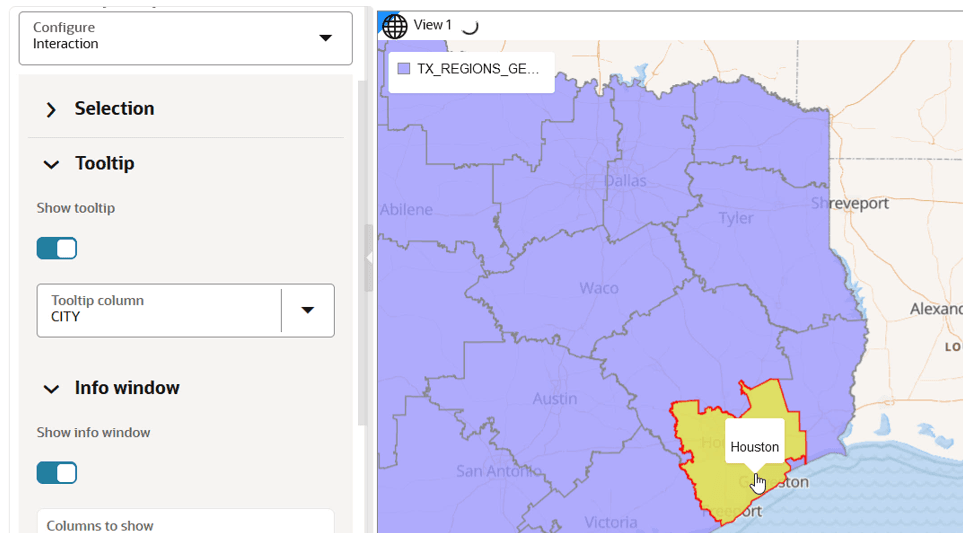
Tooltip: A tooltip is shown when you hover over a location on your map and displays the specified attribute information.
-
Info Window An info window (popup window) displays the configured information for one or more map layers at a given location or shape on your map.
Configure and View a Tooltip
Perform the following steps to configure a tooltip.
The instructions assume that you have a map layer displayed on your Active Project page.
-
Click
 against the map layer in the Layers tab of the Layers List.
 -
Select Settings in the context menu.
-
Select the Interaction option from the Configure drop-down list.
-
Enable Show tooltip under Tooltip.
-
Select a Tooltip column.
-
Hover over a specific data point or shape on your map to view the tooltip information.
Configure and View a Tooltip
Perform the following steps to configure a tooltip.
The instructions assume that you have a map layer displayed on your Active Project page.
-
Click
against the map layer in the Layers tab of the Layers List. -
Select Settings in the context menu.
-
Select the Interaction option from the Configure drop-down list.
-
Enable Show tooltip under Tooltip.
-
Select a Tooltip column.
-
Hover over a specific data point or shape on your map to view the tooltip information.