Summarize By Region Analysis
Spatial Studio supports descriptive analysis where you can obtain the summary of data points (such as count, average, sum, minimum, and maximum) on a region based dataset.
To perform summarize by region analysis, you can perform the following steps.
The instructions assume that you have a point map layer displayed over a region map layer on your Active Project page.
-
Click
 against the map layer, whose coordinates needs to be filtered, in the Layers tab.
 -
Select Spatial Analysis.
The Spatial Analysis Operations slider opens.
-
Click the Analytics tab and select Summarize By Region.
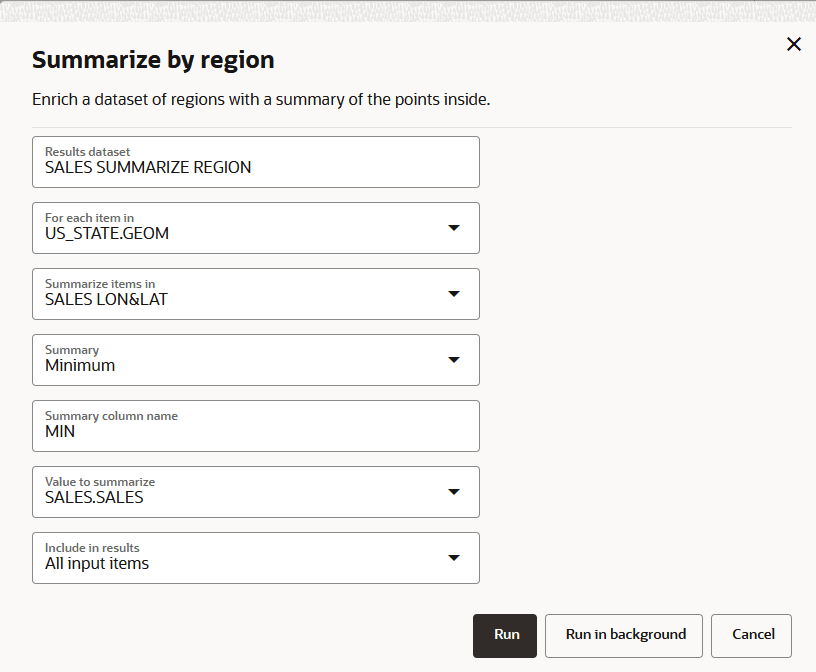
The Summarize by region slider opens as shown:
-
Optionally, change the default name for the new analysis Results dataset.
-
Select the region based map dataset from the For each item in drop-down list.
-
Select the point map layer from the Summarize items in drop-down list.
-
Select the Summary option.
-
Optionally, change the Summary column name.
-
Click Run.
The Analysis result is listed under Analyses in the Data elements panel on the left pane in the Active Project page.
-
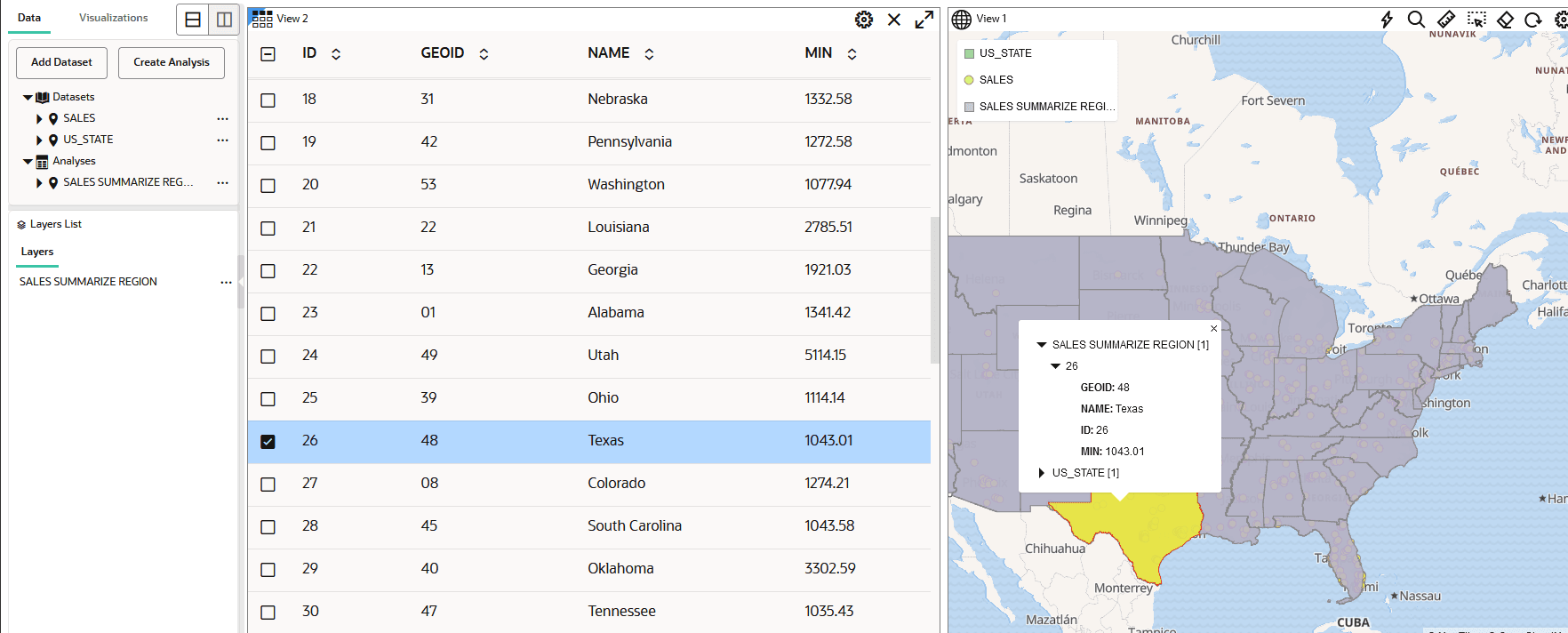
Drag and drop the analysis result on a table or map visualization.
You can view the summary results as shown: