Configure bidirectional replication
After you set up a one-way replication, there’s just a few extra steps to replicate data in the opposite direction. This quickstart example uses Autonomous AI Transaction Processing and Autonomous AI Lakehouse as its two cloud databases.
Before you begin
You must have two existing databases in the same tenancy and region in order to proceed with this quickstart. If you need sample data, download Archive.zip, and then follow the instructions in Lab 1, Task 3: Load the ATP schema
Overview
The following steps guide you through how to instantiate a target database using Oracle Data Pump and set up bidirectional (two-way) replication between two databases in the same region.
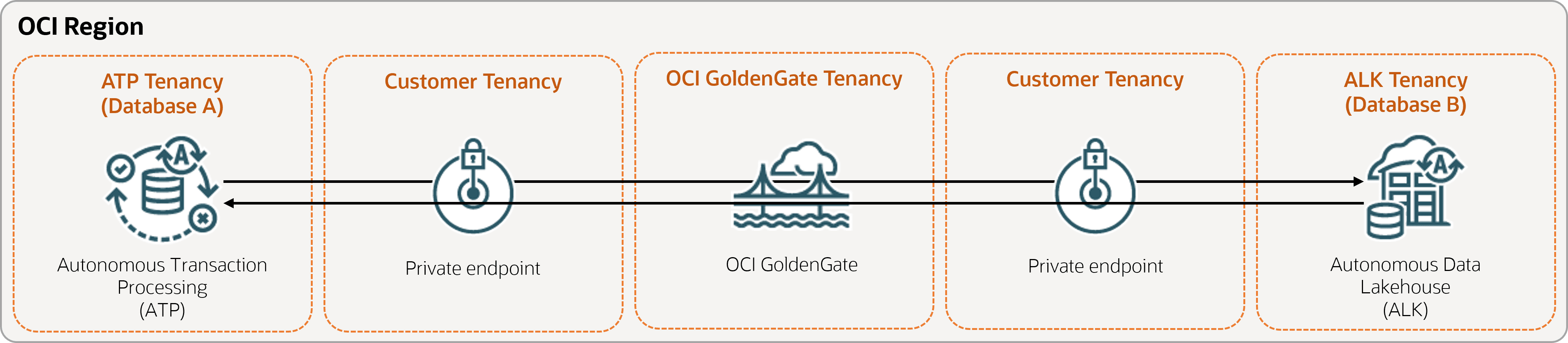
Description of the illustration bidirectional.png
Task 1: Set up the environment
-
Create connections to your databases.
-
Enable supplemental logging:
ALTER DATABASE ADD SUPPLEMENTAL LOG DATA -
Run the following query to ensure that
support_mode=FULLfor all tables in the source database:select * from DBA_GOLDENGATE_SUPPORT_MODE where owner = 'SRC_OCIGGLL'; -
Run the following query on Database B to ensure that
support_mode=FULLfor all tables in the database:select * from DBA_GOLDENGATE_SUPPORT_MODE where owner = 'SRCMIRROR_OCIGGLL';
Task 2: Add transaction information and a checkpoint table for both databases
In the OCI GoldenGate deployment console, go to the Configuration screen for the Administration Service, and then complete the following:
-
Add transaction information on Database A and B:
-
For Database A, enter
SRC_OCIGGLLfor Schema Name. -
For Database B, enter
SRCMIRROR_OCIGGLLfor Schema Name.Note: The schema names should be unique, and match your database schema names if you’re using a different dataset from this example.
-
-
Create a Checkpoint table for Database A and B:
-
For Database A, enter
"SRC_OCIGGLL"."ATP_CHECKTABLE"for Checkpoint Table. -
For Database B, enter
"SRCMIRROR_OCIGGLL"."CHECKTABLE"for Checkpoint Table.
-
Task 3: Create the Integrated Extract
An Integrated Extract captures ongoing changes to source database.
-
On the deployment Details page, select Launch console.
-
Add and run an Integrated Extract.
Note: See additional extract parameter options for more information about parameters that you can use to specify source tables.
-
On the Extract Parameters page, append the following lines under
EXTTRAIL <extract-name>:-- Capture DDL operations for listed schema tables ddl include mapped -- Add step-by-step history of -- to the report file. Very useful when troubleshooting. ddloptions report -- Write capture stats per table to the report file daily. report at 00:01 -- Rollover the report file weekly. Useful when IE runs -- without being stopped/started for long periods of time to -- keep the report files from becoming too large. reportrollover at 00:01 on Sunday -- Report total operations captured, and operations per second -- every 10 minutes. reportcount every 10 minutes, rate -- Table list for capture table SRC_OCIGGLL.*; -- Exclude changes made by GGADMIN tranlogoptions excludeuser ggadminNote:
tranlogoptions excludeuser ggadminavoids recapturing transactions applied byggadminin bidirectional replication scenarios.
-
-
Check for long running transactions:
-
Run the following script on your source database:
select start_scn, start_time from gv$transaction where start_scn < (select max(start_scn) from dba_capture);If the query returns any rows, then you must locate the transaction's SCN and then either commit or rollback the transaction.
-
Task 4: Export data using Oracle Data Pump (ExpDP)
Use Oracle Data Pump (ExpDP) to export data from the source database to Oracle Object Store.
-
Create an Oracle Object Store bucket.
Take note of the namespace and bucket name for use with the Export and Import scripts.
-
Create an Auth Token, and then copy and paste the token string to a text editor for later use.
-
Create a credential in your source database, replacing the
<user-name>and<token>with your Oracle Cloud account username and the token string you created in the previous step:BEGIN DBMS_CLOUD.CREATE_CREDENTIAL( credential_name => 'ADB_OBJECTSTORE', username => '<user-name>', password => '<token>' ); END; -
Run the following script in your source database to create the Export Data job. Ensure that you replace the
<region>,<namespace>, and<bucket-name>in Object Store URI accordingly.SRC_OCIGGLL.dmpis a file that will be created when this script runs.DECLARE ind NUMBER; -- Loop index h1 NUMBER; -- Data Pump job handle percent_done NUMBER; -- Percentage of job complete job_state VARCHAR2(30); -- To keep track of job state le ku$_LogEntry; -- For WIP and error messages js ku$_JobStatus; -- The job status from get_status jd ku$_JobDesc; -- The job description from get_status sts ku$_Status; -- The status object returned by get_status BEGIN -- Create a (user-named) Data Pump job to do a schema export. h1 := DBMS_DATAPUMP.OPEN('EXPORT','SCHEMA',NULL,'SRC_OCIGGLL_EXPORT','LATEST'); -- Specify a single dump file for the job (using the handle just returned) -- and a directory object, which must already be defined and accessible -- to the user running this procedure. DBMS_DATAPUMP.ADD_FILE(h1,'https://objectstorage.<region>.oraclecloud.com/n/<namespace>/b/<bucket-name>/o/SRC_OCIGGLL.dmp','ADB_OBJECTSTORE','100MB',DBMS_DATAPUMP.KU$_FILE_TYPE_URIDUMP_FILE,1); -- A metadata filter is used to specify the schema that will be exported. DBMS_DATAPUMP.METADATA_FILTER(h1,'SCHEMA_EXPR','IN (''SRC_OCIGGLL'')'); -- Start the job. An exception will be generated if something is not set up properly. DBMS_DATAPUMP.START_JOB(h1); -- The export job should now be running. In the following loop, the job -- is monitored until it completes. In the meantime, progress information is displayed. percent_done := 0; job_state := 'UNDEFINED'; while (job_state != 'COMPLETED') and (job_state != 'STOPPED') loop dbms_datapump.get_status(h1,dbms_datapump.ku$_status_job_error + dbms_datapump.ku$_status_job_status + dbms_datapump.ku$_status_wip,-1,job_state,sts); js := sts.job_status; -- If the percentage done changed, display the new value. if js.percent_done != percent_done then dbms_output.put_line('*** Job percent done = ' \|\| to_char(js.percent_done)); percent_done := js.percent_done; end if; -- If any work-in-progress (WIP) or error messages were received for the job, display them. if (bitand(sts.mask,dbms_datapump.ku$_status_wip) != 0) then le := sts.wip; else if (bitand(sts.mask,dbms_datapump.ku$_status_job_error) != 0) then le := sts.error; else le := null; end if; end if; if le is not null then ind := le.FIRST; while ind is not null loop dbms_output.put_line(le(ind).LogText); ind := le.NEXT(ind); end loop; end if; end loop; -- Indicate that the job finished and detach from it. dbms_output.put_line('Job has completed'); dbms_output.put_line('Final job state = ' \|\| job_state); dbms_datapump.detach(h1); END;
Task 5: Instantiate the target database using Oracle Data Pump (ImpDP)
Use Oracle Data Pump (ImpDP) to import data into the target database from the SRC_OCIGGLL.dmp that was exported from the source database.
-
Create a credential in your target database to access Oracle Object Store (using the same information in the preceding section).
BEGIN DBMS_CLOUD.CREATE_CREDENTIAL( credential_name => 'ADB_OBJECTSTORE', username => '<user-name>', password => '<token>' ); END; -
Run the following script in your target database to import data from the
SRC_OCIGGLL.dmp. Ensure that you replace the<region>,<namespace>, and<bucket-name>in Object Store URI accordingly:DECLARE ind NUMBER; -- Loop index h1 NUMBER; -- Data Pump job handle percent_done NUMBER; -- Percentage of job complete job_state VARCHAR2(30); -- To keep track of job state le ku$_LogEntry; -- For WIP and error messages js ku$_JobStatus; -- The job status from get_status jd ku$_JobDesc; -- The job description from get_status sts ku$_Status; -- The status object returned by get_status BEGIN -- Create a (user-named) Data Pump job to do a "full" import (everything -- in the dump file without filtering). h1 := DBMS_DATAPUMP.OPEN('IMPORT','FULL',NULL,'SRCMIRROR_OCIGGLL_IMPORT'); -- Specify the single dump file for the job (using the handle just returned) -- and directory object, which must already be defined and accessible -- to the user running this procedure. This is the dump file created by -- the export operation in the first example. DBMS_DATAPUMP.ADD_FILE(h1,'https://objectstorage.<region>.oraclecloud.com/n/<namespace>/b/<bucket-name>/o/SRC_OCIGGLL.dmp','ADB_OBJECTSTORE',null,DBMS_DATAPUMP.KU$_FILE_TYPE_URIDUMP_FILE); -- A metadata remap will map all schema objects from SRC_OCIGGLL to SRCMIRROR_OCIGGLL. DBMS_DATAPUMP.METADATA_REMAP(h1,'REMAP_SCHEMA','SRC_OCIGGLL','SRCMIRROR_OCIGGLL'); -- If a table already exists in the destination schema, skip it (leave -- the preexisting table alone). This is the default, but it does not hurt -- to specify it explicitly. DBMS_DATAPUMP.SET_PARAMETER(h1,'TABLE_EXISTS_ACTION','SKIP'); -- Start the job. An exception is returned if something is not set up properly. DBMS_DATAPUMP.START_JOB(h1); -- The import job should now be running. In the following loop, the job is -- monitored until it completes. In the meantime, progress information is -- displayed. Note: this is identical to the export example. percent_done := 0; job_state := 'UNDEFINED'; while (job_state != 'COMPLETED') and (job_state != 'STOPPED') loop dbms_datapump.get_status(h1, dbms_datapump.ku$_status_job_error + dbms_datapump.ku$_status_job_status + dbms_datapump.ku$_status_wip,-1,job_state,sts); js := sts.job_status; -- If the percentage done changed, display the new value. if js.percent_done != percent_done then dbms_output.put_line('*** Job percent done = ' \|\| to_char(js.percent_done)); percent_done := js.percent_done; end if; -- If any work-in-progress (WIP) or Error messages were received for the job, display them. if (bitand(sts.mask,dbms_datapump.ku$_status_wip) != 0) then le := sts.wip; else if (bitand(sts.mask,dbms_datapump.ku$_status_job_error) != 0) then le := sts.error; else le := null; end if; end if; if le is not null then ind := le.FIRST; while ind is not null loop dbms_output.put_line(le(ind).LogText); ind := le.NEXT(ind); end loop; end if; end loop; -- Indicate that the job finished and gracefully detach from it. dbms_output.put_line('Job has completed'); dbms_output.put_line('Final job state = ' \|\| job_state); dbms_datapump.detach(h1); END;
Task 6: Add and run a Non-integrated Replicat
-
-
On the Parameter File screen, replace
MAP *.*, TARGET *.*;with the following script:-- Capture DDL operations for listed schema tables ddl include mapped -- Add step-by-step history of ddl operations captured -- to the report file. Very useful when troubleshooting. ddloptions report -- Write capture stats per table to the report file daily. report at 00:01 -- Rollover the report file weekly. Useful when PR runs -- without being stopped/started for long periods of time to -- keep the report files from becoming too large. reportrollover at 00:01 on Sunday -- Report total operations captured, and operations per second -- every 10 minutes. reportcount every 10 minutes, rate -- Table map list for apply DBOPTIONS ENABLE_INSTANTIATION_FILTERING; MAP SRC_OCIGGLL.*, TARGET SRCMIRROR_OCIGGLL.*;Note:
DBOPTIONS ENABLE_INSTATIATION_FILTERINGenables CSN filtering on tables imported using Oracle Data Pump. For more information, see DBOPTIONS Reference.
-
-
Perform some changes on Database A to see them replicated to Database B.
Task 7: Configure replication from Database B to Database A
Tasks 1 through 6 established replication from Database A to Database B. The following steps sets up replication from Database B to Database A.
-
Add and run an Extract on Database B. On the extract parameters page after EXTRAIL <extract-name>, ensure that you include:
-- Table list for capture table SRCMIRROR_OCIGGLL.*; -- Exclude changes made by GGADMIN tranlogoptions excludeuser ggadmin -
Add and run a Replicat to Database A. On the Parameters page, replace
MAP *.*, TARGET *.*;with:MAP SRCMIRROR_OCIGGLL.*, TARGET SRC_OCIGGLL.*; -
Perform some changes on Database B to see them replicated to Database A.