Replicate data between cloud databases in different regions with VCN peering
Learn to set up and configure Oracle Cloud Infrastructure GoldenGate and Virtual Cloud Network (VCN) peering to replicate data between two Oracle Autonomous AI Databases located in two different regions.
Overview
Oracle Cloud Infrastructure GoldenGate enables you to replicate data in supported OCI databases located in different regions with private endpoints. This example demonstrates how to connect OCI GoldenGate in Phoenix (Region A) to an Autonomous AI Database instance in Frankfurt (Region B) with a private endpoint.
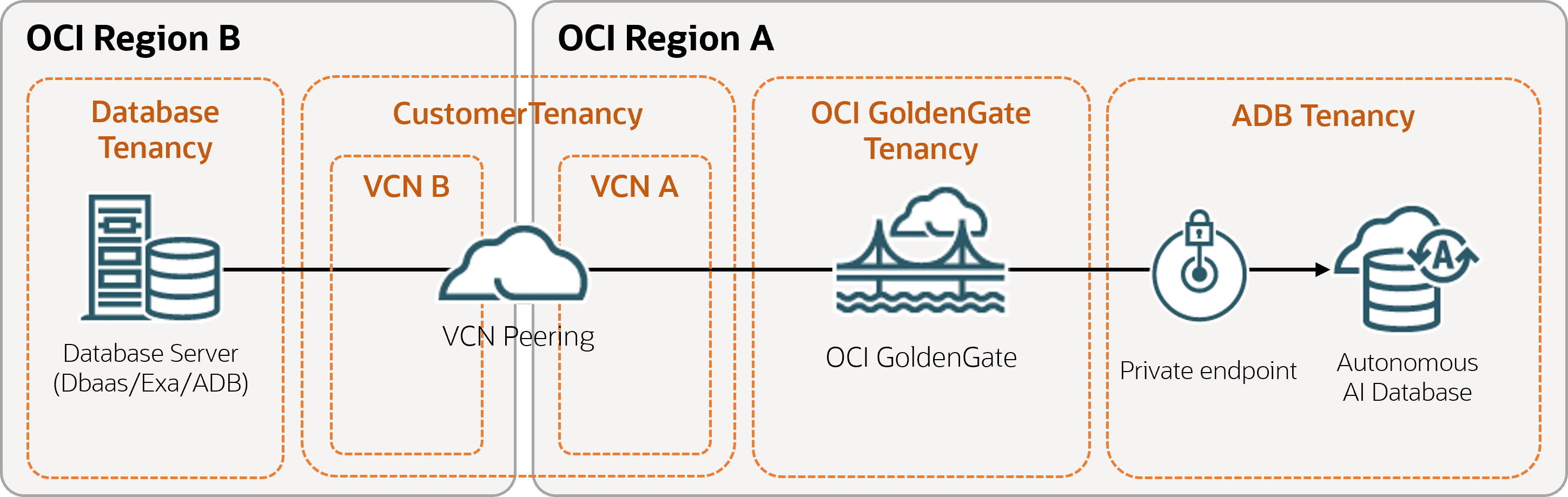
Description of the illustration diff-region-vcn.png
Before you begin
You must have the following in order to proceed:
-
An existing source database in one region (Region A)
-
An existing target database in a different region (Region B)
-
Both should only allow private network connectivity
-
An existing Dynamic Routing Gateway (DRG)
Task 1: Configure networking
-
In Region A, create a VCN (VCN A) with two regional subnets:
-
Public (
10.0.0.0/24) -
Private (
10.0.1.0/24)
-
On the VCN A Details page, select Gateways.
-
Under Dynamic Routing Gateway Attachments, select Create DRG Attachment
-
In the Create DRG Attachment panel, enter a name and select a location, and then select Create DRG Attachment.
-
In the DRG Attachments list, select the DRG name you created. You're brought to the DRG Details page.
-
On the DRG details page, select the DRG name, and then select Attachments.
-
Under Remote peering connection attachments, select Create remote peering connection.
-
In the Create remote peering connection panel, enter a name, leave the default settings as is, and then select Create remote peering connection. An RPC attachment is automatically added to the DRG and its peering status set to New (not peered).
-
In the Remote peering connections attachments list, select the RPC you created.
-
On the RPC Details page, for OCID, select Copy.
Note: You can temporarily paste the OCID to a text editor for later use.
-
-
Repeat the previous step in Region B to create a VCN (VCN B) with two regional subnets and DRG:
-
Public (
192.168.0.0/24) -
Private (
192.168.1.0/24)
-
-
On Region B's RPC Details page, select the RPC name, and then select Establish Connection.
-
In the Establish connection panel, select Region A, and then paste Region A's RPC OCID. The Peer Status is then set to Peered.
-
On VCN A's Details page, select Routing, and then select route table for private subnet-<VCN Name>.
-
Select Add Route Rules.
-
In the Add Route Rules panel, complete the following fields, and then select Add Route Rules:
-
Target Type: Dynamic Routing Gateway
-
Destination CIDR Block:
192.168.1.0/24
-
-
On VCN B's Details page, under Resources, select Security Lists, and then select security list for private subnet-<VCN Name>.
-
Select Add Ingress Rules.
-
In the Add Ingress Rules dialog, complete the following fields and then select Add Ingress Rules:
-
Source Type: CIDR
-
Source CIDR:
10.0.1.0/24 -
IP Protocol: TCP
-
Source Port Range:
All -
Destination Port Range:
1522Note: This is the default port to access Oracle Autonomous AI Database (ADB) instances.
-
-
On VCN B's Details page, under Resources, select Route Tables, and then select route table for private subnet-<VCN Name>.
-
Select Add Route Rules.
-
In the Add Route Rules panel, complete the following fields and then select Add Route Rules:
-
Target Type: Dynamic Routing Gateway
-
Destination CIDR:
10.0.1.0/24
-
Task 2: Create a deployment
Ensure that you use VCN A in Region A, which was peered with VCN B in Region B.
To see which regions OCI GoldenGate is available in, see Cloud Data Regions.
Follow the instructions to create a deployment.
Task 2: Configure DNS Peering
-
Create a Listening and a Forwarding endpoint in VCN A:
-
From the Oracle Cloud console navigation menu, select Networking, and then select Virtual Cloud Networks.
-
From the list of Virtual Cloud Networks, select VCN A.
-
In VCN A, under VCN Information, select the DNS Resolver.
-
Under Resources, select Endpoints then select Create endpoint to create a Listening endpoint.
-
In the Create endpoint panel, enter a Name.
-
For Choose a subnet, select VCN A Private subnet from the dropdown.
-
For Endpoint type, select Listening.
-
Select Create endpoint.
-
-
Repeat step 1 to create the Forwarding endpoint. Ensure you select Forwarding for Endpoint type.
Note: See Creating a Resolver Endpoint for more information.
-
-
Repeat step 1 to create a Listening and a Forwarding endpoint in VCN B.
-
Manage Rules for VCN A:
-
Go back to VCN A, select on DNS Resolver.
-
Under Resources, select Rules and then select Manage rules:
-
In the Manage rules panel, for Rule condition, select Domains from the dropdown.
-
For Domains, enter the DNS Domain Name for VCN A.
You can also add your ADB domain name if you're planning to connect to it. For example, if your region is Phoenix, then your ADB domain name would be:
adb.us-phoenix-1.oraclecloud.com -
For Source endpoint, select a Listening endpoint for VCN B from the dropdown.
-
For Destination IP address, enter your destination IP address.
-
Select Save changes.
Note: See Resolver Rules for more information about creating a resolver rule.
-
-
Task 4: Create and assign connections
-
Create connections for the source and target databases.
Note:
Ensure that:
-
You select 'Dedicated endpoint' for Traffic routing method.
-
Ensure that the domain used by the FQDN provided in the connection string or wallet is being correctly forwarded to the appropriate DNS Resolver using its Rules. See Resolver Rules for more information.
-
-
Assign the connections to the deployment created in Task 2.
Task 5: Replicate data
-
Navigate back to the Deployments page, and then select the deployment you created in Task 2.
-
On the Deployment details page, select Launch console.
-
Log in to the OCI GoldenGate deployment console