Create a Simple Application
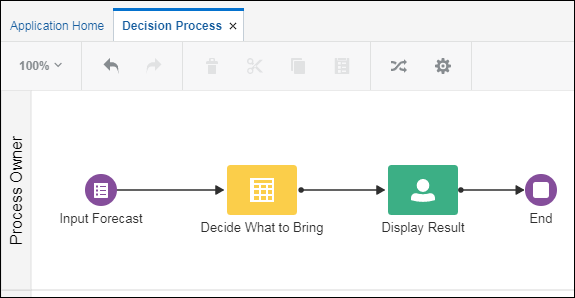
First, let’s create an application for the decision. Its process starts with a web form, which has two input fields where you enter temperature and rain forecast numbers. It then uses a decision element to call the decision service. Lastly, a human task element displays the decision result, which tells you what to bring for the day based on the weather.
- Rename the flow elements.
Double-click the flow elements and rename the start event to
Input Forecast, the decision toDecide What to Bring, and the human task toDisplay Result. - Add a web form.
Select the Input Forecast element, click Menu
 , and select Open Properties. In the Title field, enter a name (
Forecast) to display for the application.Click Create New Form
 next to the Form field. Enter
 InputForecastWebFormin the Name field, select the Open Immediately check box, and click Create. - Add a presentation to display results.
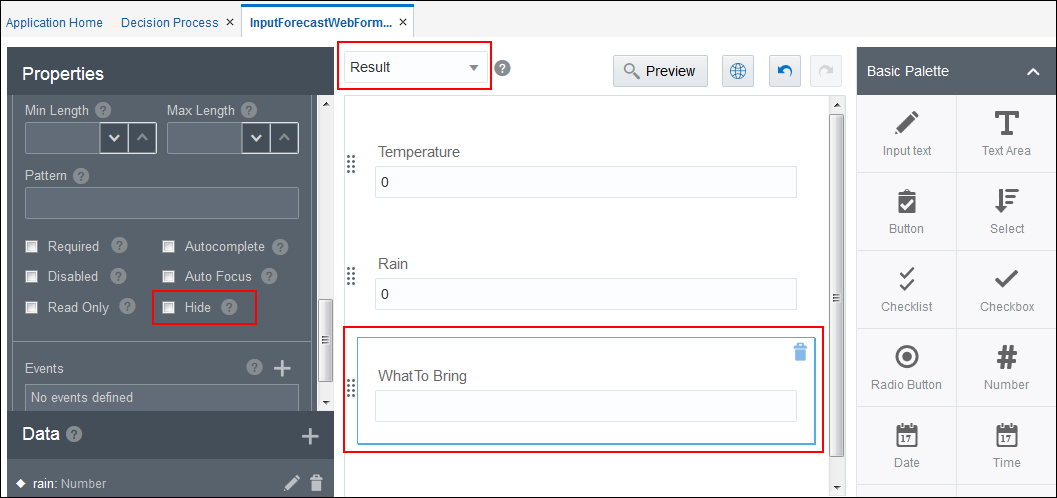
Click the form outside a control. On the Form tab, click Add Presentation
 next to Presentations. In the Select Presentation Type dialog box, select Clone. In the Create Presentation dialog box, select Main in the Select from Previous Presentation field, enter a name for the new presentation (
Result), and click Create. On the new Result presentation, select the What To Bring control and deselect the Hide check box. - Return to the process by clicking the Decision Process tab. Open the properties for the Display Result human task. Click Browse
 next to the Form field and select InputForecastWebForm. In the Presentation field, select Result.