
 Configuring Custom API in Oracle Mobile Cloud Service
 Before You Begin
This tutorial shows you how to create, implement, and publish a custom API in Oracle Mobile Cloud Service. Your custom API module can connect with Oracle Application Container Cloud and retrieve information about devices. This tutorial takes approximately 20 minutes to complete.
Background
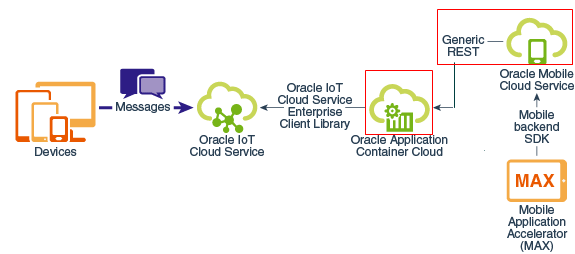
The following image illustrates the integration of Oracle IoT Cloud Service and Oracle Mobile Cloud Service by using Oracle Application Container Cloud. This tutorial covers the bordered area.
What Do You Need?
- Access to an instance of Oracle IoT Cloud Service and an instance of Oracle Mobile Cloud Service
- The URL that you recorded when you created a Node.js JavaScript application in Oracle Application Container Cloud
- Familiarity with Custom APIs and Custom Code in Oracle Mobile Cloud Service
 Configure a Connector
In this section, configure a connector for the Node.js JavaScript application.
- Sign in to your Oracle Mobile Cloud Service instance.
- In the menu bar, select Applications, and then Connectors.
- On the Connectors page, click New Connector, and then click REST.
- In the New REST Connector API dialog box, enter the following values, and then click Create:
- Display API Name:
AC_MCS_Integration - API Name:
AC_MCS_Integration - Remote URL:
https://iotcs-mcs-api-integration-v2-a210401.apaas.us6.oraclecloud.com/Note: Enter the URL that you recorded for your application in Oracle Application Container Cloud.
- Short Description:
AC_MCS_Integration
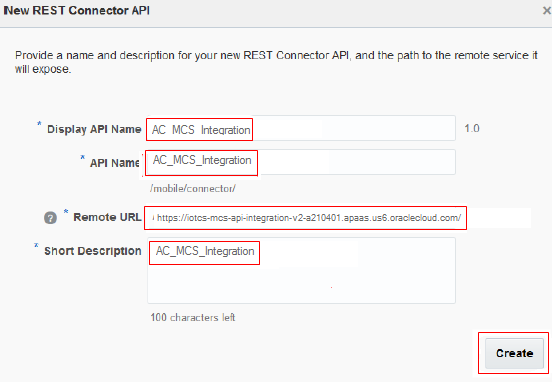
Description of the illustration connector_new.png - Display API Name:
- Record the name and version of the connector. You'll need that information when you implement the API.
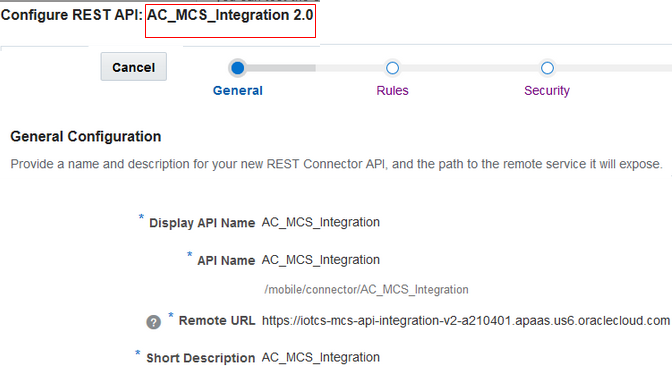
Description of the illustration connector_view.png - On the Applications page, select AC_MCS_Integration, and click Publish.
 Define a Custom API
In this section, use the Express API to define a custom API in your instance of Oracle Mobile Cloud Service.
- On the Applications page, select APIs, select Express API, and click New. Enter
IOTCS_AC_Integration 1.1for the name and click Next. -
On the Resources page of the IOTCS_AC_Integration 1.1 wizard, click the Endpoints tab and enter or select the values in the following table:
Path Method Method Name Description /IOTCS_AC_integration\devicesGET List devicesReturns a collection of devices/IOTCS_AC_integration\devices\{id}GET Find devicesReturns a single device/IOTCS_AC_integration\devices\
{id}historyGET List historyReturns a collection of history/IOTCS_AC_integration\devices\{id
history\{id}GET Find historyReturns a single history -
Click the Resources tab and select devices. Click the Fields tab and, for your active device, enter the JavaScript Object Notation (JSON) structure shown in the following table:
Type Display Label Name
StringididStringnamenameNumberhumidityhumidityNumbertemperaturetemperatureGeoLocationlocationlocationThe following illustration shows the Resources tab, the devices and history options, and the Overview and Fields tabs for the devices option.
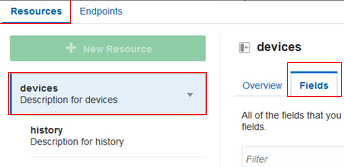
Description of the illustration devices.png -
Select history and click the Fields tab. Enter the following JSON structure as an array of subresources according to the values shown in the following table:
Type Display Label Name
StringididNumberhumidityhumidityNumbertemperaturetemperatureNumbertimetimeStringtimeAsStringtimeAsString
 Implement the Custom API
In this section, implement the custom API in Node.js JavaScript by using the Oracle Application Container Cloud connector.
-
In your instance of Oracle Mobile Cloud Service, go to your IOTCS_AC_Integration custom API, click Implementation, and then click JavaScript Scaffold. The downloaded scaffold zip file provides stubs and sample code for the functions that you need to implement for each endpoint.
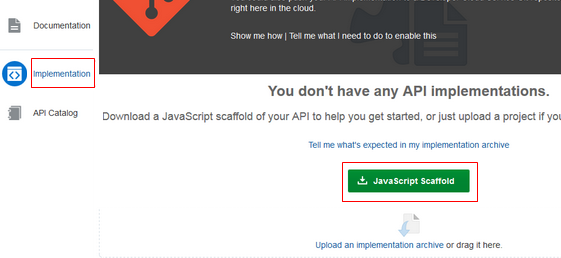
Description of the illustration js_scaffold.png - Extract the scaffold zip file, replace
iotcs_ac_integration.jswith this updatediotcs_ac_integration.jsfile. - In a text editor, open
iotcs_ac_integration.js, read the comments on line numbers 19, 49, and 75, and examine the code sections after the comments. - In the scaffold archive, replace
package.jsonwith the updatedpackage.jsonfile, which has the API's configuration information. Ensure that the values ofname, version,andconnectorsmatch your custom API and connector. -
Compress the files into a zip file and name it
iotcs_ac_integration_3.3.zip. - Click Upload an implementation archive and select the
iotcs_ac_integration_3.3.ziparchive file. Oracle Mobile Cloud Service will ensure that the dependencies are satisfied. After the upload is finished, click Publish.
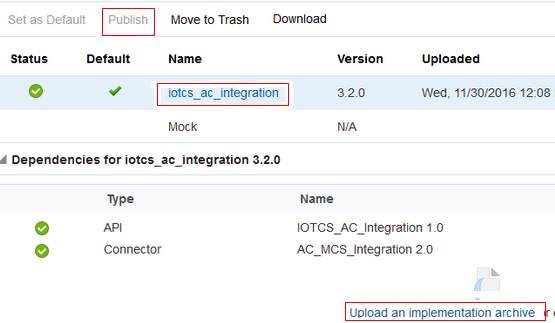
Description of the illustration intg_pub.png -
On the Applications page, select APIS, select iotcs_ac_integration3.2.0 (your implemented custom API), and click Publish.

Description of the illustration api_pub.png
 Want to Learn More?
REST Connector APIs and Calling MCS API from Custom Code in Using Oracle Mobile Cloud Service