
 Creating an Application in Oracle Application Container Cloud
 Before You Begin
This tutorial shows you how to create a JavaScript application and upload it to Oracle Application Container Cloud. This tutorial takes approximately 15 minutes to complete.
Background
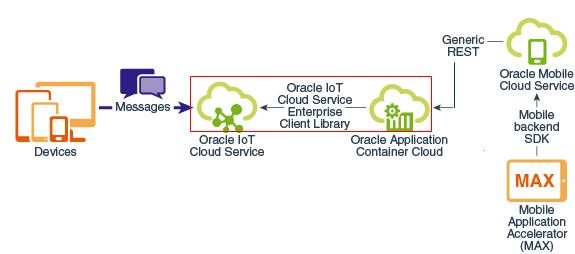
The following image illustrates the integration of Oracle IoT Cloud Service and Oracle Mobile Cloud Service by using Oracle Application Container Cloud. This tutorial covers the bordered area.
What Do You Need?
- Access to an instance of Oracle IoT Cloud Service and an instance of Oracle Application Container Cloud
- Node.js 4.x.x version or later for your system platform, downloaded and installed from
https://nodejs.org/en/download/ - JavaScript Enterprise Client Library (ECL) binary
iotcs-csl-javascript-bin-release.zipfile (wherereleaseis the release and version number), downloaded fromhttp://www.oracle.com/technetwork/indexes/downloads/iot-client-libraries-2705514.html#javascript - Completion of Configuring Oracle IoT Asset Monitoring Cloud Service
 Configure Oracle IoT Cloud Service
- On the Oracle IoT Cloud Service home page, under Applications, click Oracle IoT Asset Monitoring Application.
- Click Action
 and then click Integration. On the Integrations page, click Add, and select Enterprise Application.

Description of the illustration iot_intg_create.png - In the Enterprise Application dialog box, enter the following values, and then click Create:
- Name:
AMContainerIntegration - Description:
Integration for Asset Monitoring - URL:
http://localhost
Note: You can enter a nonfunctional URL.
- Name:
- On the Integrations page, select your integration and click Edit.
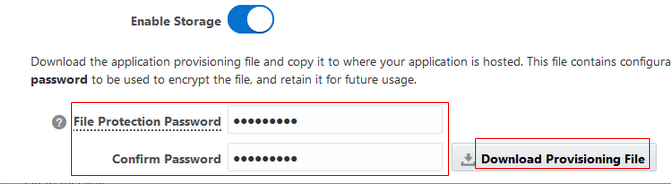
- On the Overview tab of the AMContainerIntegration page, enter your password in the File Protection Password and Confirm Password fields, and click Download Provisioning File.
Description iot_intg_view.png -
Save the
AAAAAAGWZICA-54BQ-provisioning-file-apps.conffile.
 Set Up the Oracle IoT Cloud Service JavaScript ECL
- Create a directory for your project files and name it
node-server. - In
node-server,install JavaScript ECL with Node Package Manager (npm):npm install node-forge npm install iotcs-csl-enterprise-x.x.x.tgz - To expose the JavaScript ECL API to Oracle Mobile Cloud Service, define a generic API:
npm install express
 Implement the Application
In this section, you modify and examine the code of a JavaScript application for Oracle Application Container Cloud. This application uses JavaScript ECL to connect to Oracle IoT Cloud Service and implement the business functionality, and it uses the express module to expose the generic REST APIs.
- Download
server.jsand save it in thenode-serverdirectory. This file is your application. - In a text editor where you can display line numbers, open
server.js.At line numbers 9 and 10, replace thetrustFileandtrustPassvalues with the name of your provisioning file and its protection password, respectively. Save the changes.9 var trustFile = 'AAAAAAGWZICA-54BQ-provisioning-file-apps.conf'; 10 var trustPass = 'Changeit'; - To review the business functionality of the application, read the comments and examine the code sections after the comments, as shown in the following code snippet:
1//exposes the defined APIs by adding express to the application
2 var express = require('express');
3 var app = express();
Note: To review the code in a logical sequence, read the comments in the following order of line numbers: 75, 86, 104, 119, 24, 42, and 1.
- Test the code.
node server.js
 Upload the Application to Oracle Application Container Cloud
- Copy the following items to the
node-serverdirectory:server.js:The application filenode_modules:The directory, installed by npm, for the dependenciesAAAAAAGWZICA-54BQ-provisioning-file-apps.conf:The truststore filemanifest.json:The configuration information file for Oracle Application Container Cloud
- Compress the directory and name it
node-server.zip. - Sign in to your instance of Oracle Application Container Cloud.
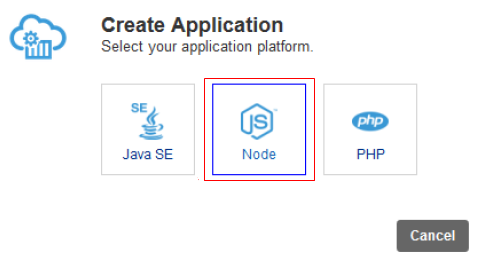
- Click Create Application, and then click Node.
Description of the illustration acc_appln_node.png - On the Create Application page, in the Name field, enter
iotcs-mcs-api-integration,select Upload Archive, click Browse, selectnode-server.zip,and click Create. The application begins deploying.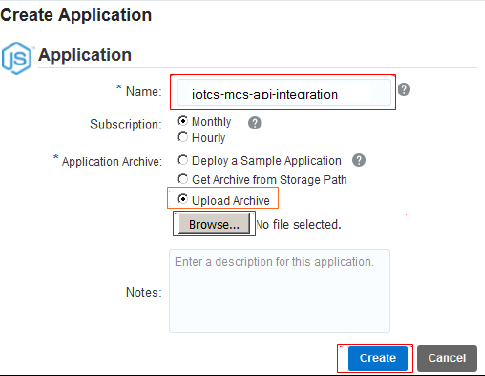
Description of the illustration node_appln_create.png -
Record the URL of the new application that is displayed after the deployment is completed. The URL is similar to
https://iotcs-mcs-api-integration-v2-a210401.apaas.us6.oraclecloud.com/.You'll need this URL when you configure a connector in Oracle Mobile Cloud Service. Record the URL of the new application that is displayed after the deployment is completed. The URL is similar tohttps://iotcs-mcs-api-integration-v2-a210401.apaas.us6.oraclecloud.com/.You'll need this URL when you configure a connector in Oracle Mobile Cloud Service.
 Want to Learn More?