
 Quick Start Tutorial Using a C Windows Application
 Before You Begin
This 15-minute tutorial shows you how to build a Windows application that simulates a virtual device and sends a message to Oracle Internet of Things (IoT) Cloud Service.
Background
Oracle IoT Cloud Service provides communication services between devices and enterprise applications. In this tutorial, you build a simulated device in a C language application, and then transmit a Hello World message to Oracle IoT Cloud Service.
What Do You Need?
- Access to an instance of Oracle IoT Cloud Service
- A computer running Windows 7 or later with a web browser and a recent version of Java Developer Kit (JDK) installed
- The latest version of the C Windows Client Software Library from Oracle Technologies Network
- The hello_world_sample.c file
- Completion of Configuring an Application in Oracle Internet of Things Cloud Service and the values of the configuration data
- Microsoft Build Tools to compile and run your Windows application. Microsoft Build Tools is part of Visual Studio version 2013. This is licensed software. If you don’t have Visual Studio installed, then you can get Microsoft Build Tools by downloading a free version from Visual Studio Community
- A tool that provides functionality similar to a Linux distribution on a Windows system, such as Cygwin version 2.6 or later. You need to install the following packages:
make, wget, tar, zip, unzip, xxs,andcurl
 Configure Your Simulated Device
- Download the latest version of the C Windows Client Software Library binary file from the Oracle Technologies Network downloads page.
- On your host system, set the
pathenvironment variable to add the location of your Cygwin installation directory so that you can use Linux commands in your command-line Windows interface. - Open a command-line Windows interface and go to the directory where you downloaded your library.
- Extract the
iotcs-csl-c-windows-bin-release.zipfile, wherereleaseis the release and version number.unzip iotcs-csl-windows-bin-release.zip - Check the following subdirectories are listed under the
iotcs\csl\windowsdirectory:binincludelib
 Build Your Libraries
- Open a command-line interface and change directory to
iotcs\csl\windows\bin. - Download the latest version of the OpenSSL file from:
https://www.openssl.org/source/ - Extract the content of the
opensslfile:
wheretar -xvf openssl-x.x.x*.tar.gzx.x.xis the latest version number and*is a lower case letter. - Go to the
openssldirectory:
wherecd openssl-x.x.x*x.x.xis the latest version number and*is a lower case letter. - Determine the name and path of the Visual Studio environment variable:
It should be similar to the following value:set | findstr -i comntoolsVS150COMNTOOLS=C:\Program Files (x86)\Microsoft Visual Studio\2017\Community\Common7\Tools\ - Enable command-line builds by replacing the Visual Studio environment variable name with the name you got in the previous step, and then run the commands:
"$(VS150COMNTOOLS)\VsDevCmd.bat" "$(VS150COMNTOOLS)\..\..\VC\Auxiliary\Build\vcvars32.bat" - Configure OpenSSL for Windows:
perl Configure VC-WIN32 no-asm - Build the libraries for OpenSSL:
Be patient, this will take a few minutes.nmake /nologo - Copy the produced libraries to the iotcs\csl\windows\bin directory:
copy /y *.lib ..\ - Change directories to the
iotcs\csl\windows\bindirectory. - Move the provisioning file to the
iotcs\csl\windows\bindirectory.
 Send Your First Message
- In the
iotcs\csl\windows\bindirectory, download thehello_world_sample.cfile (link in the prerequisites). - Compile the C program that you downloaded in the previous step:
cl hello_world_sample.c -I ..\include -I ..\lib\x86 ..\lib\x86\libiotdeviceclient.a libcrypto.lib libssl.lib crypt32.lib Ws2_32.lib kernel32.lib user32.lib gdi32.lib winspool.lib comdlg32.lib advapi32.lib shell32.lib ole32.lib oleaut32.lib uuid.lib odbc32.lib odbccp32.lib msvcrt.lib - Verify that your program compiled successfully by checking that the directory where your C program resides also contains the
hello_world_sample.exefile. - Set the environment variables
IOTCS_OS_NAMEandIOTCS_OS_VERSION:
The Windows Client Software Library uses these variablesset IOTCS_OS_NAME=Windows set IOTCS_OS_VERSION=7 - Send your first message by running the following command. Replace the provisioning file name and the password with your own values.
hello_world_sample.exe ./<Activation_ID> <File_Protection_Password>
 Verify Your Message
- Sign in to your Oracle IoT Cloud Service instance.
- On the Oracle IoT Cloud Service home page, under Applications, click Oracle IoT Asset Monitoring application.
- Select Data, and then in Filter By, select Device.
- Verify that the Messages table contains your message and review
the value of Message Content.
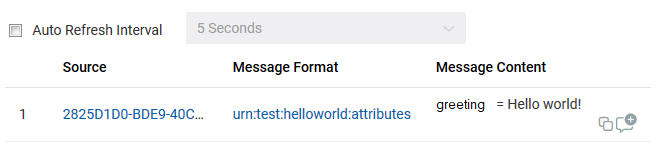
Description of the illustration messages_table.png
 Want to Learn More?