About Setting up Users Groups and Policies
Oracle NoSQL Database Cloud Service uses Oracle Cloud Infrastructure Identity and Access Management (IAM) to provide secure access to Oracle Cloud. Oracle Cloud Infrastructure IAM enables you to create user accounts and give users permission to inspect, read, use, or manage tables.
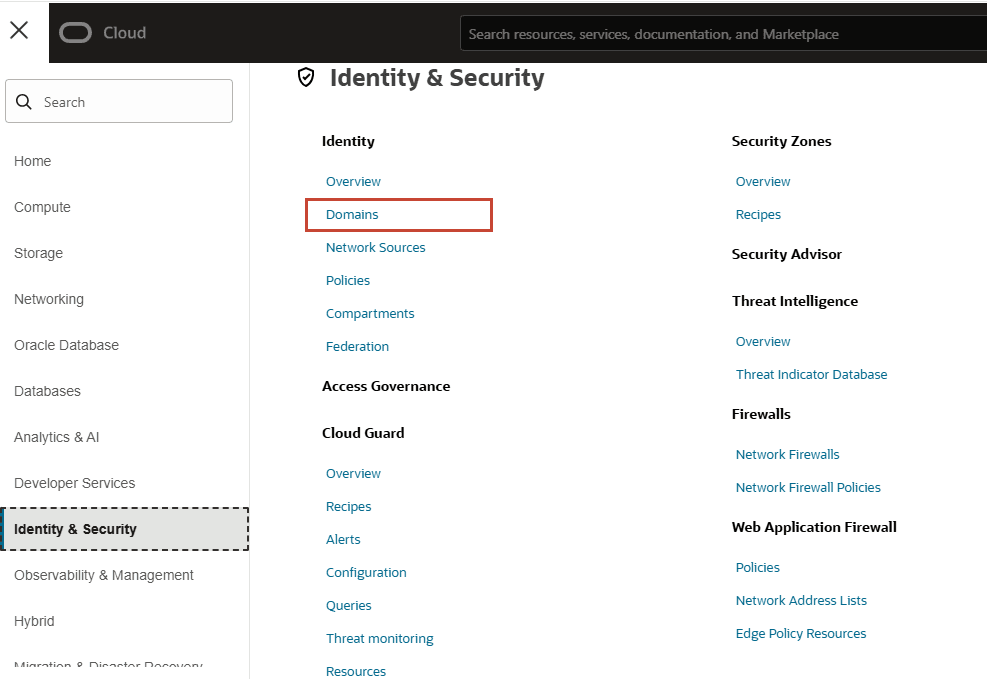
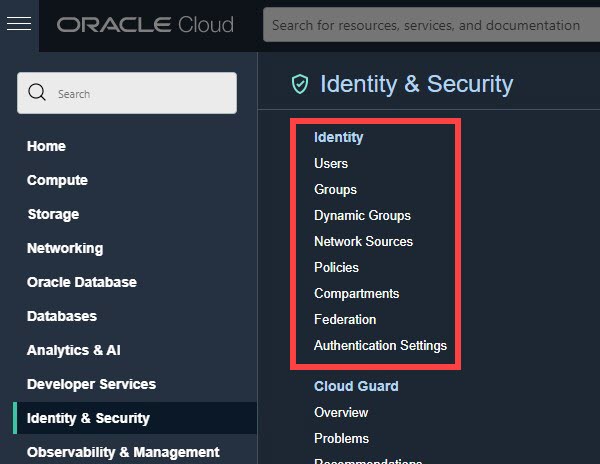
The way you manage users, groups, and dynamic groups for Oracle NoSQL Database Cloud Service depends on whether or not your cloud account or tenancy has been updated to use Oracle Cloud Infrastructure Identity and Access Management (IAM)identity domains. It’s easy to determine when your OCI tenancy has been updated to use Identity and Access Management (IAM) Identity Domains.
The OCI console for Tenancy with Identity Domain is shown below.
The OCI console for Tenancy without Identity Domain is shown below.
For more information, see Do You Have Access to Identity Domains?
Setting Up Users, Groups, Dynamic Groups and Policies Using Identity and Access Management
Oracle NoSQL Database Cloud Service uses Oracle Cloud Infrastructure Identity and Access Management (IAM) to provide secure access to Oracle Cloud. Oracle Cloud Infrastructure IAM enables you to create user accounts and give users permission to inspect, read, use, or manage tables.
If you are authenticating as a User Principal (using API signing key), see Setting up Users, Groups and Policies. Alternatively, if you are authenticating as an Instance Principal or Resource Principal, see Setting up Dynamic Group and Policies.
Setting up Users, Groups and Policies
-
Sign in to your Cloud Account as Cloud Account Administrator.
-
In Oracle Cloud Infrastructure Console, add one or more users.
-
Choose one of the following based on your tenancy(whether having Identity Domains or not having Identity Domains):
-
Tenancy with Identity Domains: Perform the following:
-
Open the navigation menu and select Identity & Security.
-
Under Identity, select Domains. This opens the Domains page.
-
Select the Compartment filter next to Applied filters. Select your compartment from the drop-down list.
-
Select the identity domain you want to work in. On the User management tab, go to the Users section.
-
-
Tenancy without Identity Domains: Open the navigation menu and select Identity & Security. Under Identity, select Users.
-
-
Select Create.
-
Enter details about the user, and select Create.
-
-
In Oracle Cloud Infrastructure Console, create an OCI group.
-
Choose one of the following based on your tenancy(whether having Identity Domains or not having Identity Domains):
-
Tenancy with Identity Domains: Perform the following:
-
Open the navigation menu and select Identity & Security.
-
Under Identity, select Domains. This opens the Domains page.
-
Select the Compartment filter next to Applied filters. Select your compartment from the drop-down list.
-
Select the identity domain you want to work in. On the User management tab, scroll down to the Groups section.
-
-
Tenancy without Identity Domains: Open the navigation menu and select Identity & Security. Under Identity, select Groups.
-
-
Select Create group.
-
Enter details about the group. For example, if you are creating a policy that gives users permissions to fully manage Oracle NoSQL Database Cloud Service tables you might name the group nosql_service_admin (or similar) and include a short description such as “Users with permissions to set up and manageOracle NoSQL Database Cloud Servicetables onOracle Cloud Infrastructure” (or similar).
-
Select Create.
-
-
Create a policy that gives users belonging to an OCI group, specific access permissions to Oracle NoSQL Database Cloud Service tables or compartments.
-
Open the navigation menu and select Identity & Security.
-
Under Identity, select Policies.
-
Select the Compartment filter next to Applied filters. Select your compartment from the drop-down list.
-
Select Create Policy.
For details and examples, see Policies Reference and Typical Policy Statements to Manage Tables .
If you're unfamiliar about how policies work, see How Policies Work.
-
-
To manage and use NoSQL tables through Oracle NoSQL Database Cloud Service SDKs, the user must set up the API keys. See Authentication to connect to Oracle NoSQL Database.
Note: Federated users can also manage and use Oracle NoSQL Database Cloud Service tables. This requires the service administrator to set up the federation in Oracle Cloud Infrastructure Identity and Access Management. See Federating with Identity Providers.
Users belonging to any groups mentioned in the policy statement get their new permission when they next sign in to the Console.
Setting up Dynamic Group and Policies
Prior to making a call to an Oracle Cloud Infrastructure resource using either resource principals or instance principals, an Oracle Cloud Infrastructure tenancy administrator must create Oracle Cloud Infrastructure policies, dynamic groups, and rules that define the resource principal or instance principal privileges.
-
Sign in to your Cloud Account as Cloud Account Administrator.
-
In Oracle Cloud Infrastructure Console, create a dynamic group.
-
Choose one of the following based on your tenancy(whether having Identity Domains or not having Identity Domains):
-
Tenancy with Identity Domains:
-
Open the navigation menu and select Identity & Security.
-
Under Identity, select Domains. This opens the Domains page.
-
Select the Compartment filter next to Applied filters. Select your compartment from the drop-down list.
-
Select the identity domain you want to work in and select the Dynamic groups tab.
-
-
Tenancy without Identity Domains: Open the navigation menu and select Identity & Security. Under Identity, select Dynamic groups.
-
-
Select Create dynamic group and enter a Name, a Description, and a rule, or use the Rule Builder to add a rule.
-
Select Create.
Resources that meet the rule criteria are members of the dynamic group. When you define a rule for a dynamic group, consider what resource is going to be given access to other resources. Some examples of creating rules:
-
A matching rule for functions:
ALL {resource.type = 'fnfunc',resource.compartment.id =
    'ocid1.compartment.oc1..aaaaaaaafml3tca3zcxyifmdff3aadp5uojimgx3cdnirgup6rhptxwnandq'}
This rule implies that any resource type called
fnfuncin the given compartment(with the id specified above) is a member of the dynamic group.Note: See Resource Types for more information on different resource types.
-
A rule when adding instances for Instance Principals:
ALL { instance.compartment.id =
      'ocid1.compartment.oc1..aaaaaaaa4mlehopmvdluv2wjcdp4tnh2ypjz3nhhpahb4ss7yvxaa3be3diq'}
This rule implies that any instance with the compartment id specified above is a member of the dynamic group.
-
A rule when using API Gateway with functions:
ALL {resource.type = 'ApiGateway',resource.compartment.id =
      'ocid1.compartment.oc1..aaaaaaaafml3tca3zcxyifmdff3aadp5uojimgx3cdnirgup6rhptxwnandq'}
This rule implies that any resource type called
ApiGatewayin the given compartment (with the id specified above) is a member of the dynamic group. -
A rule when using Container Instances:
ALL {resource.type = 'computecontainerinstance',
resource.compartment.id =
'ocid1.compartment.oc1..aaaaaaaa4mlehopmvdluv2wjcdp4tnh2ypjz3nhhpahb4ss7yvxaa3be3diq'}
This rule implies that any resource type called
computecontainerinstancein the given compartment (with the id specified above) is a member of the dynamic group.
Note: Inheritance does not apply to Dynamic groups. While using IAM Access policies, the policy of a parent compartment automatically applies to all child compartments. This is not the case when you use Dynamic groups. You need to list each compartment in the Dynamic group separately for the compartment to qualify.
Example: A matching rule for functions for parent-child compartments:
ALL {resource.type = 'fnfunc', ANY{resource.compartment.id = '<parent-compid>', resource.compartment.id = '<child-compid1>', resource.compartment.id = '<child-compid2>', ...}} -
-
Write policy statements for the dynamic group to enable access to Oracle Cloud Infrastructure resources.
-
In the Oracle Cloud Infrastructure console, select Identity and Security and select Policies.
-
Select the Compartment filter next to Applied filters. Select your compartment from the drop-down list.
-
To write policies for a dynamic group, select Create Policy, and enter a Name and a Description.
-
Use the Policy Builder to create a policy. The general syntax of defining a policy is shown below:
Allow <subject> to <verb> <resource-type> in <location> where <conditions>-
Syntax of subject: One or more comma-separated groups by name or OCID.
-
Verbs: Values are inspect, read, use or manage.
-
resource-type: An individual resource-type, A family resource-type (like nosql-family) or all-resources.
-
compartment:A single compartment or compartment path by name or OCID
Example:This policy allows the dynamic group
nosql_applicationthefnfuncuse access on the resource in the compartmentUATnosql.allow dynamic-group nosql_application to use fnfunc in compartment UATnosqlExample: This policy allows the dynamic group
nosql_applicationthemanageaccess on the family resourcenosql-familyin the compartmentUATnosql. -
-
Select Create. See Manage Policies for more information on policies.
-