Enabling a Compute Instance for Oracle NoSQL Database Cloud Service and Oracle Autonomous AI Lakehouse
Steps to authorize your compute instance to perform actions on the NoSQL Service, ObjectStorage, and Oracle Autonomous AI Lakehouse.
Create a Dynamic Group for the Compute Instance and the Oracle Autonomous AI Lakehouse Database
Although you can execute the Oracle NoSQL Database Analytics Integrator using your own credentials exclusively, it is recommended that you execute the utility from an Oracle Cloud Compute Instance authorized to perform actions on the Oracle NoSQL Cloud Service, Object Storage, and the Oracle Autonomous AI Lakehouse. Similarly, although you can use an Object Storage AUTH_TOKEN to allow the Oracle Autonomous AI Lakehouse database to access Object Storage, it is recommended that you use the OCI Resource Principal to authenticate the Oracle Autonomous AI Lakehouse database with Object Storage. It is important to note though, that because the database you create in Oracle Autonomous AI Lakehouse requires authentication using the database’s username and password, your user credentials still must be supplied to the utility to access that resource.
To authorize your compute instance to perform actions on the NoSQL Service, ObjectStorage, and Oracle Autonomous AI Lakehouse, a dynamic group must be created and a set of matching rules must be added for your instance. To allow the Oracle Autonomous AI Lakehouse database to use the OCI Resource Principal to access Object Storage, a dynamic group with the appropriate set of rules must also be created. If you wish, the same dynamic group you create for your compute instance can also be used for the Oracle Autonomous AI Lakehouse database. This is shown in the example below.
-
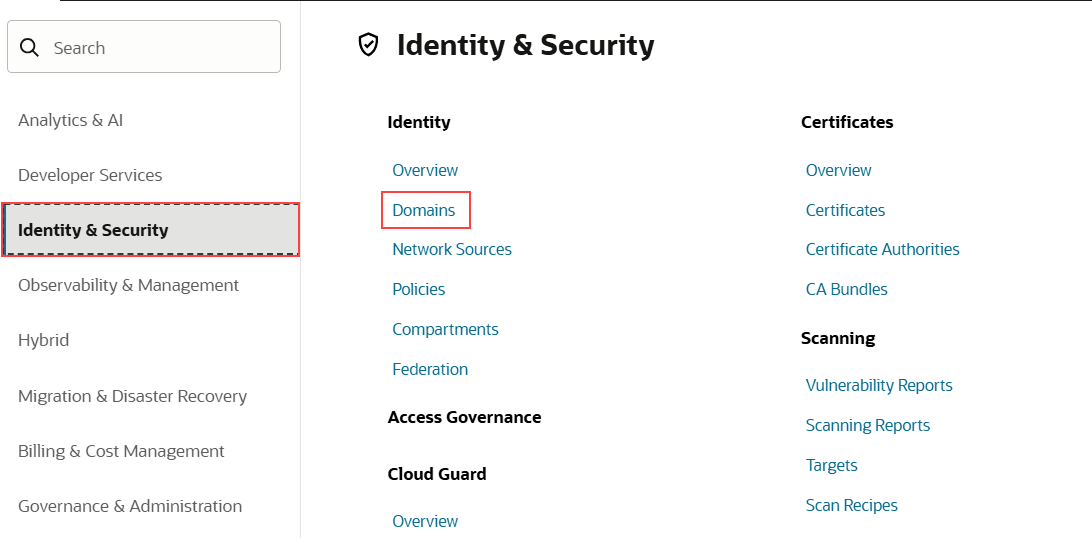
Select Identity & Security from the menu on the left side of the display.
-
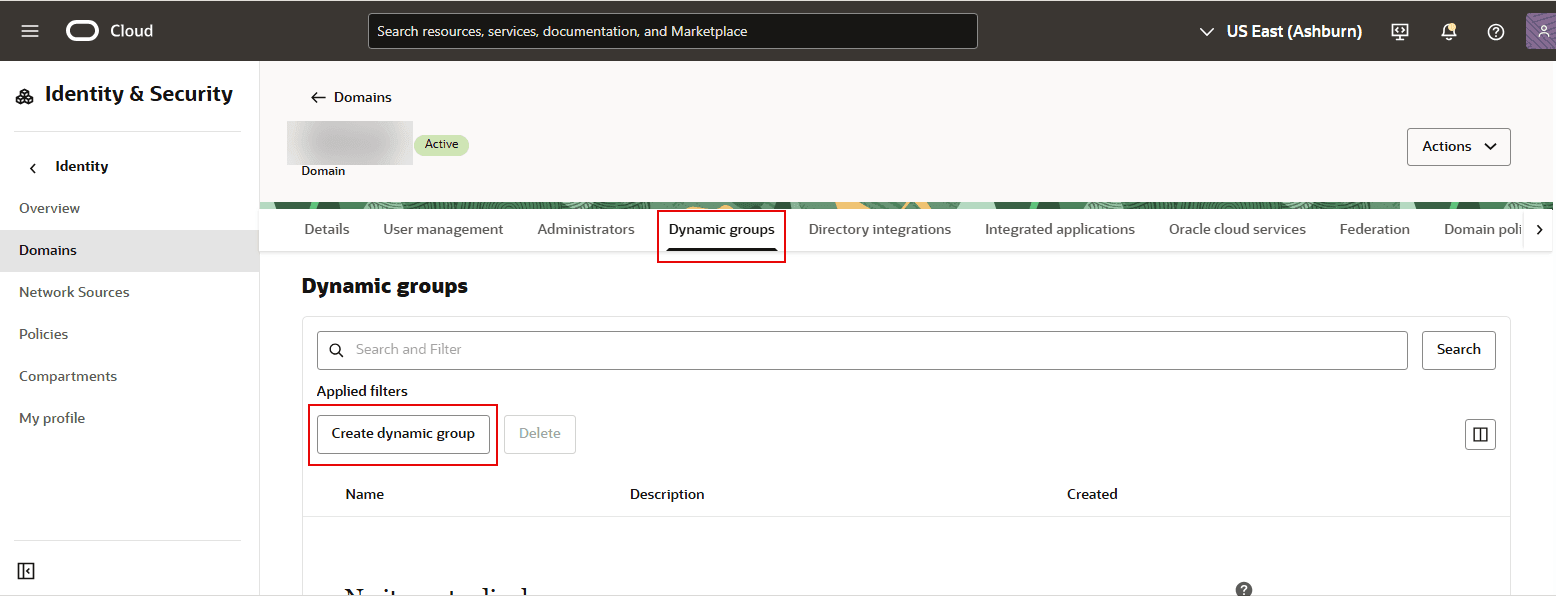
Under Identity, select Domains. Click the domain you want to work in and from horizontal scroll bar at the top, select Dynamic groups.
-
Click Create Dynamic Group.
-
Enter a name for the group, for example,
nosql-to-adw-group. -
Enter a description for the group; for example, the list of the group’s members.
-
Enter the desired matching rules; for example, Any {instance.id=’
<ocid-of-compute-instance>} and ‘resource.id=<ocid-ofthe-database>.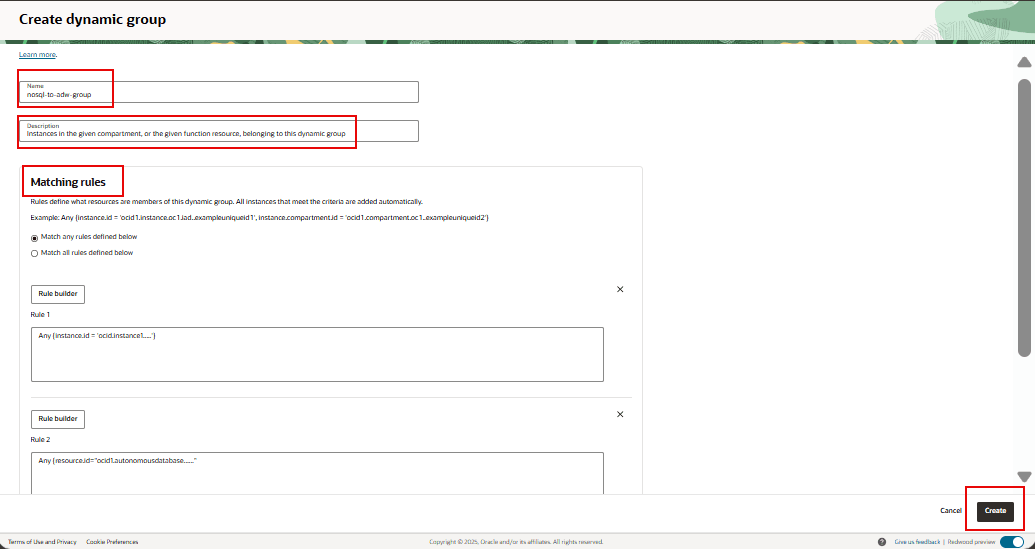
-
Click Create.
Create a Policy with appropriate permissions for the dynamic group
Once a dynamic group is created, you must create a policy that grants permissions to it that allows members of that group (for example, the compute instance) to read tables in the NoSQL Cloud Service, read and write objects in ObjectStorage, and execute procedures in the Oracle Autonomous AI Lakehouse.
-
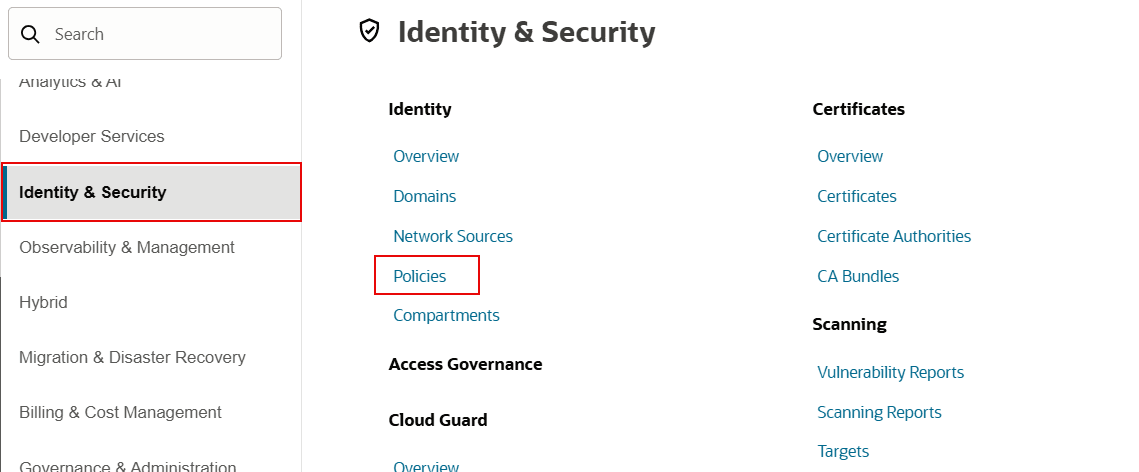
Select Identity & Security from the menu on the left side of the display.
-
Under Identity, select Policies.
-
Click the Compartment filter next to Applied filters. Select your compartment from the drop-down list.
-
Click Create Policy.
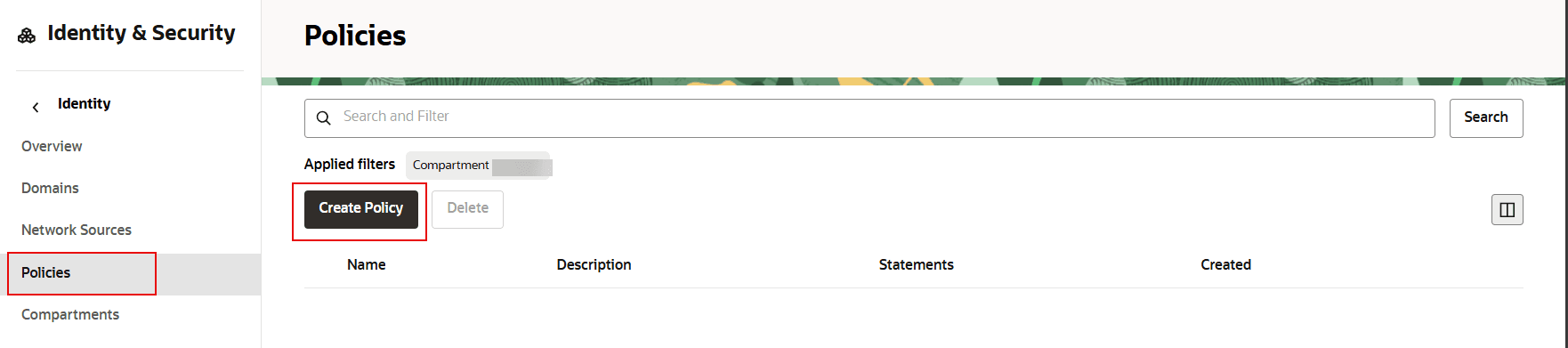
-
Enter a name for the policy.
-
Enter a description for the policy; for example, a description of what the members of the group are allowed to do.
-
Enter the compartment and click Create.
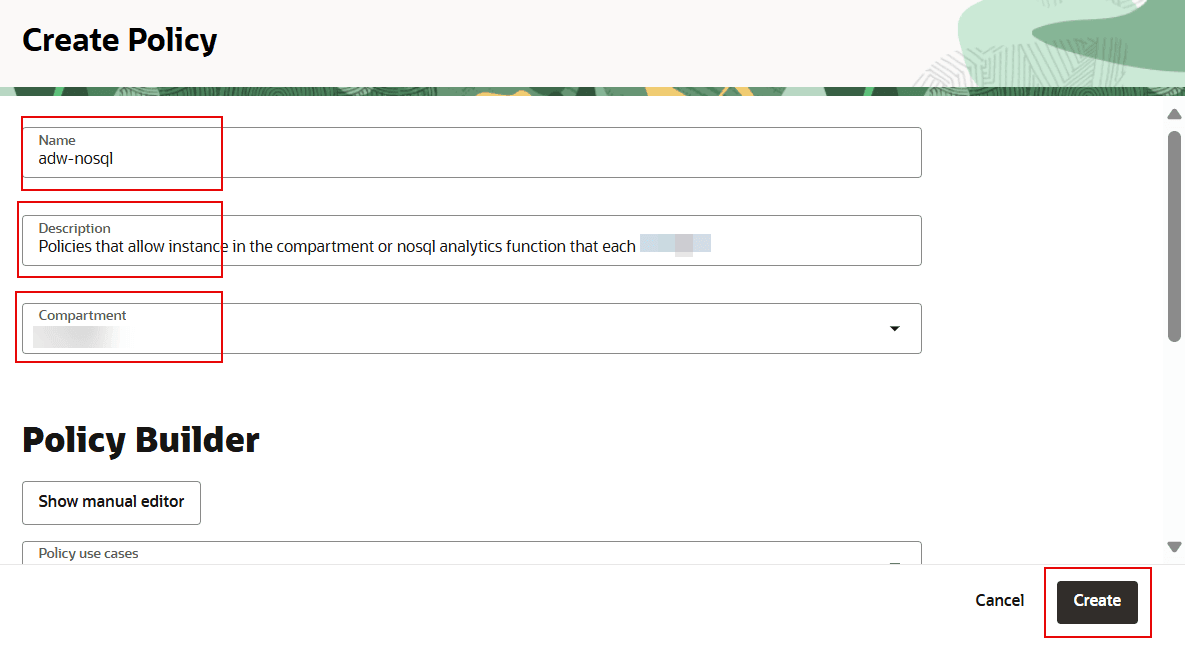
-
Add Statements to the policy using Show manual editor.
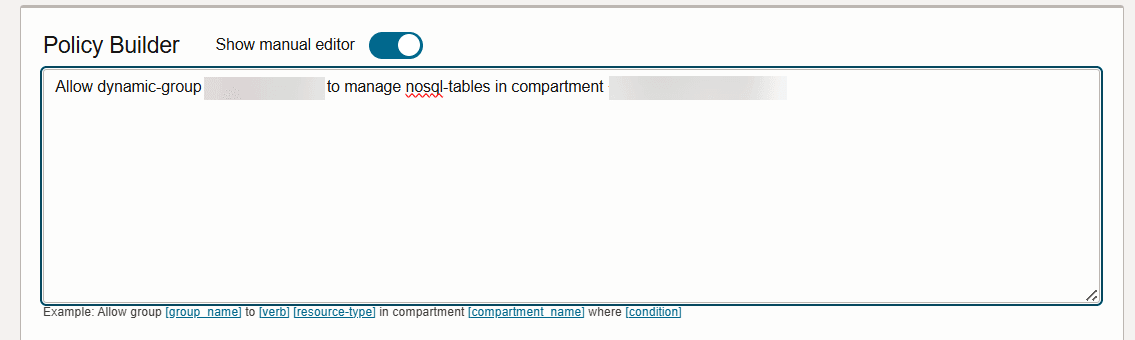
An example set of policies that allow the compute instance from the dynamic group to access the NoSQL Cloud Service, ObjectStorage, and Oracle Autonomous AI Lakehouse is given below.
Allow dynamic-group <dyn-grp-name> to manage nosql-tables in compartment <compartment-name>
Allow dynamic-group <dyn-grp-name> to manage nosql-rows in compartment <compartment-name>
Allow dynamic-group <dyn-grp-name> to manage nosql-indexes in compartment <compartment-name>
Allow dynamic-group <dyn-grp-name> to read buckets in compartment <compartment-name>
Allow dynamic-group <dyn-grp-name> to read objects in compartment <compartment-name>
Allow dynamic-group <dyn-grp-name> to manage buckets in compartment <compartment-name>
Allow dynamic-group <dyn-grp-name> to manage objects in compartment <compartment-name>
Allow dynamic-group <dyn-grp-name> to manage autonomous-database in compartment <compartment-name>
After this configuration, you should be able to execute the utility from a compute instance using Instance Principal authentication.