Configure the Behavior of Polymorphic Segments
The add-in allows edits to global and context-sensitive polymorphic segments in the service editor.
Edits to properties of the polymorphic fields are preserved during polymorphic metadata refresh. See Refresh Polymorphic Business Object Metadata. Prior to version 4.6 of the add-in, global and context-sensitive polymorphic segments were not editable. The behavior of these fields was dynamic and fully determined by the service metadata. During a metadata refresh, the existing metadata was fully discarded in exchange for the updated metadata from the service.
The add-in now allows and tracks edits to some properties of global and context-sensitive fields. During polymorphic metadata refresh, edits are preserved rather than overwritten with updated metadata from the service. Unedited properties are updated from the service as before. Additionally, some properties that are not derived from service data, like Validation Rule, now allow edits in the field editor for polymorphic segments. These values are also preserved during a polymorphic metadata refresh.
To configure the behavior of polymorphic segments, you edit the properties for global and context-sensitive polymorphic segments by navigating to the Business Object Field Editor for their discriminator field (context segment).
- Click Manage Catalogs.
- In the Manage Business Object Catalogs window, select your catalog and click the Edit Business Object Catalog (
 ) icon.
 - In the Fields tab of the Business Object Editor, select and edit the discriminator field.
- In the Business Object Field Editor, the Polymorphic Information tab contains a list of available segments in its Fields tab.
The segments are grouped by their context (Global for global segments or the relevant discriminator value for context-sensitive segments).
The following settings are editable in the Field Editor for global and context-sensitive polymorphic fields, except where noted in the table. During polymorphic metadata refresh, edited settings are preserved. Values of unedited settings that support change tracking are discarded and set to the updated value from the service.
| Setting | Description | Supports Change Tracking |
|---|---|---|
| Title | The name of this field. This value is used in various places, such as for the column header or form field label. This value can be localized. Provide a short value that is meaningful to your business users. |
Yes |
| Help Text | A description of the field intended for business users. This value appears near the title where possible. This value can be localized. Provide a brief explanation of what values are expected for this field. See Add Help Text to Your Workbook. |
Yes |
| Data Type | The data type for the field, used for encoding and decoding data from the service, as well as data validation and cell formatting. Data types include values such as:
See Supported Data Types. Warning: Do not modify the data type without consulting the service owner. |
Yes |
| Format | The cell formatting property for the field. The default property (Default) indicates that the field uses the standard formatting for the data type, for example, mm/dd/yyyy for date fields. To use a different format style, select an option from the list such as Long Date for a date field. This option displays "7/15/2022" as "Friday, July 15, 2022". See Choose Field Formats. |
No |
| Description | An internal technical description for the field. |
Yes |
| Default Value | A default value for the field. See Default Values for Business Object Fields. |
Yes |
| Setting | Description | Supports Change Tracking |
|---|---|---|
| Primary Key | Determines if the field is a primary key or is part of a composite primary key for the business object. If the check box is selected, the add-in uses the value of this field to uniquely identify business object records. |
No |
| Required for update and Required for create | Ensures a value is provided for the field during create or update:
Warning: Don't deselect these check boxes without first consulting with the REST service owner. These properties come from the service metadata and reflect requirements of the REST service. If you deselect these check boxes for a field required by the service, the service may return an error, similar to a (400) Bad Request error, if no value is provided. See Required Fields. |
Yes |
| Editable on update and Editable on create | Allows or prevents write operations on the field during create or update:
|
Yes |
| Searchable | Determines if a field can be used in a search. Starting with add-in version 5.0, searchable discriminator fields and global polymorphic segments can appear in the Search Editor. Context-sensitive polymorphic segments do not appear in the Search Editor, and their Searchable and Required for search settings are not editable. |
Yes |
| Required for search | Determines if a value is required for the field during a search:
|
Yes |
| Omit from payload if value is empty | Determines if the field is omitted from the payload if the cell value is empty. If the check box is selected, empty values are omitted. See Omit Empty Values During Upload. |
Yes |
| Hide in layouts | Hides the global or context-sensitive segment when the polymorphic business object is included in a layout.
|
Yes |
| Minimum Length and Maximum Length | The minimum or maximum length of the value in characters for a string-based field. The value must be a number between 0 and 2147483647. If a value is set for one or both of these properties, the add-in checks that the number of characters in the field cell meets the set minimum or maximum value. If the value is less than the minimum or greater than the maximum, a data entry error is displayed. The business user won't be able to upload the new or updated row until a value meeting the minimum and/or maximum length is provided. See Data Validation. Note: Current versions of Excel limit the length of text for a single cell to 32,767 characters. See Excel specifications and limits. |
Yes |
| Validation Rule and Validation Failure Message | Custom validation logic and the message displayed when the validation fails. See About Field Validation Rules. |
No |
When change tracking properties are edited, the control’s styling changes to indicate that the value has been altered. The text becomes bold, and a Revert icon ( ) appears inside the control.
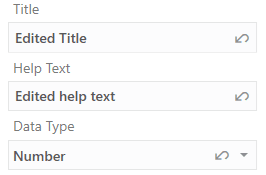
Description of the illustration vbafe-title-setting.png
To unmark the changes to a particular property and revert the value to the value from the service, click the Revert icon ().
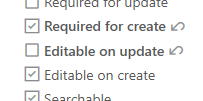
Description of the illustration vbafe-revert.png
Note: Manually editing the value back to the old value will not unmark the property as changed. Once a property has been edited, the Revert icon (