Delete a Dependent Layout
When your layout is part of a hierarchy of dependent layouts, you can delete a leaf dependent layout directly. The add-in removes that layout from the dependency hierarchy as part of deletion.
A layout that has one or more dependent layouts cannot be deleted until those dependencies are removed. To keep a dependent layout but make it standalone, remove its parent dependency instead of deleting it.
To delete a dependent layout:
- Open the Layout Designer of the Excel worksheet whose layout you want to delete.
- If the layout has child layouts, first delete those child layouts or remove their dependencies.
- Click Delete Layout, then confirm your selection.
To remove a dependency without deleting the layout:
- Open the Layout Designer of the Excel worksheet whose dependency you want to remove.
-
In the General tab, click the Remove Dependency (
 ) icon next to Parent Layout.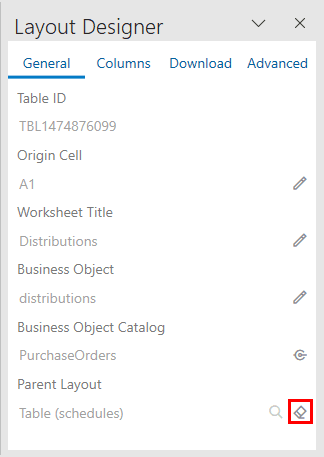
- When prompted, click Yes to remove the dependency.