About Field Validation Rules
A field validation rule is an expression you define for a field that determines whether the value is valid. When a business user enters a value, Oracle Visual Builder Add-in for Excel evaluates the expression. If the expression evaluates to false, the add-in displays the failure message.
These rules can catch invalid values during data entry when it’s easy to correct a mistake rather than having to find errors during upload.
You write the rules as expressions using the add-in’s expression language that evaluate to true or false. When a business user enters a value, the add-in evaluates the expression based on the value and, if the expression evaluates to true, the value is judged to be valid. If the expression evaluates to false, the value is invalid, and the add-in displays a popup with the validation failure message.
You can define a rule that compares the value the business user enters with a constant or with the result of an expression involving other field values in the same row. When comparing values, make sure the data types match. For example, an expression on an integer field such as { this.Value <= 500 } compares an integer entered by the business user (this.Value) with an integer constant (500).
Validation rules are supported on:
- Business object fields
- Row finder variables
- Custom action payload fields
- Row variables
Supported Expression Syntax
When constructing a field validation rule, these expressions are supported:
| Expression | Description | Supported Field Types |
|---|---|---|
this.Value |
Returns the current field value, where this is a supported field. |
Business object field Custom action payload field Row finder variable Row variable |
this.BusinessObject.Fields['<FieldID>'].Value |
Retrieves another field value in the same row as the current field, where this refers to the current field, BusinessObject refers to the business object of the current field, Fields['<FieldID>'] refers to the ID of a field in the set of fields for the business object, and Value refers to the value of the given field. The field must be shown as a column in the layout. |
Business object field Custom action payload field Row variable |
this.CustomAction.PayloadFields['<FieldID>'].Value |
Retrieves a given payload field value (PayloadFields['<FieldID>'].Value) in the same custom action (this.CustomAction). |
Custom action payload field |
this.Finder.Variables['<VariableID>'].Value |
Retrieves a given finder variable value (Variables['<VariableID>']) in the same row finder (this.Finder).Note: Make sure a validation rule for a variable in a basic search does not reference a variable configured for an advanced search since the rule would fail in basic mode. See Configure Row Finders for a Business Object. |
Row finder variable |
{ Preferences['<serviceId>'].Fields['<fieldId>'].Value } |
Returns the value of specified field in the given preference service. See Declare a Preference Service. | Business object field Custom action payload field Row finder variable Row variable |
The field validation rule does not support:
- The
Parentkeyword (for example,this.BusinessObject.Parent.Fields['<FieldID>'].Value) to get a field value from a parent or other ancestor business object - Accessing field values from child and other descendant business objects
- The
CustomActionskeyword (for example,this.BusinessObject.CustomActions['CustomActionID']) to access a custom action from a regular field
Field validation rules support the Today() and Now() functions.
Sample Validation Rule Expressions
Field validation rules use the add-in expression language. See About Expressions for more information.
Note: When creating expressions for a field validation rule, keep in mind that empty cells may produce undesirable results. For information about handling null values in expressions, see Handling Null Values in Expressions.
| Expression | Use |
|---|---|
{this.Value == null ? true : this.Value <= 500} |
This rule compares the value in the cell (
|
{ (this.BusinessObject.Fields['UnpaidAmount'].Value ?? 0) > 10000 ? this.Value == 'Group 1' : this.Value == 'Group 2' } |
This rule checks the value in an Invoice Group cell (either
|
{this.Value == null ? false : this.Value > 0 && this.Value < 50} |
This rule checks the value in the cell and displays a validation failure message if the value is outside a given range (between
|
{this.Value == null ? false : this.Value < Today()} |
This rule compares the date value in the cell to today's date and displays a validation failure message if the date is today or after today.
|
{this.Value == null ? true : this.Value > Now()} |
When the cell has a date-time value, this rule compares this value to the current moment and displays a validation failure message if the date and time provided is not after the current moment.
|
For the Category variable:
|
Consider a row finder with two variables: "Category" and "Item", where a value is required for at least one of the two variables.
|
Create Field Validation Rules
You can define field validation rules to ensure your business users are entering valid values when they create or update a row or form in a layout.
For example, you may want to limit the amount for each expense in an expense report to $500 or less. To do this, you can enter a rule for the “Amount” field like this: { this.Value == null ? true : this.Value <= 500 } where this.Value refers to the value of the currently-selected cell. During data entry, the add-in marks the row as “Invalid” if the value entered exceeds $500.
If the business user selects the cell with the error, the add-in displays a popup with a description of the error. You can also provide a custom error message when you define a rule.
Note: This example expression uses a conditional to set the value of the expression to “true” (
this.Value == null ? true) if the selected cell is empty (null).
For help on the add-in expression language and null handling in expressions, see About Expressions and Handling Null Values in Expressions.
To create a field validation rule:
-
Open the Business Object Field Editor of the field you want to set a validation rule for, then click the Constraints tab.
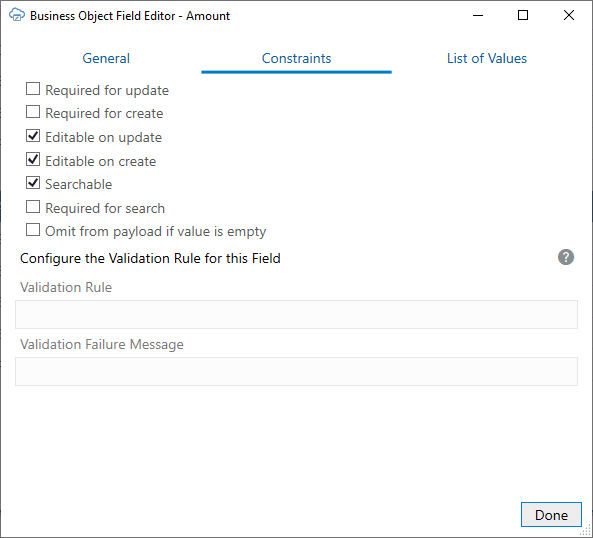
Description of the illustration bo-editor-validation-rule.png
Note: For a custom action payload field, navigate to the Custom Action Payload Field Editor instead.
-
In the Validation Rule field, click the edit icon (
 ) to open the Expression Editor and then use the menu to create a valid expression. The expression must comply with the add-in’s expression language and evaluate to
 trueorfalse.For example, to limit the value in an Amount field to $500 or less, type:
{ this.Value == null ? true : this.Value <= 500 } -
To provide a custom error message, type your message in the Validation Failure Message field.
Use this field to provide a brief explanation for your business users of what values are expected for this field. This value can be localized.
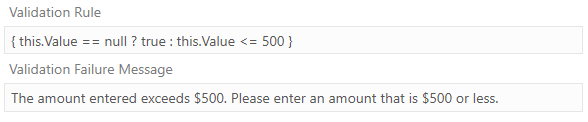
Description of the illustration validation-rule-expense-amt.png
At runtime, if a business user enters a value that violates the validation rule, the add-in marks the row as invalid and displays a red outline around the invalid cell. If selected, the add-in displays an error popup with the validation failure message.
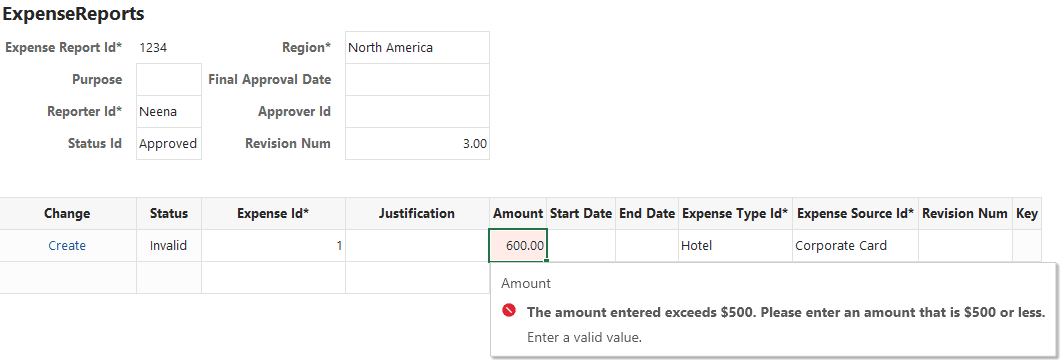
Description of the illustration validation-rule-error-popup.png
Notes on Field Validation Rules
Here are some things to keep in mind when creating field validation rules.
Supported Fields
Fields with these data types are supported:
BooleanDate (no time)Date-timeIntegerNumberString
Unsupported Fields
These fields are not supported:
- Fields with
ObjectorUnsupporteddata types - Fields with a configured list of values. The add-in already performs validation on these fields to ensure the value is a valid entry from the list.
- Discriminator fields from a polymorphic business object
- Ancestor fields
Limitations
- A rule expression for a field or variable cannot refer to a field value from a different row, a different row finder, or a different layout.
- Multiple validation rules on one field are not allowed. However, you can use logical operators,
&&and||, in one validation rule to achieve the same purpose.
Validation Behavior
- Legacy null handling is not supported for validation rules in row finder variables.
- Validation rules are not evaluated on download. So, if the downloaded data includes values that violate the rules, the violations are not highlighted after download completes.
- When a cell is modified, all editable cells in that row are validated.