Declare a Preference Service
Configure properties with an expression to fetch values dynamically from a REST service.
You can declare a preference service to fetch values dynamically from a REST service that can then be used in preference expressions in properties like Default Value and Validation Rule. A preference service is a business object that supports GET at the collection level plus an optional query string. This feature allows an integrated workbook to behave differently at different customer sites or even, potentially, for different business users depending on the query used.
Configure a Preference Service
Define a preference service in the Business Object catalog.
- Click Manage Catalogs.
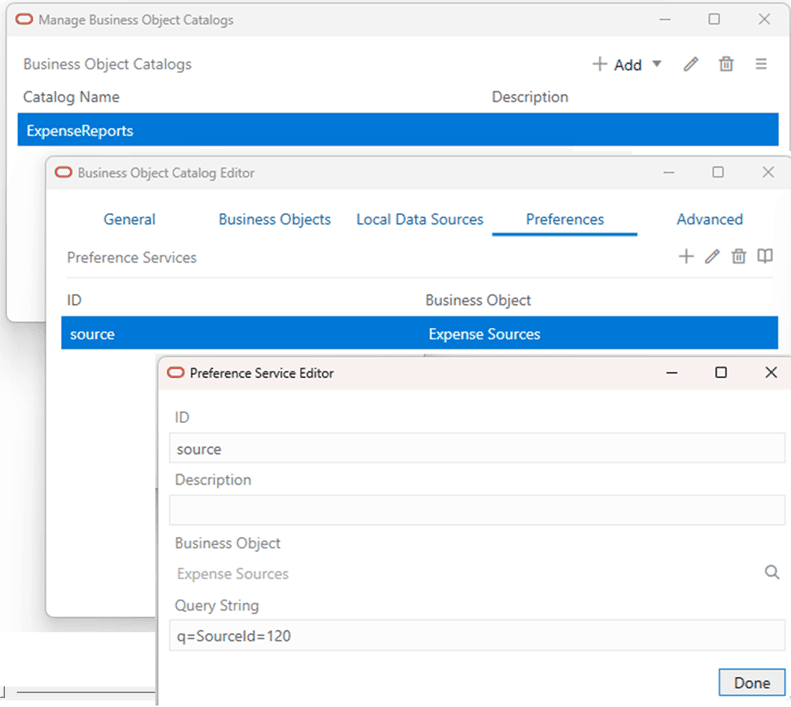
- In the Manage Business Object Catalogs window, select and edit the catalog where you want to define a preference service.
- In the Preferences tab, click Add Preference Service (
 ) and click Edit Preference Service (
 ) to open the Preference Service Editor.
 -
In the Preference Service Editor, provide an arbitrary ID to use later in expressions.
- The value must be unique within the current catalog.
- Use a short value that does not contain any special characters.
-
Click Choose a business object (
 ) to select a business object.
If your catalog does not yet include the desired business object, you can add it. See Add Business Objects to an Existing Catalog.
-
Provide an optional query string (for example:
q=id=432) that:- Conforms to the expected syntax of the service.
- Does not include the
?character. - Includes the encoded value if any characters require URL encoding.
Note: There is no support for object-based fields and their subfields, child business objects, or polymorphic business objects such as DFF.
Add a Preference Expression to a Property
Enter an appropriate preference expression in a property that supports preference expressions. For example:
- Click Designer.
- In the Columns tab of the Layout Designer, select the field that you want to edit, and click Edit the selected column () to open the field editor.
-
In the editor, click Edit in Expression Editor (
) in the Default Value field and, in the Expression Editor that opens, select the Preferences template ({ Preferences['<serviceId>'].Fields['<fieldId>'].Value }) from the Values menu.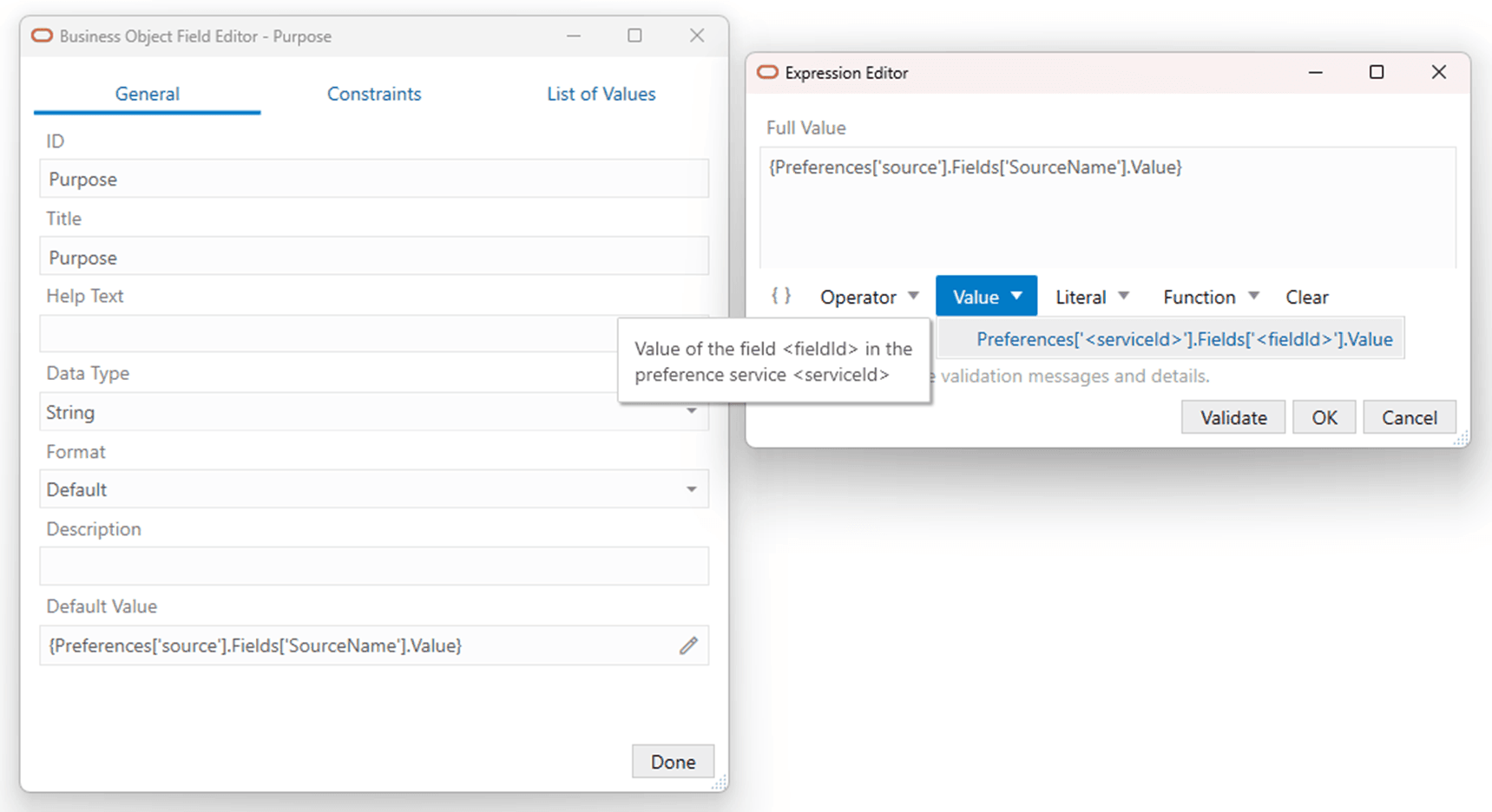
- In the Available Preference Fields window that opens, select the preference service that you configured from the Choose a Preference Service list, and then a field from the service.
Apply Preference Values
The add-in evaluates a preference expression when it evaluates the property that contains the expression.
- The add-in performs a GET request on the target preference service including the optional query string (if specified).
- The add-in sets the download row count to 1. If the business object has a configured limit parameter, the request includes that parameter with a value of 1.
- If the request is successful, the add-in uses the field values from the first item in the response.
- The add-in caches these values in memory and reuses them for the remainder of the workbook session.
- If the workbook is closed and reopened, the add-in fetches a fresh copy of the preference values from the service.
- The expression is replaced with the field value from the preference service.
Error Handling
- If the expression contains an invalid service id or field id, the result is an error that interrupts the current operation.
- If the attempt to fetch the values fails, the result is an error message that does not interrupt the current operation. The add-in does not reattempt the fetch for the remainder of the workbook session.
- If the GET request returns zero rows or the target field is missing from the response, there is no error. The expression is replaced with a null value.
- You can use the add-in’s Network Monitor to view the details of the GET request to the preference endpoint.