Treat Row as Stale After Upload
For some services, Create/Update/row-level custom action responses may not contain updated field values in the payload. It is possible that the worksheet no longer has the latest data for the given row.
To resolve this issue, the add-in uses an ETag to determine if the resource has been changed. The ETag identifies a specific version of a resource.
- The row in the worksheet is outdated if a response does not contain updated field values, and the ETag value in the Create/Update/row-level custom action response does not match the old ETag value in the download.
- The row in the worksheet has the latest data if the response does not contain updated field values, and the ETag value in the Create/Update/row-level custom action response matches the old ETag value in the download.
- The row in the worksheet is outdated if the response does not contain updated field values and the ETag does not exist in the Create/Update/row-level custom action response and/or in the Download response.
To notify users that a row contains outdated values:
-
Click Manage Catalogs.
-
In the Manage Business Object Catalogs window, select your catalog and click the Edit Business Object Catalog (
 ) icon.
 -
From the Business Object Catalog Editor, click Advanced and, in the Advanced tab, select the Treat row as stale when the response does not contain updated field values checkbox.
In integrated workbooks created with version 4.6 and later of the add-in this checkbox is selected by default. In versions prior to version 4.6, it is not selected by default.
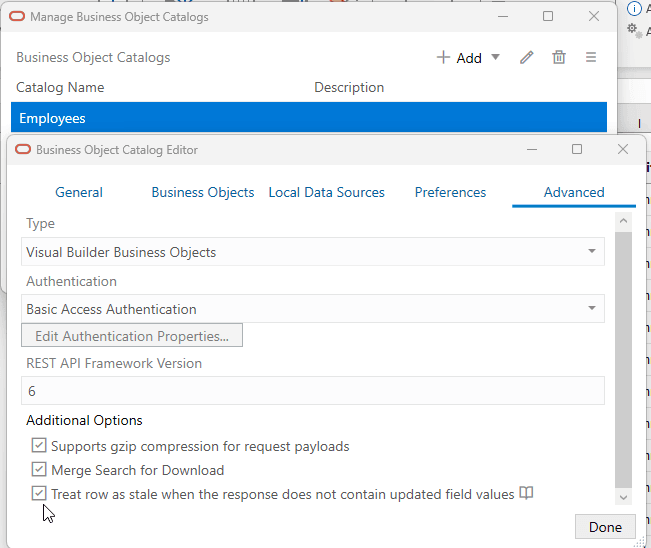
Description of the illustration vbafe-stale-row-advanced-tab.png
At runtime, the add-in applies read-only styles to all data cells in the stale row and the Status Viewer shows the following message:
This row may not contain the latest information from the service. Download to refresh the information for this row.
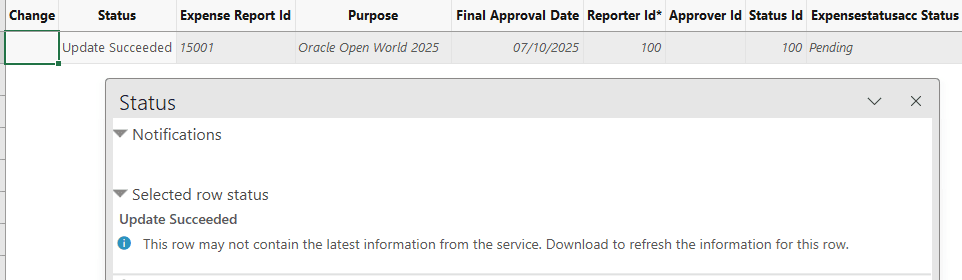
Description of the illustration vbafe-stale-row-update.png
For a row to be treated as stale, the following conditions must all be satisfied:
- Treat row as stale when the response does not contain updated field values checkbox is selected
- Create/Update/row-level custom action operation does not return updated field values in responses
- Response contains new ETag but new ETag is different from the ETag in the response for the Download operation or there are no ETag values