Use Macros in an Integrated Excel Workbook
You can configure macros that Oracle Visual Builder Add-in for Excel runs at specific points in the lifecycle of an integrated Excel workbook.
Use of this functionality requires you to use the Excel macro-enabled workbook type (.XLSM) and create your macros in a macro module. For more information about creating macros, see Microsoft documentation; describing how to create macros in an Excel workbook is outside the scope of this guide.
Some companies block the usage of Excel macros because they do not think macros are sufficiently secure. Consider your intended audience before you add a macro. You are also responsible for the security risks involved in using macros. So research the risks thoroughly before you deliver an integrated workbook to your customers. After creating a macro, take steps to protect the macro both from malicious and accidental alterations that might produce unexpected or harmful results. If a macro results in changes that are incompatible with the add-in or results in undesirable behavior, change the macro to avoid this behavior.
The Layout Designer’s Advanced tab provides two properties in the Macro Support section where you can specify macros: Post-download macro to run after download completes and Pre-upload macro to run before an upload begins. Provide your macro names as the values of these properties. For example, when you’ve created a Refresh macro that you want to run after download, enter Refresh as the value of the Post-download macro property.
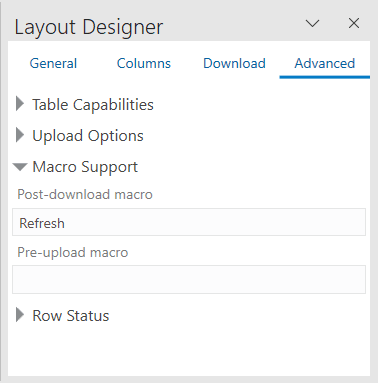
Description of the illustration excel-add-macros.png
Tip: Do not include the parentheses when specifying the name of the macro.
The macro that you specify for the Post-download macro property is not used if the user cancels download or in the event of an unexpected error. For Form-over-Table layouts, the post-download macro is not used if no form row is found, because the child table download is not run. The macro that you specify for the Pre-upload macro property is used just before an upload. If the macro returns any value other than true, the upload operation quits and a notification appears in the Status Viewer. If the macro returns true, upload proceeds normally. To return a true or false value from a macro, define a Boolean Function. See Microsoft documentation for details.
Here’s example logic of an IsUploadReady function for a Pre-Upload Macro:
Function IsUploadReady() As Boolean
   Dim returnVal As Boolean

   On Error GoTo ErrHandler:

   Dim table As Range
   Set table = Sheets("Sheet1").Range("TBL349543489")
   ' The named range, TBL349543489, is managed automatically by the add-in

   returnVal = True

   Dim cRows As Long
   cRows = table.Rows.Count
   Dim currentTableRow As Long
   Dim amount As Long
   For currentTableRow = 2 To cRows ' start with 2 to skip header row
      amount = table(currentTableRow, 10) ' Amount is the tenth column in the table
      If amount < 0 Then
         returnVal = False
         Debug.Print "Found negative amount = "; amount
      End If
   Next

   IsUploadReady = returnVal
   Exit Function

ErrHandler:
   Dim failureMessage As String
   failureMessage = Err.Description
   MsgBox failureMessage
   IsUploadReady = False
   Exit Function
End Function
When an error occurs during the execution of a macro, Excel displays a Microsoft Visual Basic window to the user. We recommend that you implement a robust error handling strategy so that the window displays a useful message to the user who encounters an error during macro execution. The following is a simplistic example. The appropriate error handling strategy for a given macro depends on the logic in the macro.
Sub Refresh()

   On Error GoTo ErrHandler:

   ActiveWorkbook.RefreshAll
   Exit Sub

ErrHandler:
   Dim failureMessage As String
   failureMessage = Err.Description
   MsgBox "Unable to refresh. Details: " & failureMessage
   Exit Sub
End Sub
Tip: The add-in creates and maintains named ranges for the data table. Your macros should never modify these named ranges. However, your macros can access the named range to locate the data table on a dynamic basis.
Notes on Macros
- Macro recording is incompatible with add-in features such as download and upload and is not supported. Do not attempt to record any add-in features. In some cases, you may see unexpected exceptions.
- Do not leave the Excel Visual Basic editor’s break mode on when you use Download Data or Upload Changes. It is not supported and can result in an unexpected exception.
- While the add-in runs either of the macros described in this topic, Excel events are disabled.