Understanding Data Validation
When you add a new row to a layout or enter a value in a cell, Oracle Visual Builder Add-in for Excel validates the cell’s content based on the configuration of the workbook.
The add-in determines whether:
-
A cell’s value is consistent with the expected data type.
For example, you can’t enter a word, say,
book, in a field that expects a number like2,000. -
A required cell is missing a value.
Required fields are designated by the workbook developer and must include a value for your changes to be uploaded successfully.
-
The value in a cell associated with a list of values is valid for that list.
Some lists depend on values in other fields. If a related field is missing or invalid, correct that value before choosing from the dependent list.
-
The value complies with field validation rules.
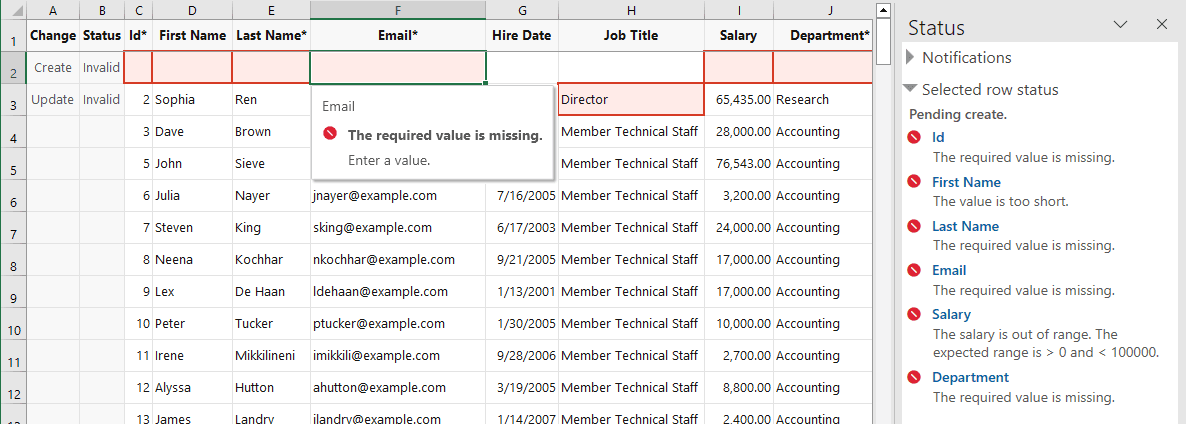
Your workbook may also include field validation rules that restrict the value you can enter into a cell. For example, you may have an Employee workbook where an employee’s salary must be more than 0 and less than $100,000. As with other data validation errors, a cell with an invalid value (in this case, a null value) is marked with a red border.
Description of the illustration data-validation1.png
To review data validation errors for a row, select the row and review the Selected row status area in the Status Viewer. Use the arrow to expand the area, if necessary.
For each selected row, the viewer lists the field or fields that caused a data validation error. The field title includes a hyperlink that you can use to jump to the cell with the error.
You can also select a cell with a red border to view a popup that provides a description of the error.
In this example, fields that require values display a message: “The required value is missing”. For the First Name field, the value is shorter than the minimum length configured for the field. As for the Salary field, the value provided (null) is outside the range set by a field validation rule.
You can also use the Previous Issue and Next Issue icons in the Oracle Visual Builder tab of the Excel ribbon to navigate from one issue to the next. See Review Data Validation and Upload Issues.
Validation occurs when you complete data entry in a cell; in other words, as soon as you enter or edit a value in a cell and move on to another cell or area. Validation also occurs at other key points:
- When a new row is added to the data table
- When the Create Form Row option is selected from the Form Changes menu
- At the beginning of an upload.