Download Selected Rows in a Table
Use Download Selected Rows when you want to refresh only specific rows that are already in a table.
This helps when you need updated values for a few rows and do not want to re-download the full table.
When to Use Download Selected Rows
Use Download Selected Rows when:
- the rows are already in the worksheet table
- you only need to refresh some rows
- you want a faster targeted refresh
Use Download Data when:
- you want to refresh the whole table
- you need to bring in rows that are not currently in the worksheet
Refresh Selected Rows
The Download Data split button includes the Download Selected Rows command.
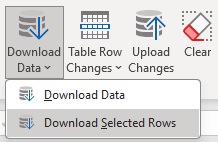
Description of the illustration download-split-button.png
- In the table, select one or more cells in the rows that you want to refresh.
- On the Oracle Visual Builder ribbon, open the Download Data split button.
- Click Download Selected Rows.
- If you see a warning about pending changes, choose whether to continue.
- When the refresh finishes, review the Status column and Status Viewer.
Understand the Result
After refresh, selected rows can show:
- Download Succeeded: The row was refreshed successfully.
- Download Failed: The row could not be refreshed. Check Status Viewer for details.
- Download Skipped: The row was intentionally skipped; for example, if it is a new unsaved row.
Important Behavior
- The command refreshes rows only in the currently active table.
- In Form-over-Table layouts, this applies to the table section (not the form section).
- If a filter is active, only visible selected rows are refreshed.
- The command refreshes existing rows only; it does not add new rows.
If the Command Is Unavailable or Nothing Refreshes
If Download Selected Rows is disabled or you see a no-rows-selected message:
- Make sure your selection is inside table data rows.
- In a Form-over-Table layout, make sure the form contains a current parent item. The command is unavailable when the form is empty.
- Avoid selecting entire worksheet columns.
- If needed, use Download Data for a full refresh.