Install Oracle Visual Builder Add-in for Excel
To install Oracle Visual Builder Add-in for Excel, download the Current User installer (vbafe-installer-current-user.msi) from the Oracle Downloads page and run the installer.
If any required software is missing, the installation terminates without installing the add-in. To check and resolve prerequisite issues, run the Client Health Check tool. This tool can also help identify missing components such as Microsoft Edge WebView2.
This installation is specific to the current Windows user profile. If multiple users on the same machine need the add-in, contact your IT administrator for the appropriate deployment method.
Note: Running both the All Users installer and the Current User installer on the same machine is not recommended. If you do install the add-in using both installers, Excel loads the add-in installed in the Program Files folder (“All Users”) and not the version in the current user’s Windows profile (“Current User”). If you decide to switch the installation type, the best practice is to uninstall the previous add-in installation type first to avoid confusion.
To install the add-in:
-
Quit Excel before you begin installation.
-
Double-click the
vbafe-installer-current-user.msifile that you downloaded previously to launch the installation wizard. -
To install the add-in without the available developer tools, click Developer Options and select Disabled.
Tip: If you need these tools after initial installation, re-run the installer, choose the option to repair your installation, and select Enabled.
-
Click Install to install the add-in. When the installation is complete, click Close.
-
Start Excel and open a new workbook.
A new Oracle Visual Builder ribbon tab appears with commands that help you download and manage data from a web application.

Description of the illustration ribbontab-user1.png
When you first run Excel after the current-user installation, you may be prompted to confirm the installation of the “Office customization”. This prompt generally appears the first time for each profile and whenever the digital certificate (used to sign the add-in) is changed.
Check for Updates
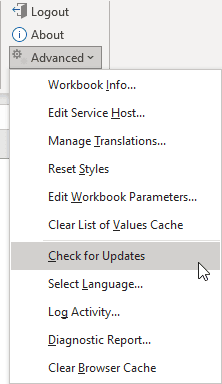
Oracle Visual Builder Add-in for Excel automatically checks for updates once per Excel session when the first integrated workbook is opened. If there is an update available, you are prompted to upgrade. You can also check for a newer version of the add-in using the Check for Updates command available from the Advanced menu. If there is a newer version, you can get the latest version of the add-in from the Downloads page.
If prompted to upgrade, you can choose to get the latest version right away or instead skip the upgrade.
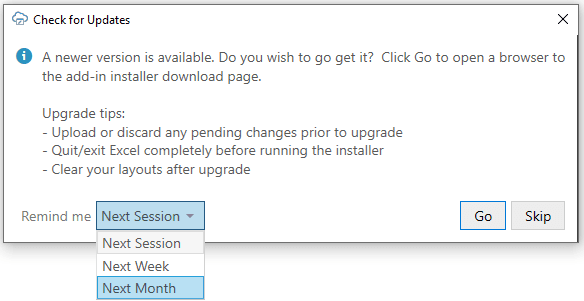
Description of the illustration addin-upgrade-prompt.png
If you choose to skip an upgrade, you’ll be reminded again based on the duration you set in the Remind me list. If you select “Next Session”, you’ll be prompted to upgrade when you next launch Excel and open an integrated workbook.
To check for an update manually:
-
From the Advanced menu in your existing installation, select Check for Updates.
- If a newer version is available, when prompted to open the downloads page in your browser, click Go.
- Download the installer for the latest version, then install the update. Before you update, be sure to review best practices as described in the previous section.
Upgrade to the Latest Version
To take advantage of all the latest Oracle Visual Builder Add-in for Excel features, make sure you are running an up-to-date version of the add-in. To upgrade to a new version, simply download and run the installer.
For recommendations on when to upgrade, follow your organization’s rollout policy and workbook compatibility requirements.
You do not need to uninstall the previous version unless the installer instructs you to do so.
To ensure a clean upgrade, follow these instructions when upgrading your installation.
- Before you upgrade the add-in:
- Upload any pending changes using the current add-in version.
- Save changes in open workbooks, then close Excel.
- Run the installer for the new version and follow the instructions in the wizard. The installer automatically replaces the previous version with the new version.
- After you upgrade:
- Launch Excel to complete any final installation steps.
- Open your integrated workbook.
- Clear any layouts of old data and download data again as required.