Manage Attachments
If your integrated workbook has an attachments table layout, you can upload and download attachments as well as perform standard create, edit, and delete functions.
Attachments are often associated with a parent business object. For example, an expense report may have one or more associated attachments representing receipts. For this reason, attachment table layouts are often a child layout in a hierarchy of layouts in a workbook. In our example, a form in a Form-over-Table may display the expense report header and the child table may list the associated attachments. Keep in mind that the attachment table could be located on a separate worksheet from its parent layout. See Manage Data in Form-over-Table Layouts and Manage Data for Multi-Level Business Objects.
Oracle Visual Builder Add-in for Excel supports attachments of file, text, and web page types. Unknown attachment types are treated as file type attachments.
Upload Attachments
You can add URLs, as well as text and file type attachments, to attachment records and upload them to the web application.
To upload a new or revised file or text attachment:
-
Select any field in a new or existing row to open the Attachment pop-up window.
-
From the pop-up window, click the Upload icon.
Attachment pop-up window
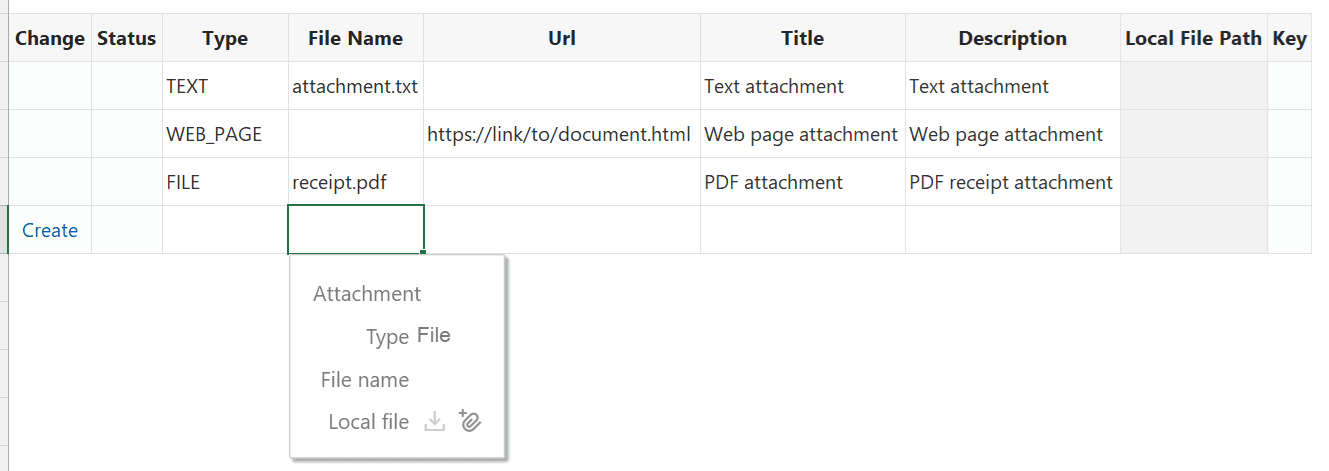
Note: The Upload icon is disabled when you select a field in a new row if Create is not enabled for the table layout. It is also disabled for an existing row if Update is not enabled.
-
From the Choose a File to Attach prompt, navigate to the location where the file is saved.
-
Select the file and click Open.
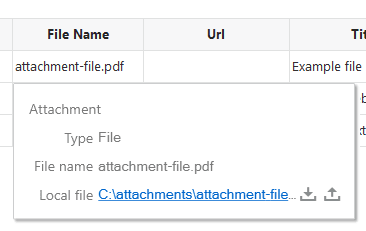
The local file path is displayed in the read-only Local File Path column. A link also appears in the pop-up. Use this link to show the local file in File Explorer.
-
For new files, specify the attachment type in the Type field.
The add-in recognizes
FILE,TEXT, andWEB_PAGEas valid values for this column to represent file, text, and web page type attachments respectively. These values are case sensitive.The Change column for the row displays a
CreateorUpdatemessage. The attachment is now pending upload. -
Click Upload Changes to upload the attachment.
To add or edit the URL for a web page:
-
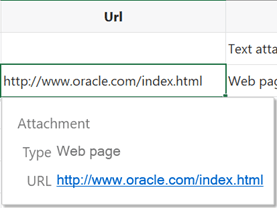
Type the URL directly into the Url field for a new or existing row.
-
For new URLs, type
WEB_PAGEin the Type field.The Attachment pop-up window is read-only in this case and provides a link for the current URL. The URL must be an absolute HTTP or HTTPS URL.
-
Click Upload Changes to upload the URL.
During upload:
- The attachment records are processed first without any attachment files. The upload of attachment records occurs just like any other table upload.
- For each successful row that has a pending file upload, the add-in attempts to upload the file. If the file can’t be found or read at the location in the Local File Path column, an error is reported for that row. If the upload of the given attachment record fails, the corresponding file upload is skipped.
- If the attachment record is marked for delete, any pending file change is ignored at upload time.
- If you don’t upload changes from the layout, the new attachments are never sent to the web application.
Download Attachments
To download an attachment:
-
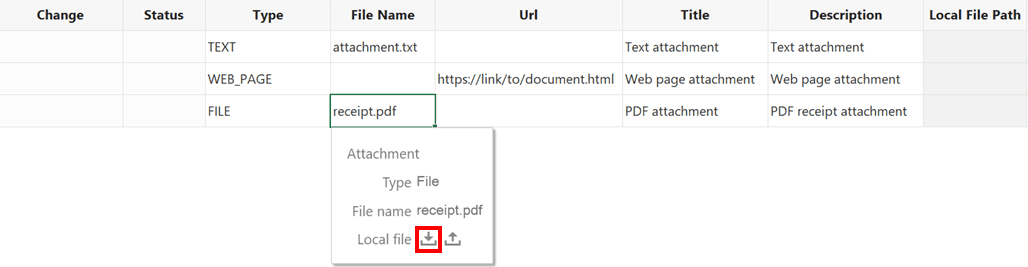
Select any field in a row with a file or text attachment to open the Attachment pop-up window.
-
From the pop-up window, click the Download icon to download a local copy of the attachment.
-
In the Save Attachment dialog, navigate to where you want to save the file and click Save.
After successful download, a link is provided in the attachment dialog to show the local file in File Explorer.
Limitations
- The only supported attachment types are file, text, and web page. Unknown attachment types are treated as file type attachments. The values for the attachment type file to specify each type are “FILE”, “TEXT”, and “WEB_PAGE” respectively. These values are case sensitive.
- The UI may appear to freeze during download for large attachment files.
- Manually editing the file path in the Local File Path column is not supported. Use the Attachment pop-up to specify the local file location.
- For some services, create may fail for text-based attachments. Ensuring all required attachment fields, such as the
Title, are present and resubmitting the record generally resolves this issue.