Change Your OCI Account
If you’re using the built-in free account or your own OCI paid account, you can switch to another OCI account any time and use the new account’s resources.
If you switch to an OCI paid account:
- Your current OCI account’s build executor templates and their metadata migrate to the new OCI account. For example, If you have 10 executor templates in your current OCI account, VB Studio creates the same number of executor templates with the same software in the new OCI account.
- Your current OCI account’s VM build executors and their metadata migrate to the new OCI account. For example, if you have 234 VM executors in your current OCI account, VB Studio creates the same number of VM executors of the same shape, VCN, and executor templates in the new OCI account.
- Your current OCI account’s Object Storage buckets do not migrate to the new account. The data in buckets may include build artifacts, Maven artifacts, NPM artifacts, and exported project data. (To migrate data in Object Storage, see Export and Import Project Data. But, if you were using your original OCI account solely to run CI/CD builds, you can skip this step.)
To switch from the built-in free account to your OCI paid account:
- In the Oracle Cloud Console, in the upper-left corner, click Navigation Menu
 .
. - Select Developer Services and then select Visual Builder Studio.
- On the Visual Builder Studio instances page, click the VB Studio instance’s name.
- On the instance details page, click Actions, then click Edit.
- Select the Yes, I authorize this checkbox.
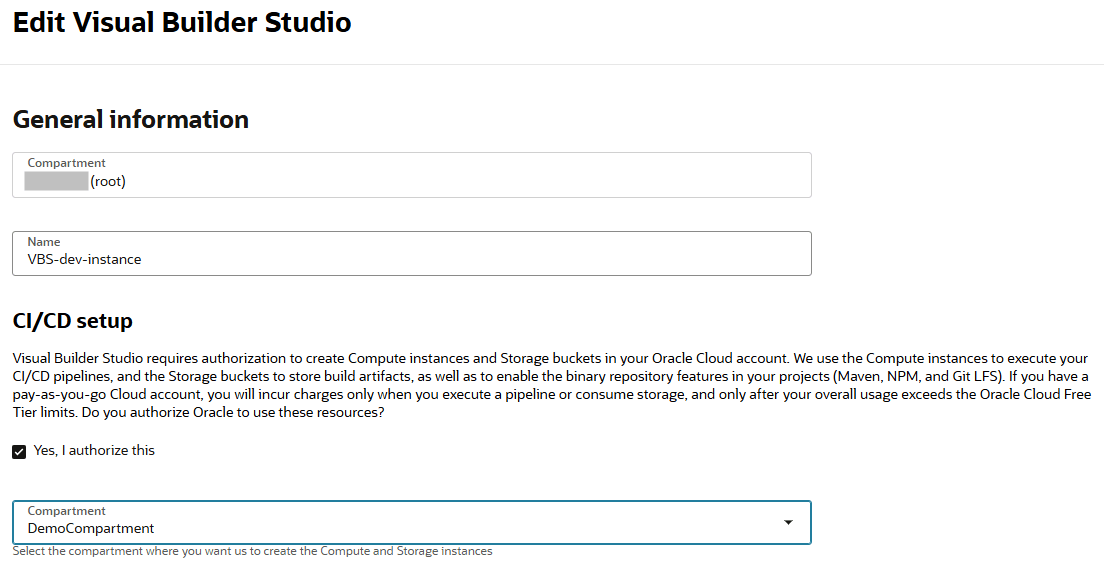
- Select the compartment to host your VB Studio resources.
- Click Save changes.
If you switch to the built-in free account from an OCI paid account, you’ll lose access to your current account’s executor templates and VM executors. Instead, you’ll get access to only one free VM build executor and the default executor template. You’ll also lose access to data in Object Storage, but again, if you were using your original OCI account solely to run CI/CD builds, you don’t need to worry about data migration.