Add Data to a Table or List
Use the Add Data Quick Start to populate a table or list in a page with data from a business object.
When a page with a collection component loads, a request to get data is automatically sent to an endpoint, and the response is mapped to the fields in the collection component. You will typically choose a data source that provides a GET MANY endpoint.
The Add Data Quick Start does the following for you.
-
The Quick Start automatically modifies the collection component to add the fields necessary to display the fields in the data source that you selected. Each field is mapped to the corresponding attribute of the variable bound to the component.
-
The Quick Start creates a variable that is bound to the collection component. For the business object
Contact, a new page-scoped variable namedcontactListSDPthat stores details about the endpoint, the request, and the response type. When the collection is selected on the canvas, you can see the variable bound to the component in the Data field of the Data tab of the Properties pane: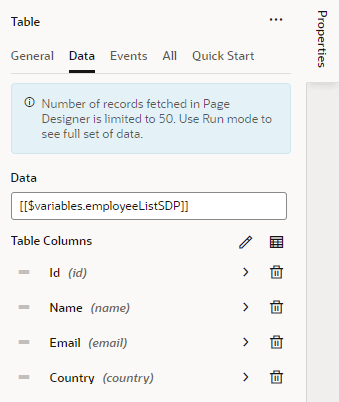
Description of the illustration page-collection-data-variable.png
You can see the details of the new variable if you open the Variables editor of the page. In the General tab of the Properties pane, you can see the ID of the variable, the type, and the endpoint that is called. The variable’s type is
Service Data Provider, a specific type that is designed for variables that are used to send a request to an endpoint.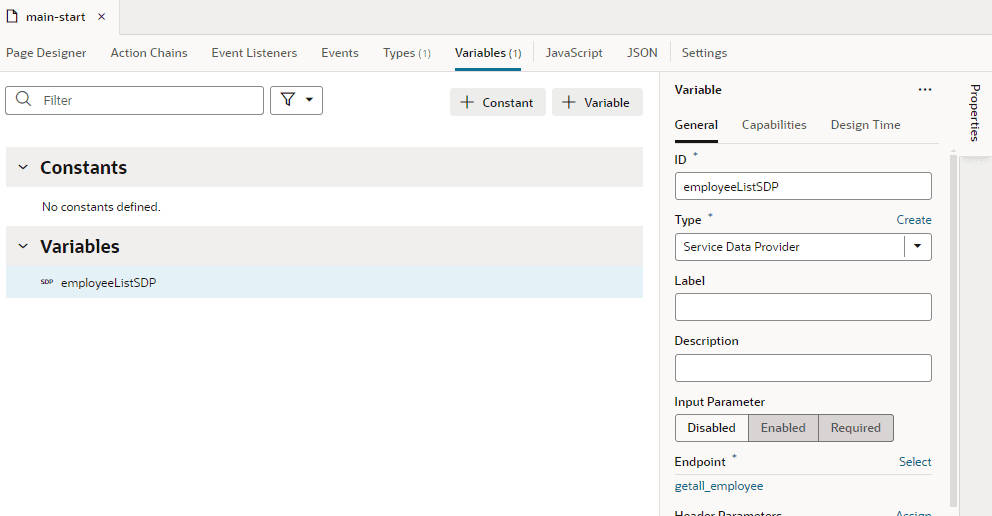
Description of the illustration var-page-servicedata-general.png
-
The Quick Start creates a page-scoped type that describes the data structure of the response. The fields in the response are mapped to the field in the component. When you select the new variable in the Variables editor, in the Properties pane you can see that the type for the response is a new custom type named
getallContactResponse. The data structure defined by the type is based on the fields in the endpoint that you selected in the Quick Start.The new custom type is added to the list of types available in the page. You can see the details of the new type in the Types tab of the page’s Types editor.
Use the Add Data Quick Start
To use the Quick Start, you must first add an endpoint for a service connection or business object to your visual application. After adding the endpoint, you can step through the Add Data Quick Start to quickly create the artifacts needed to bind a table or list to the endpoint. The Quick Start will create a page variable for storing the data and a custom type that defines the data structure of the response to the request.
To bind an endpoint to a collection component:
-
Drag a table or list component from the palette onto the canvas.
-
Select the component and click Add Data in the list of Quick Starts.
-
Select the data source that you want to bind to the collection. Click** Next**.
-
Select the fields you want to add from the Endpoint Structure. (You can also drag the fields you want from the Endpoint Structure on the left onto the Fields pane in the middle).
If you are binding data to a List component, you select a list template before binding the data from the endpoint to the fields.
-
Select the field to use as the Primary Key. Typically this is the
Idfield. Click** Next**. -
Define the parameters for querying the endpoint. Click Finish.
The collection is now bound to the endpoint you selected.